If you're trying to use Confluence with ChatGPT, the real question usually isn't "can these two technically work together?" It's how to make ChatGPT useful inside a Confluence workflow without getting vague, generic output back.
That's the useful framing.
ChatGPT is strongest when you give it the right context, a clear job, and a structured output format. Confluence brings the operational context. When the two are used well together, you get faster triage, better summaries, cleaner drafts, and more consistent decisions.
Atlassian's Official ChatGPT Connector: Confluence Meets GPT
In December 2025, Atlassian launched the Rovo MCP Connector for ChatGPT — an official, native bridge that gives ChatGPT live access to your Confluence spaces and Jira projects. This is not a third-party marketplace plugin, not a Zapier workaround, not a manual copy-paste flow. It's Atlassian's own infrastructure, built on their official Model Context Protocol (MCP) server.
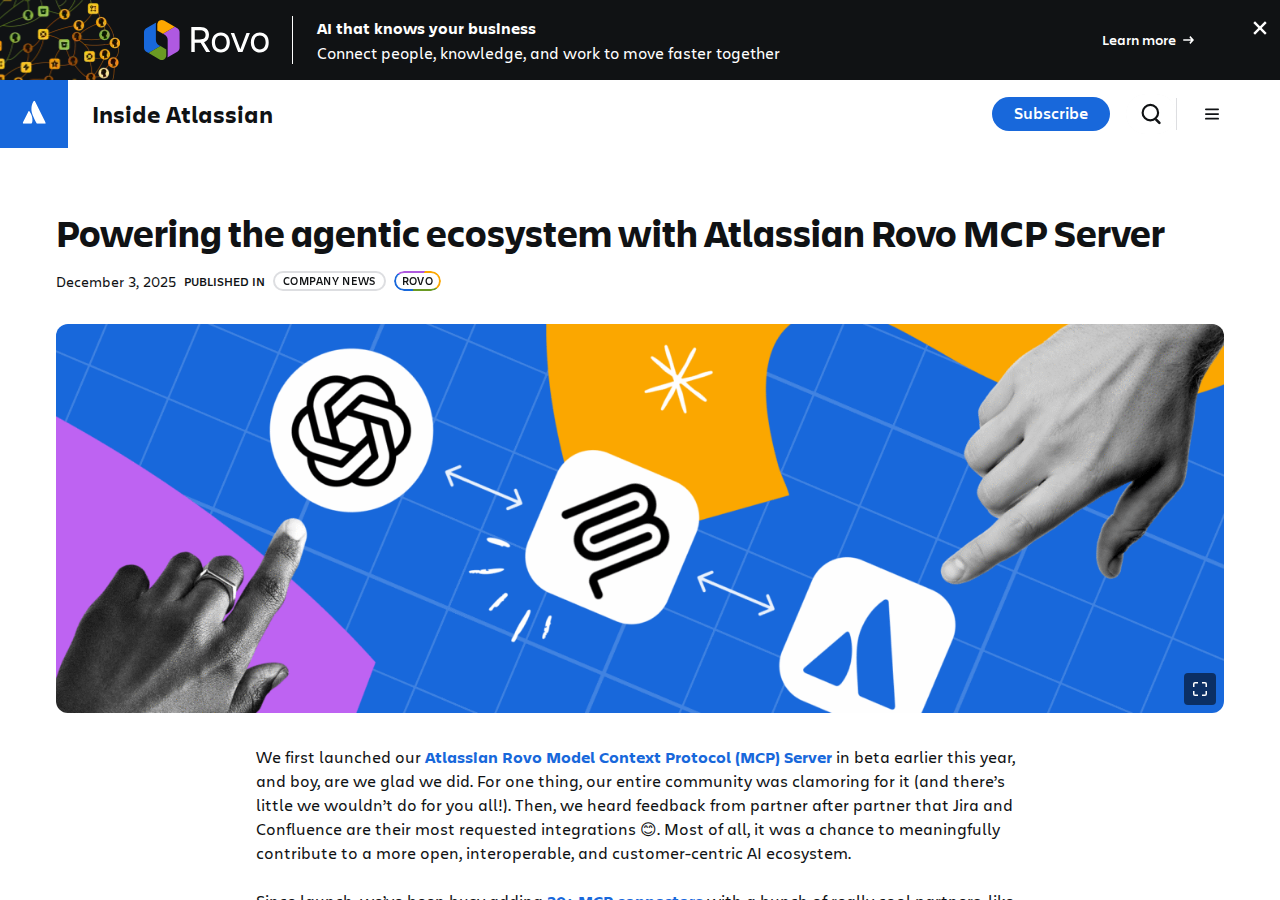
The connector is available in ChatGPT today through the Apps menu. It covers Confluence, Jira, Jira Service Management, Bitbucket, and Compass — all through one unified MCP server, one OAuth consent screen, and one set of admin controls.
How It Works: The Atlassian Rovo MCP Server
The connector is powered by Atlassian's official MCP server, hosted on GitHub at github.com/atlassian/atlassian-mcp-server. The server acts as a cloud-hosted bridge:
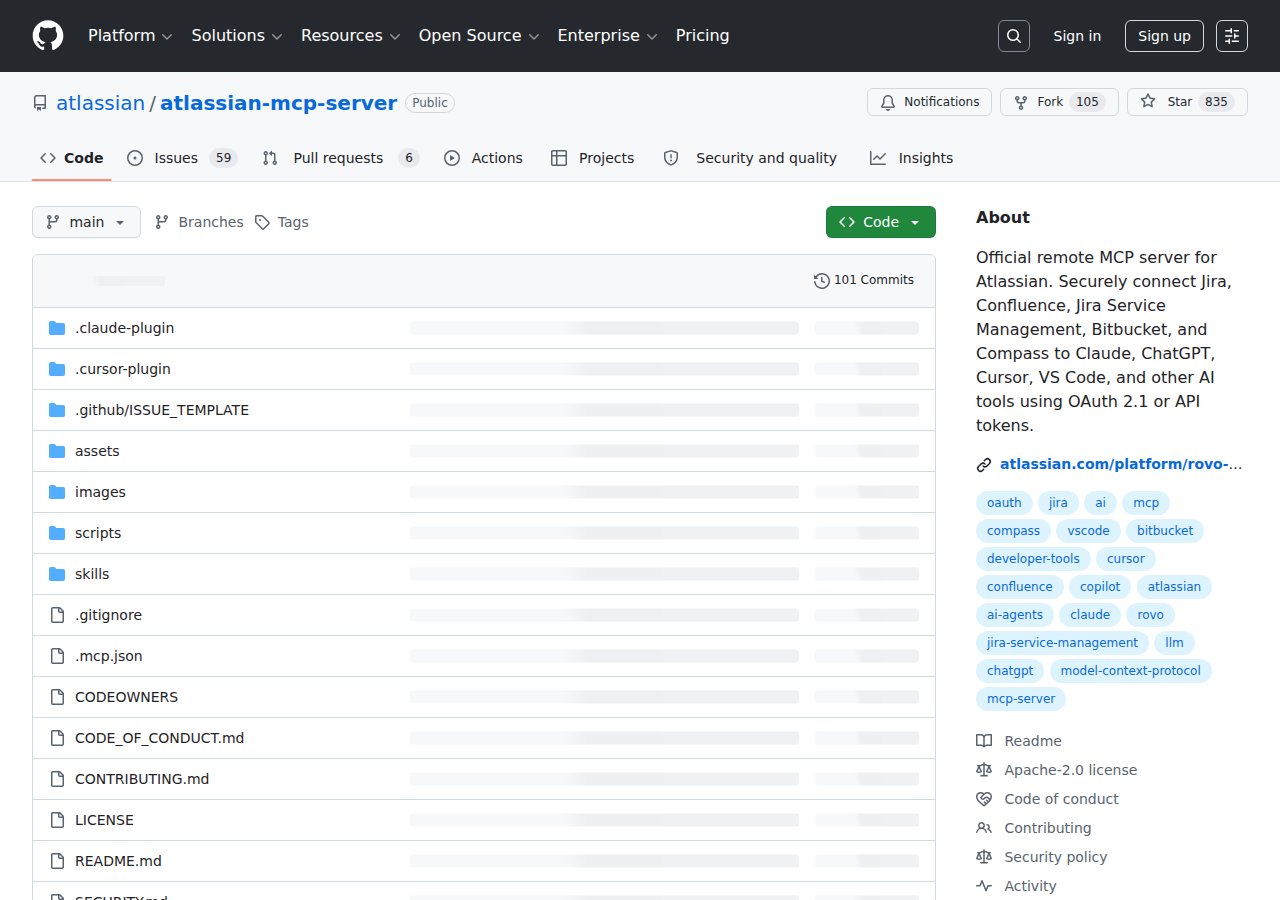
- Authentication: You authorize ChatGPT via OAuth 2.1 — same Atlassian login, same permissions. No API tokens to copy-paste or rotate.
- Permission-layer respect: ChatGPT sees only the Confluence spaces and pages your Atlassian account can access. If you can't see the HR space, ChatGPT can't either.
- Live data, not stale exports: ChatGPT queries Confluence in real-time via the MCP server. It doesn't rely on a one-time export or a pre-indexed knowledge base.
- 20+ MCP connectors: Beyond the native Atlassian tools, the Rovo MCP server also connects to Figma, HubSpot, Lovable, and other partners — so ChatGPT can reason across Confluence docs, Jira tickets, and design files in one conversation.
Security note for admins: Atlassian provides audit logs with full tool invocation tracking, a supported-domains allowlist (so you control which MCP clients can connect), and OAuth-based access that respects all existing Atlassian permission controls. Your data is never used for model training.
Setting Up the Confluence ChatGPT Connector (Step by Step)
1. Enable the Atlassian Rovo MCP Connector in ChatGPT
Open ChatGPT → Settings → Apps. Find "Atlassian" in the app directory. Click Connect.
2. Authorize via OAuth
You'll be redirected to Atlassian's OAuth consent screen. Log in with your Atlassian Cloud account (the same one you use for Confluence). Review which Confluence spaces ChatGPT will have access to. Pro tip: If you only use ChatGPT for team documentation, grant access only to the relevant Confluence spaces — not your entire Atlassian instance.
3. Set Up Admin Controls (for org admins)
Atlassian org admins can configure a supported-domains allowlist to restrict which MCP clients can connect, enable audit logging to track every tool invocation (who read which Confluence page via ChatGPT, when, and from where), and manage OAuth consent requirements across the organization. Do this BEFORE rolling out the connector to the team.
4. Start Using It
Once connected, you can query Confluence directly from ChatGPT. Ask things like:
- "Summarize the Q3 project retro from our Engineering space"
- "What's our remote work policy? Show me the relevant Confluence page."
- "Search Confluence for our incident response runbook and tell me the escalation steps"
- "Compare the architecture decisions in ADR-014 and ADR-023 from our Docs space"
ChatGPT will pull the actual Confluence content, cite the page names and spaces, and let you drill deeper with follow-up questions.
What You CAN Do with Confluence + ChatGPT
✅ Find the Right Page Without Digging Through Spaces
Ask in natural language: "What's our data retention policy for customer PII?" ChatGPT searches across your Confluence spaces, finds the relevant page, and summarizes it — with a link to the source so you can verify the answer.
✅ Summarize Meeting Notes and Decision Logs
Point ChatGPT at a Confluence page full of meeting notes: "Summarize the key decisions from the last 3 Product Review pages and list action items with owners." It reads the pages, extracts what matters, and formats it cleanly.
✅ Onboard New Team Members Faster
A new hire asks ChatGPT: "What are the key pages I need to read to understand our deployment process?" ChatGPT searches your Confluence spaces for runbooks, ADRs, and onboarding docs, then returns a prioritized reading list with page links.
✅ Bridge Confluence and Jira Context
Because the same MCP connector covers both Confluence and Jira, you can ask ChatGPT to reason across both: "Look at the incident postmortem in Confluence for INC-4521 and the related Jira tickets. Did all the action items from the postmortem get created as Jira issues?" This cross-tool reasoning is the killer feature — no other connector does Confluence + Jira in one session.
✅ Draft Documentation from Conversations
Describe a process, decision, or policy in ChatGPT, then say: "Turn this into a Confluence page draft in the Engineering space, using our standard decision-record format." ChatGPT creates a structured Confluence page with the right headings, sections, and formatting.
What You CANNOT Do (Current Limitations as of July 2026)
❌ No Writeback to Confluence Pages (Yet)
Unlike the Jira connector — which supports creating and updating issues — the Confluence connector is read-only as of mid-2026. You can read, search, and summarize Confluence content, but you can't create new pages or edit existing ones from ChatGPT. Atlassian has indicated writeback support is on the roadmap, but for now, you'll draft in ChatGPT and manually paste into Confluence (or use a marketplace app that supports page creation).
❌ Atlassian Document Format (ADF) Can Confuse the AI
Confluence stores pages in Atlassian Document Format — a JSON schema with nested nodes for text, tables, images, macros, and embeds. ChatGPT handles plain text beautifully, but complex ADF pages (with inline macros, embedded Jira issues, or heavily formatted tables) can produce garbled or incomplete summaries. Simple text-heavy pages work best.
❌ Space-Level Permissions Are Strictly Enforced
If your Confluence account can't access the "Executive Planning" space because it's restricted to leadership, ChatGPT can't either — even if ChatGPT's OAuth token is for a different user with broader access. The connector binds to YOUR Atlassian user account, not a service account. This is good for security but means you can't use ChatGPT as a "super-user" that sees everything.
❌ Page Version History Is Not Exposed
ChatGPT can only read the current version of a Confluence page. If you want to compare what changed between two versions, see who edited a specific section, or recover content from an old revision, you'll need to do that in Confluence's native interface first.
❌ No Bulk Operations
ChatGPT can summarize 5 Confluence pages in one query, but it can't "search all spaces and extract every mention of GDPR across 500 pages." Each query works within a conversation context — for large-scale content audits, use the Confluence REST API or a purpose-built tool.
Five Ways to Connect Confluence to ChatGPT (Ranked)
1. Atlassian Rovo MCP Connector (Best — Official)
The native, official way. Uses Atlassian's own MCP server. Available in ChatGPT's Apps menu. OAuth 2.1, audit logs, admin allowlists. Covers Confluence + Jira + Bitbucket + Compass in one connection. This is the path you want — zero maintenance, zero middleware, Atlassian-supported.
2. Atlassian Rovo (Built-in AI)
Atlassian's own AI assistant, Rovo, is built directly into Confluence's interface. It doesn't require ChatGPT at all — it natively understands your Confluence spaces, can summarize pages, generate content, and answer questions from within Confluence itself. Best for: teams that want AI directly in their Atlassian workflow without leaving Confluence. Limitation: Rovo only works with Atlassian tools; it can't reason across Confluence + Notion + Google Docs like ChatGPT can.
3. ChatGPT Connector for Confluence (Marketplace App)
A third-party marketplace app (~$0.50/user/month) that adds a ChatGPT side panel directly inside Confluence pages. It can summarize, translate, and generate content inline. Best for: content authors who want AI assistance while writing Confluence pages. Limitation: it's one-directional — it brings ChatGPT into Confluence, not Confluence data into ChatGPT.
4. Zapier / Make (Automation Workaround)
Build Zaps or scenarios that trigger on Confluence events (page published, page updated) → send to ChatGPT via API → write response to Slack, email, or a Confluence comment. Works for event-driven workflows but requires API key management and ongoing maintenance. Good for: "When a new incident postmortem is published, ask ChatGPT to extract action items and post them to the #eng-ops Slack channel."
5. Custom API Integration (Developer Path)
Build your own middleware using the Confluence Cloud REST API + OpenAI's API. Full control over prompts, context injection, and output handling. Good for: teams that need specific behavior (e.g., "scan all pages tagged 'compliance' and flag anything that mentions an outdated regulation").
Real Confluence + ChatGPT Use Cases
1. The "Where Is That Doc?" Problem
The problem: A support engineer needs the incident response runbook. They search Confluence, find 6 pages with "incident response" in the title, open 4 of them, none is the right one. 12 minutes wasted.
With ChatGPT + Confluence: They type: "I need the incident response escalation procedure for production database failures." ChatGPT searches across spaces, finds the exact runbook, and returns the escalation steps with a link to the source page. 30 seconds.
2. Architecture Decision Record (ADR) Review
The problem: Before proposing a new microservice, a developer needs to review all past ADRs about service boundaries and database sharding. They manually hunt through the ADR space, reading 15 documents over 2 hours.
With ChatGPT + Confluence: They ask: "Summarize all Architecture Decision Records related to service boundaries and database sharding. What patterns did we commit to? Were any decisions reversed?" ChatGPT reads the relevant ADRs and produces a structured summary in 2 minutes, with citations to each decision.
3. Pre-Meeting Brief in 60 Seconds
The problem: You have a QBR (quarterly business review) in 15 minutes. You need to refresh on the decisions from the last QBR, the current project statuses, and any open risks — spread across 4 Confluence spaces.
With ChatGPT + Confluence: Ask: "Give me a 5-minute pre-read for the Q3 QBR. Pull the decisions from the last QBR meeting notes, the status of all projects tagged 'Q3-OKR', and any risks flagged in the risk register." ChatGPT synthesizes a brief with page references you can click through to verify.
4. Policy Compliance Check
The problem: Legal asks if your team's Confluence docs reference any deprecated data-handling procedures. Manually checking 200+ pages would take days.
With ChatGPT + Confluence: Ask: "Search our Confluence for any pages that reference GDPR data retention periods shorter than 7 years, or mention the old 'Safe Harbor' framework." ChatGPT flags the specific pages and the relevant excerpts. A compliance check that would take hours now takes 5 minutes (but always have a human verify — ChatGPT can miss nuances in legal language).
Common Pitfalls When Connecting Confluence to ChatGPT
1. The "Space Amnesia" Problem
ChatGPT's Confluence connector doesn't remember which spaces you've searched across in previous conversations. If you were looking at Engineering docs in your last message and ask "Show me more about that," ChatGPT may search across ALL your spaces instead of just Engineering. Always include the space name in follow-up queries. Instead of "Tell me more about that deployment process," say "Tell me more about the deployment process from the Engineering space."
2. Page Hierarchy Confusion
Confluence organizes pages in parent-child hierarchies. A page titled "Deployment" might exist under Engineering > Infrastructure > Deployment, and a different "Deployment" page might exist under Product > Releases > Deployment. ChatGPT can find both, but if you're vague about which one you want, it might return the wrong one. Be specific: "Show me the Deployment page from the Engineering → Infrastructure space."
3. Tables and Macros Don't Summarize Well
Confluence pages heavy on Jira issue macros, roadmap planners, embedded draw.io diagrams, or complicated tables produce unreliable ChatGPT summaries. ChatGPT sees the raw ADF JSON, and macros often render as garbled or missing data. Before asking ChatGPT to summarize a page, check if it's mostly text or mostly macros. Text-heavy pages (meeting notes, ADRs, policies) work great. Macro-heavy pages (status dashboards, embedded reports) work poorly.
4. The "Permission Blind Spot" That Catches Teams Off Guard
A team lead authorizes the ChatGPT connector thinking their reports can now search all of Confluence. But each user only sees what their own Atlassian account can see. A junior developer connected to ChatGPT won't see the Executive Strategy space, roadmap documents, or HR policies. Communicate this clearly: the connector is per-user, not org-wide. Plan who connects based on what Confluence access they need.
5. Confluence ≠ A General Knowledge Base
If your team only stores 30% of its documentation in Confluence — with the rest in Google Docs, Notion, Slack threads, and GitHub wikis — ChatGPT's Confluence connector will only see the Confluence 30%. You'll get confident-sounding but incomplete answers. The MCP connector is as good as your Confluence adoption. If your Confluence is a graveyard of outdated pages, ChatGPT will happily summarize outdated information. Clean up your spaces before connecting AI.
6. The CQL Learning Curve (for Custom Integrations)
If you go the custom API route (path #5), you'll need to write Confluence Query Language (CQL) to search effectively. CQL looks like SQL but has Confluence-specific quirks: space = ENG AND type = page AND title ~ "runbook" AND lastModified > now("-30d"). ChatGPT can generate CQL reasonably well, but it's not always syntactically correct, especially for complex queries with nested AND/OR logic and label filters. Expect to iterate.
Atlassian Rovo MCP Connector vs. Other Approaches
| Approach | Setup Time | Maintenance | Confluence Access | Jira Access | Best For |
|---|---|---|---|---|---|
| Atlassian Rovo MCP (ChatGPT native) | 2 minutes | None | Read-only search + summaries | Read + Write (create/edit issues) | Teams on Atlassian Cloud who want ChatGPT to reason across docs + tickets |
| Atlassian Rovo (built-in) | Instant | None | Full (search, generate, summarize) | Full | Teams that want AI inside Confluence itself, not in ChatGPT |
| Marketplace ChatGPT apps | 5 minutes | Minimal | Inline ChatGPT in Confluence editor | None | Content authors writing/reviewing in Confluence |
| Zapier/Make automations | 30-60 min | Ongoing | Event-triggered only | Event-triggered only | Specific workflow automations (e.g., "summarize new pages") |
| Custom API integration | 2-4 hours | Significant | Full REST API | Full REST API | Teams with custom requirements no off-the-shelf tool covers |
For most teams in 2026, the Atlassian Rovo MCP Connector is the clear starting point. It's free (no additional cost beyond your Atlassian Cloud plan), takes 2 minutes to set up, and covers the most common use case: searching and summarizing Confluence content with ChatGPT's reasoning capabilities. The main catch is that Confluence access is read-only — you can't create or edit pages from ChatGPT (yet).
Related Confluence Pages on Cody
- Confluence AI Automation — AI-powered workflows for wiki search, ADR summaries, runbook lookup, and documentation handoffs from Slack
- Cody AI Assistant for Confluence — Cody's dedicated Confluence integration features
- Connect Confluence to OpenClaw — Complete DIY integration guide with Atlassian API token setup and proxy configuration
- How to Use Jira with ChatGPT — Our guide to the Jira side of the same Atlassian MCP connector
What "Confluence with ChatGPT" Usually Means
In practice, teams tend to use ChatGPT with Confluence in one of four ways:
- Summarising activity, records, conversations, or changes from Confluence
- Classifying items such as tickets, leads, tasks, issues, or opportunities
- Drafting replies, updates, reports, documentation, or next steps
- Reasoning over context to suggest priorities, actions, or likely issues
The key is to avoid treating ChatGPT like magic. It needs the relevant Confluence context in the prompt - and it works best when you tell it exactly what good output looks like.
Good Use Cases for Confluence + ChatGPT
1. Turn raw Confluence context into a useful summary
Paste or pipe in the relevant records, notes, messages, or metrics from Confluence, then ask ChatGPT to extract only what matters: key changes, risks, blockers, patterns, or action items.
2. Standardise messy workflows
If your team handles similar decisions repeatedly inside Confluence, ChatGPT can apply the same rubric every time: classify, explain briefly, and return a structured next step.
3. Draft faster without starting from zero
Use ChatGPT to produce first drafts grounded in the Confluence context - support replies, internal updates, status summaries, sales follow-ups, or operating notes.
4. Create reusable prompt-driven operating procedures
Once you find a prompt that works well for Confluence, save it as a repeatable workflow so the whole team gets more consistent output.
A Simple Setup Pattern
A practical way to use ChatGPT with Confluence looks like this:
- Pull the right context from Confluence
- Give ChatGPT one clear task
- Ask for a structured response
- Have a human review anything customer-facing or high-risk
That last point matters. ChatGPT is useful for acceleration, but for anything sensitive - customer communication, financial interpretation, account changes, or production actions - keep a human in the loop.
Copy-Paste Prompts for Confluence
Summary prompt
You are helping me work inside Confluence. Summarise the context below into 5 bullets: what changed, what matters, what is blocked, and what needs action next. If anything is unclear, say what is missing.
Classification prompt
Review this Confluence item and classify it into the best category. Return JSON with: category, confidence, rationale, and next_action. Keep rationale under 50 words.
Drafting prompt
Use the Confluence context below to draft a concise response. Keep it specific, avoid made-up details, and list any assumptions separately.
Executive brief prompt
Turn this Confluence activity into a short update for leadership: what happened, why it matters, current risks, and recommended next steps.
Where This Breaks Down
Most Confluence + ChatGPT workflows fail for predictable reasons:
- Too little real context is provided
- The prompt asks for too many things at once
- The output format is vague
- The team expects ChatGPT to know live Confluence data it has not actually been given
- No review step exists for important actions
The fix is usually simple: give better source context, narrow the task, and require a schema or fixed structure in the response.
If You Want This Embedded in the Workflow
You can absolutely use ChatGPT manually with exported Confluence context. That works well for one-off tasks and prototyping.
But if you want the workflow to feel operational - available to the team, connected to live systems, repeatable, and embedded where work already happens - you usually want something more integrated.
Want Confluence-Style Workflows Without Manual Prompt Copy-Paste?
Cody gives your team a Confluence assistant in Slack, so people can find runbooks, summarise ADRs, review documentation context, and get the right wiki answer without digging through Confluence manually.
Related ChatGPT Guides
Need a more automation-focused angle instead? See: Confluence AI Automation.
More Confluence + AI Resources
- Cody AI Assistant for Confluence — Cody's dedicated Confluence integration features
- Connect Confluence to OpenClaw — complete DIY integration guide