If you're trying to use GitHub with ChatGPT, the real question usually isn't "can these two technically work together?" It's how to make ChatGPT useful inside a GitHub workflow without getting vague, generic output back.
That's the useful framing.
ChatGPT is strongest when you give it the right context, a clear job, and a structured output format. GitHub brings the operational context. When the two are used well together, you get faster triage, better summaries, cleaner drafts, and more consistent decisions.
The Official ChatGPT GitHub App: Native Integration
OpenAI added GitHub as a first-party connector (now called an "App") in ChatGPT. This isn't a third-party plugin or a hack — it's the official way to connect your GitHub repositories directly to ChatGPT for analysis, search, and citation.
What the Native GitHub Connector Does
Once you connect GitHub in ChatGPT (Settings → Apps → GitHub), you can:
- Search repositories — Ask ChatGPT to find specific code, issues, or PRs across repos you have access to. It searches your authorized repositories directly.
- Analyze code and cite changes — ChatGPT can reference specific files, commits, and lines as evidence in its answers, with direct links back to GitHub.
- Review pull requests — Paste a PR number and ChatGPT reads the diff, comments, and review history to give you an intelligent summary.
- Triage issues — Ask "What are the 3 most critical open issues in this repo?" and ChatGPT reads labels, comments, and activity to prioritize.
Note: Connectors require a ChatGPT Plus, Team, Enterprise, or Edu plan. Free-tier users don't have access. The feature is also not available in the EEA, Switzerland, or the UK due to data processing restrictions.
Setting It Up (Under 5 Minutes)
- Open ChatGPT and go to Settings → Apps (or click the apps icon in the sidebar)
- Select GitHub from the list of available apps
- Authorize ChatGPT to access your repositories — you choose which orgs/repos to grant access to
- Start a new chat and reference your repos: "Find the authentication middleware in my api-server repo and explain how it validates tokens"
ChatGPT uses keyword-based search, not semantic search, for connected apps. This means you need to know roughly where information lives — repo name, file path, or issue title — to get useful results. If you search for "login bug" but the issue is titled "Auth redirect fails on timeout," ChatGPT might miss it.
The Official GitHub MCP Server: Full API Power
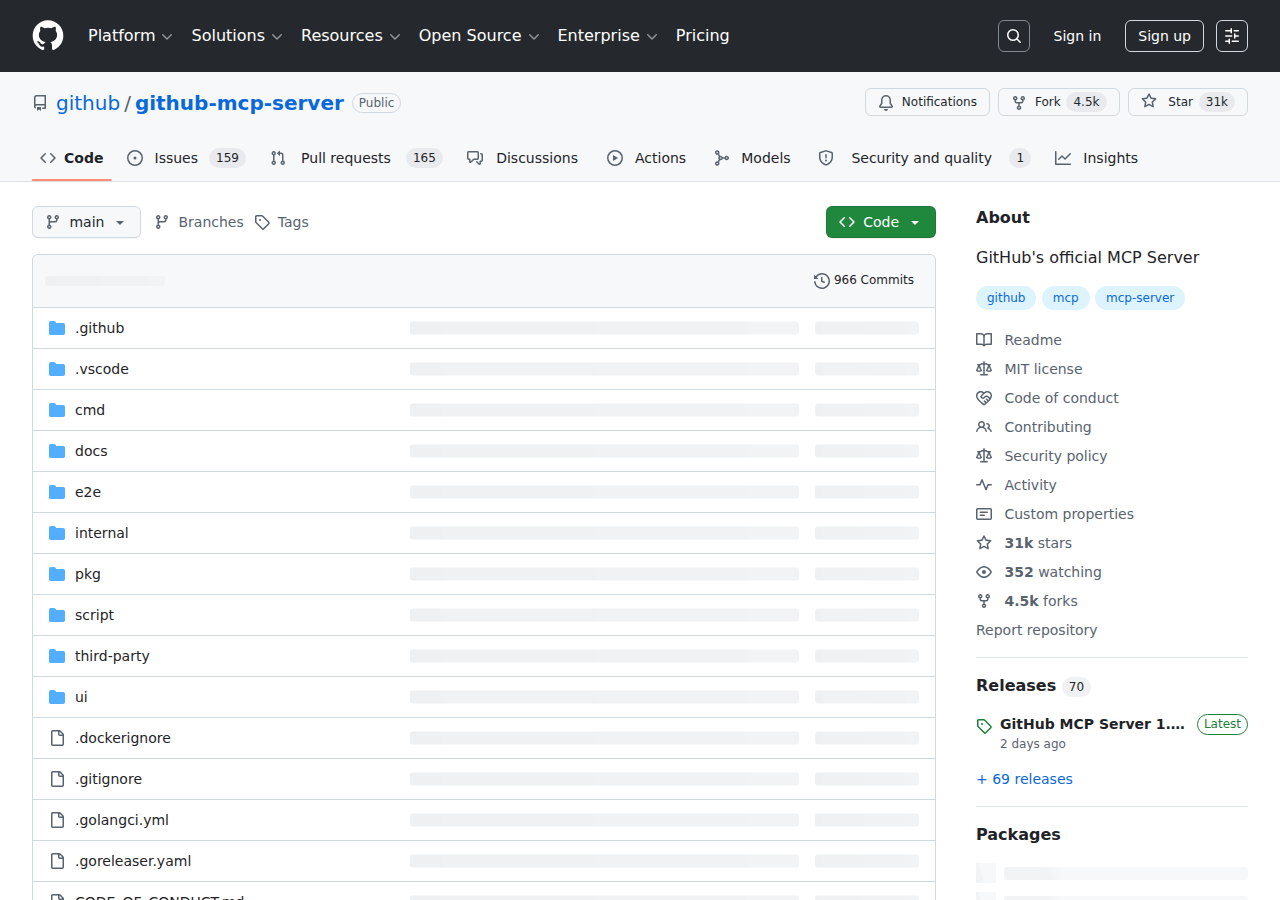
If the native connector feels limited (keyword search only, no write access), the official GitHub MCP Server is the next step up. It's maintained by GitHub itself at github.com/github/github-mcp-server and provides a full Model Context Protocol interface to GitHub's platform — issues, PRs, code, CI/CD, security advisories, and more.
Remote Server (Easiest Path)
GitHub now hosts a remote MCP server at https://api.githubcopilot.com/mcp/. If your MCP host supports remote servers (VS Code 1.101+, Claude Desktop, Cursor, Windsurf), you can connect with a single config block:
{
  "servers": {
    "github": {
      "type": "http",
      "url": "https://api.githubcopilot.com/mcp/"
    }
  }
}
This gives your AI assistant access to repositories, issues, pull requests, Actions workflows, Dependabot alerts, and repository search — all through natural language.
Tools Available Through the MCP Server
The GitHub MCP server exposes a rich set of capabilities:
| Capability | What You Can Do |
|---|---|
| Repository management | Browse code, search files, analyze commits, understand project structure |
| Issue & PR automation | Create/update/manage issues and PRs, triage bugs, review code changes |
| CI/CD intelligence | Monitor Actions runs, analyze build failures, manage releases |
| Code analysis | Examine security findings, Dependabot alerts, code patterns |
| Team collaboration | Access discussions, manage notifications, analyze activity |
GitHub Enterprise support: The remote server also works with GitHub Enterprise Cloud via
https://copilot-api.<your-ghe>.ghe.com/mcp. Enterprise Server requires running the local MCP server.
Third-Party Path: Windsor.ai GitHub MCP Connector
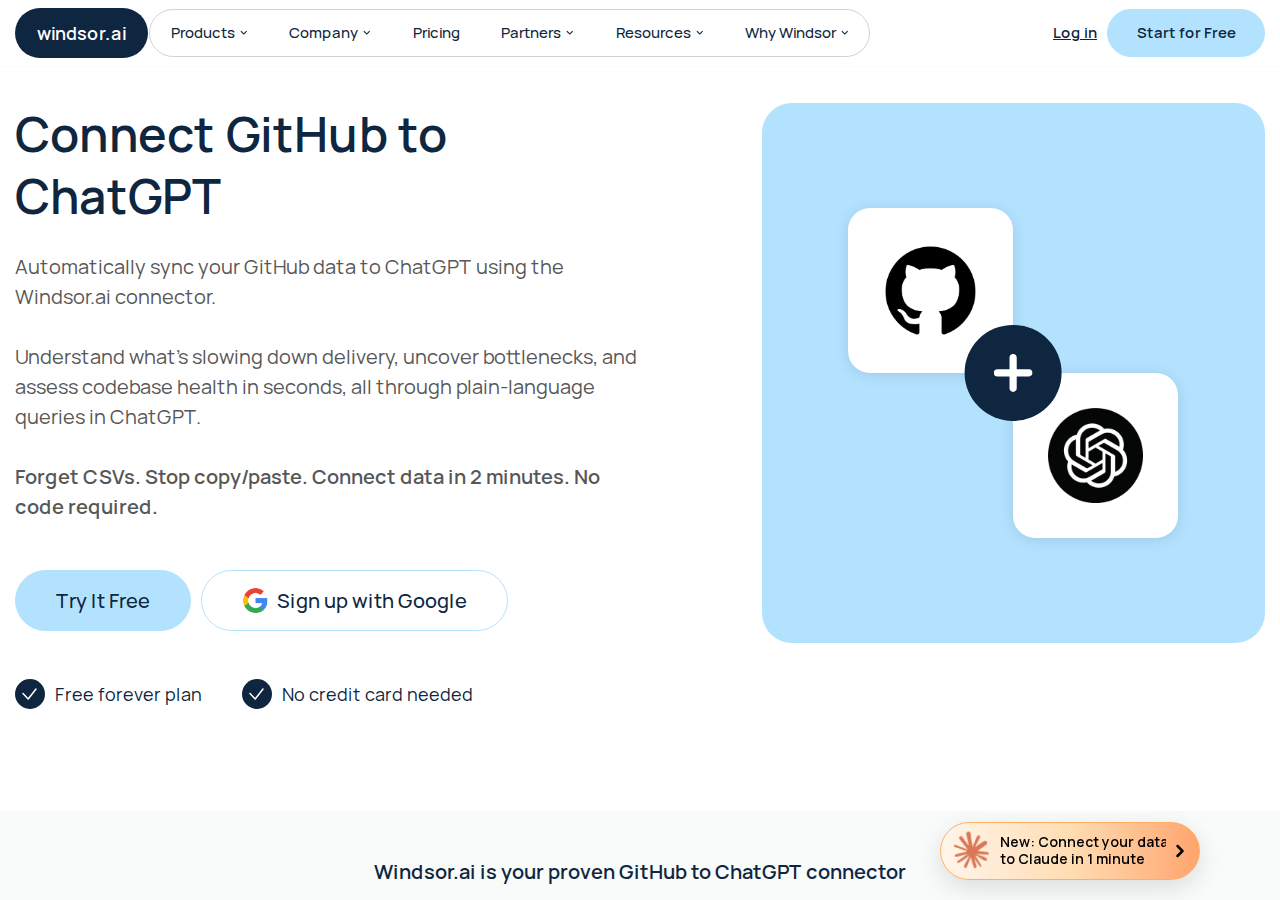
If you want a no-code option that focuses on metrics and delivery analytics rather than raw API access, Windsor.ai has a dedicated GitHub-to-ChatGPT MCP connector.
What Windsor.ai Adds
The Windsor connector streams 95+ metrics and 600+ dimensions of GitHub data into ChatGPT, going beyond what the native app or MCP server provides:
- Delivery analytics: Time-to-merge (lead time), PR cycle time, review turnaround times
- Team velocity: Commits per contributor, PR volume trends, issue resolution speed
- Bottleneck detection: Identify repos/teams where PRs stall, flag stale branches
- Release note generation: Prompt ChatGPT to group merged PRs by theme and auto-generate structured release notes
Example Prompt with Windsor.ai
"Analyze the time it takes for a task to go from 'started' to 'fully merged' over the last 90 days. Identify if our turnaround time is getting faster or slower, and point out any specific weeks where we saw significant delays."
Windsor.ai has a free plan (no credit card) and paid plans from $19/month. It's read-only — it can analyze your GitHub data but cannot modify code, push changes, or alter repository structure.
Real GitHub + ChatGPT Use Cases
1. PR Review Acceleration
The problem: Your team has 12 open PRs and you need to know which ones are mergeable vs. blocked. Opening each PR, reading the diff, checking CI status takes 3-5 minutes each.
With ChatGPT + GitHub:
"Review the last 5 PRs in the api-server repo. For each one, tell me: does CI pass? Are there unresolved review comments? Is the diff size reasonable (<200 lines)? Which ones are ready to merge?"
ChatGPT returns a structured table listing each PR's merge readiness, letting you prioritize 5 PRs in the time it used to take to review one.
2. On-Call Incident Context
The problem: You get paged at 2 AM. The error message references a file changed 3 weeks ago. You need to understand what changed and why — fast.
With ChatGPT + GitHub:
"Show me all commits to src/auth/middleware.ts from the last 30 days. For each commit, show the author, PR number, and whether it was part of a hotfix or a planned release."
ChatGPT pulls the commit history, cross-references PR descriptions, and tells you exactly what changed and why — before you open a single file.
3. Sprint Retro Prep
The problem: Sprint retro is in 20 minutes and you need data on what shipped, what didn't, and where the team got stuck.
With ChatGPT + GitHub:
"Summarize all PRs merged in the api-server repo this sprint (last 2 weeks). Group them into features, bug fixes, and refactors. For any PR that took more than 3 days from open to merge, explain what caused the delay."
4. Codebase Exploration for New Team Members
The problem: A new developer joins and asks "how does authentication work here?" You could point them to a directory... or you could give them an AI-powered walkthrough.
With ChatGPT + GitHub:
"Walk me through the authentication flow in this repo. Start from the route handler, trace through the middleware chain, and explain which files handle token validation, session management, and error responses. Include direct links to the relevant code."
Common Pitfalls When Connecting GitHub to ChatGPT
1. Connector Search Is Keyword-Based, Not Semantic
The native ChatGPT GitHub connector uses keyword matching, not semantic search. If you ask "find the bug where users can't log in" but the issue is titled "OAuth callback returns 500 after token refresh," ChatGPT won't find it. Workaround: Use specific keywords from your project's domain language. Or use the MCP server path for richer search.
2. Repository Access Scope Is All-or-Nothing Per Org
When you authorize the ChatGPT connector, you grant access at the organization level — not per-repo. If your org has private repos with sensitive IP (deployment keys, security configs, customer data), those become searchable by ChatGPT too. Mitigation: Create a dedicated GitHub organization or team with scoped repo access for your AI workflows.
3. The MCP Server Requires Admin Approval for Enterprise
Enterprise GitHub organizations can block the MCP server connection at the admin level. If your org admin hasn't explicitly enabled the GitHub MCP server in organization policies, you'll see authentication errors with no clear indication of why. Check your org's Copilot policies before troubleshooting the connection.
4. Rate Limiting Still Applies
Whether you use the native connector, MCP server, or Windsor.ai, all paths ultimately hit GitHub's API rate limits. The MCP server authenticates as your user account, inheriting your rate limits (5,000 requests/hour for authenticated users). A single ambitious prompt that triggers 200+ API calls can burn through your quota fast.
5. Large Repositories Produce Huge Context Windows
If you ask ChatGPT to "analyze the entire codebase" of a large monorepo, it will attempt to pull massive amounts of code into the context window. This wastes tokens, hits rate limits, and produces vague output. Better approach: Always narrow your query to a specific directory, file, or time range. "Analyze only the auth module" beats "analyze the whole repo."
6. Private Repository Data in ChatGPT Conversations
ChatGPT conversations may be subject to OpenAI's data usage policies depending on your plan. If you query private repos for sensitive information (internal API keys in config files, customer PII in test fixtures, deployment scripts with secrets), that data enters the ChatGPT conversation context. For enterprise deployments, confirm your OpenAI agreement includes appropriate data processing terms.
Which GitHub + ChatGPT Path Should You Choose?
| Scenario | Recommendation |
|---|---|
| You want the simplest setup, read-only access | Native ChatGPT GitHub App — 5-minute setup, no code |
| You're a developer who needs full API access | Official GitHub MCP Server — issues, PRs, CI/CD, code analysis |
| You're an engineering manager focused on delivery metrics | Windsor.ai MCP connector — velocity, bottlenecks, team analytics |
| You just need to analyze one PR or issue | Manual copy-paste — no setup, works on any plan |
| You want the whole team using it from Slack daily | Cody — GitHub integration built in, no MCP wiring, PR summaries and repo queries in Slack |
For most individual developers, the native ChatGPT GitHub App is the fastest path to value. For teams that want deeper integration — especially around CI/CD monitoring, automated PR reviews, and cross-repo analysis — the official GitHub MCP server provides the most complete access with the best ongoing support (it's maintained by GitHub itself).
Related Resources
- GitHub AI Automation — automated PR reviews, issue triage, and release notes with AI
- Cody AI Assistant for GitHub — Cody's dedicated GitHub integration for Slack
- Connect GitHub to OpenClaw — DIY GitHub integration with OpenClaw skill files
- Official GitHub MCP Server — documentation and setup guides
- OpenAI: Connecting GitHub to ChatGPT — official help article
What "GitHub with ChatGPT" Usually Means
In practice, teams tend to use ChatGPT with GitHub in one of four ways:
- Summarising activity, records, conversations, or changes from GitHub
- Classifying items such as tickets, leads, tasks, issues, or opportunities
- Drafting replies, updates, reports, documentation, or next steps
- Reasoning over context to suggest priorities, actions, or likely issues
The key is to avoid treating ChatGPT like magic. It needs the relevant GitHub context in the prompt - and it works best when you tell it exactly what good output looks like.
Good Use Cases for GitHub + ChatGPT
1. Turn raw GitHub context into a useful summary
Paste or pipe in the relevant records, notes, messages, or metrics from GitHub, then ask ChatGPT to extract only what matters: key changes, risks, blockers, patterns, or action items.
2. Standardise messy workflows
If your team handles similar decisions repeatedly inside GitHub, ChatGPT can apply the same rubric every time: classify, explain briefly, and return a structured next step.
3. Draft faster without starting from zero
Use ChatGPT to produce first drafts grounded in the GitHub context - support replies, internal updates, status summaries, sales follow-ups, or operating notes.
4. Create reusable prompt-driven operating procedures
Once you find a prompt that works well for GitHub, save it as a repeatable workflow so the whole team gets more consistent output.
A Simple Setup Pattern
A practical way to use ChatGPT with GitHub looks like this:
- Pull the right context from GitHub
- Give ChatGPT one clear task
- Ask for a structured response
- Have a human review anything customer-facing or high-risk
That last point matters. ChatGPT is useful for acceleration, but for anything sensitive - customer communication, financial interpretation, account changes, or production actions - keep a human in the loop.
Copy-Paste Prompts for GitHub
Summary prompt
You are helping me work inside GitHub. Summarise the context below into 5 bullets: what changed, what matters, what is blocked, and what needs action next. If anything is unclear, say what is missing.
Classification prompt
Review this GitHub item and classify it into the best category. Return JSON with: category, confidence, rationale, and next_action. Keep rationale under 50 words.
Drafting prompt
Use the GitHub context below to draft a concise response. Keep it specific, avoid made-up details, and list any assumptions separately.
Executive brief prompt
Turn this GitHub activity into a short update for leadership: what happened, why it matters, current risks, and recommended next steps.
Where This Breaks Down
Most GitHub + ChatGPT workflows fail for predictable reasons:
- Too little real context is provided
- The prompt asks for too many things at once
- The output format is vague
- The team expects ChatGPT to know live GitHub data it has not actually been given
- No review step exists for important actions
The fix is usually simple: give better source context, narrow the task, and require a schema or fixed structure in the response.
If You Want This Embedded in the Workflow
You can absolutely use ChatGPT manually with exported GitHub context. That works well for one-off tasks and prototyping.
But if you want the workflow to feel operational - available to the team, connected to live systems, repeatable, and embedded where work already happens - you usually want something more integrated.
Want GitHub-Style Workflows Without Manual Prompt Copy-Paste?
Cody comes with GitHub integration built in. Connect your workspace once, then ask about stale PRs, failed Actions, release scope, issue clusters, and repo changes directly from Slack without wiring any GitHub API client yourself.
Related ChatGPT Guides
Need a more automation-focused angle instead? See: GitHub AI Automation.
More GitHub + AI Resources
- Cody AI Assistant for GitHub — Cody's dedicated GitHub integration features
- Connect GitHub to OpenClaw — complete DIY integration guide