If you're trying to use Jira with ChatGPT, the real question usually isn't "can these two technically work together?" It's how to make ChatGPT useful inside a Jira workflow without getting vague, generic output back.
That's the useful framing.
ChatGPT is strongest when you give it the right context, a clear job, and a structured output format. Jira brings the operational context. When the two are used well together, you get faster triage, better summaries, cleaner drafts, and more consistent decisions.
The Atlassian Rovo MCP Connector: Jira's Official ChatGPT Integration
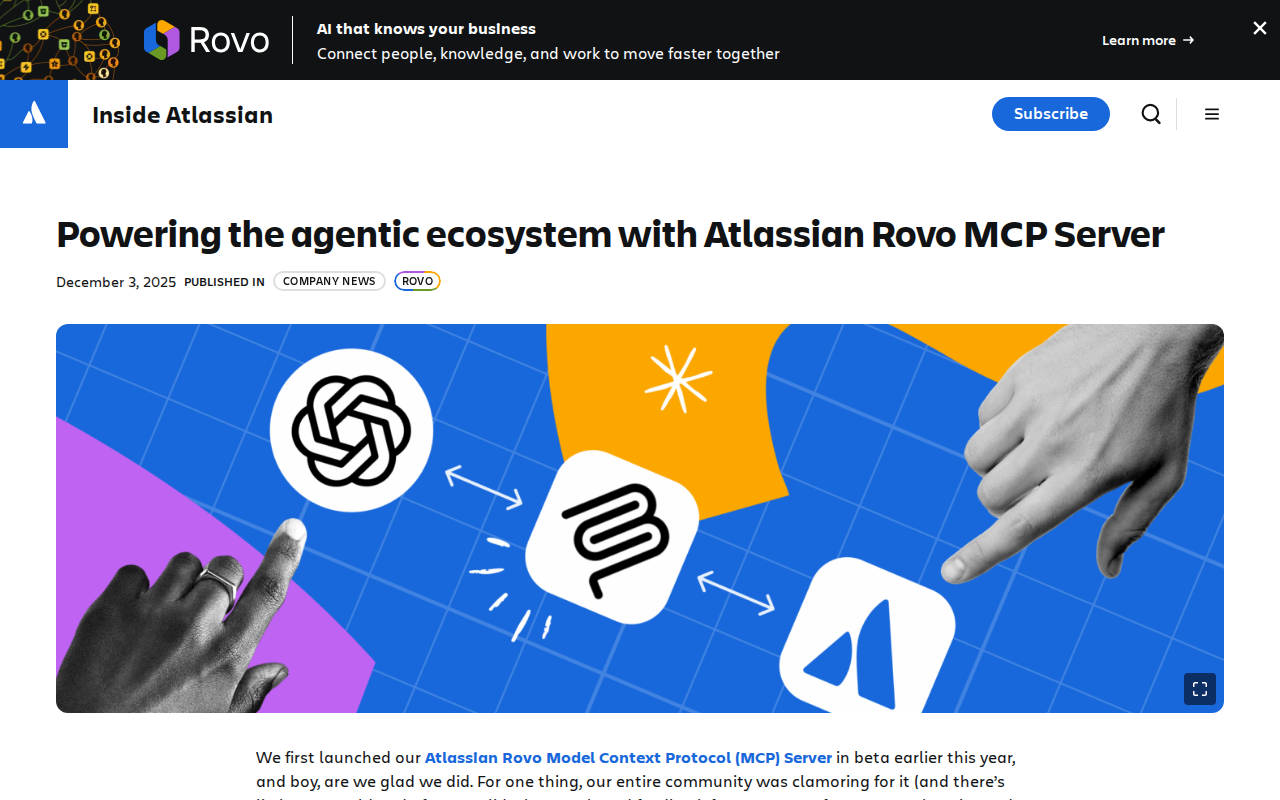
In December 2025, Atlassian launched the Atlassian Rovo MCP Connector for ChatGPT - the official, first-party way to bring Jira, Confluence, and Compass directly into ChatGPT conversations. This isn't a third-party marketplace app or a manual copy-paste workflow. It connects your Atlassian tools as live sources of truth inside ChatGPT, with full read and write capabilities.
What the Rovo Connector Does Inside ChatGPT
The connector turns ChatGPT into a Jira-aware assistant that can both read your work context and take action on it:
- Summarize Jira work items instantly — Ask "What's the status of the Q2 release?" and get a summary pulled from epics, stories, and linked issues across your project.
- Create and update Jira issues — Jira is one of the first MCP connectors with full writeback support. Type "Create a bug for the login timeout reported in the #support Slack channel" and ChatGPT creates the issue with the right fields.
- Automate multi-step workflows — Generate a batch of sprint tickets from a feature spec, update all blocked issues in a project, or enrich issues with context from Confluence pages and Compass components — all in one conversation.
- Enrich Jira content with external context — Combine Jira data with reasoning, research, and web information available through ChatGPT to surface patterns and recommendations you'd miss in Jira alone.
How to Set It Up (2 Minutes)
Setting up the Atlassian Rovo MCP Connector for ChatGPT takes about two minutes:
- Enable MCP connectors in ChatGPT — Go to ChatGPT Settings → Workspace → Connectors. Make sure "Custom MCP connectors" is enabled for your team.
- Connect the Atlassian Rovo MCP server — In ChatGPT's connectors interface, add a new MCP connector with the URL:
https://mcp.atlassian.com/v1/sse - Authenticate with OAuth — You'll be redirected to Atlassian to authorize access. The connector uses OAuth with your existing Atlassian permissions — users only see and act on what they already have access to in Jira.
For Enterprise admins: Atlassian supports a domain allowlist so you can control which MCP clients can connect to your Rovo server. You'll also get audit logs showing exactly which MCP tools were invoked, when, and by whom.
Requirements: You need a ChatGPT Teams or Enterprise plan with MCP connector support enabled. The Atlassian Rovo MCP server requires an Atlassian Cloud site with appropriate product access (Jira, Confluence, or Compass).
Alternative Paths to Connect Jira to ChatGPT
If the official Rovo connector isn't an option (self-hosted Jira, ChatGPT Plus plan, or you need more control), you have several alternatives:
| Path | Best For | Complexity |
|---|---|---|
| Rovo MCP Connector (official) | Cloud Jira teams on ChatGPT Teams/Enterprise | Low — 2-minute setup |
| mcp-atlassian (sooperset) | Self-hosted Jira, full API control | Medium — requires uvx/Node |
| Composio Jira Toolkit | Teams wanting a managed MCP host | Low — hosted, connects in minutes |
| Atlassian Marketplace apps | Jira-native workflows, non-ChatGPT use | Low — install inside Jira |
| Manual API + copy-paste | One-off tasks, no setup | Low — but tedious |
Path 2: mcp-atlassian (Open Source)
The mcp-atlassian project by sooperset is the most popular open-source MCP server for Jira and Confluence. It gives you full control and works with self-hosted Jira instances:
{
  "mcpServers": {
    "mcp-atlassian": {
      "command": "uvx",
      "args": ["mcp-atlassian"],
      "env": {
        "JIRA_URL": "https://your-company.atlassian.net",
        "JIRA_USERNAME": "your.email@company.com",
        "JIRA_API_TOKEN": "your_api_token"
      }
    }
  }
}
Setup steps:
- Generate a Jira API token at id.atlassian.com/manage-profile/security/api-tokens
- Install
uvx(orpipx) for running the MCP server - Configure ChatGPT's MCP connector to point to this server
- Test with: "Show me the open issues in my current sprint"
Warning: The API token approach means the MCP server acts with your Jira permissions. If you have admin access, the AI assistant will too. Consider creating a dedicated service account with scoped permissions (read-only for most use cases) instead of using your personal token.
Path 3: Composio Jira Toolkit
Composio offers a hosted MCP server that handles the OAuth flow and connection management for you:
- No local server to run — Composio hosts the MCP endpoint
- OAuth-based — no API token management
- Pre-built toolkits — standard Jira operations (create issue, search, get status) are already wrapped as MCP tools
The trade-off: your Jira data flows through Composio's infrastructure. For sensitive enterprise Jira instances, the official Rovo connector or self-hosted mcp-atlassian is typically preferred.
Real Jira + ChatGPT Use Cases
1. Sprint Standup from a Single Question
Before: Open Jira, filter by current sprint, check each assignee's progress, read comments, mentally compile a status update.
With Rovo MCP + ChatGPT:
You: "Give me a standup summary for the current sprint. What's done, what's in progress, what's blocked, and who needs help?"
ChatGPT pulls your sprint board data live and produces a structured standup — no clicking through issues, no copy-paste.
2. Bulk Issue Creation from a Feature Spec
You: "Here's our feature spec for the new search functionality. Create Jira stories for each deliverable, link them to the Q3 epic, and estimate story points based on complexity."
After analyzing the spec, ChatGPT creates 8-12 well-scoped stories directly in your Jira project, linked to the right epic, with initial story point estimates. A manual process that would take an hour becomes a 30-second prompt.
3. Incident Post-Mortem Draft
You: "Pull all issues linked to incident INC-2841, summarize the timeline, identify the root cause, and draft a post-mortem template."
ChatGPT gathers the linked Jira issues, reads comments and status changes, constructs a timeline, and produces a draft — pulling in related Confluence runbook pages for additional context.
4. Backlog Grooming Assistant
You: "Review the top 20 items in the backlog. Which ones have been sitting longest without updates? Which have unclear acceptance criteria? Flag anything that looks like a duplicate."
The connector scans the backlog, flags items untouched for 90+ days, identifies tickets with empty or vague acceptance criteria fields, and spots potential duplicates by comparing summaries and descriptions.
5. Cross-Project Dependency Check
You: "I'm about to start work on PROJ-482. What other teams or projects does this depend on, and are any of those blocked?"
ChatGPT inspects issue links, "blocks/is blocked by" relationships, and cross-project references to surface hidden dependencies before they derail a sprint.
Jira-Specific Pitfalls to Avoid
1. The "Custom Field Mapping" Trap
Jira is famously customizable — every org has different custom fields, workflows, and issue type schemes. ChatGPT doesn't know your "Customer_Severity_v2__c" field exists unless you tell it.
Fix: Write a short prompt prefix or "Jira context" doc that lists your key custom fields, required fields for each issue type, and your project key conventions. Feed it at the start of each session.
2. Bulk Write-Back Can Go Wrong
The Rovo connector supports bulk issue creation and updates. If your prompt is ambiguous ("update all issues assigned to me to Done"), ChatGPT might close issues that are still in review or have open subtasks.
Fix: Always preview bulk actions before executing. Use prompts like "Show me what would change before doing anything" as a dry run.
3. Sprint Permissions ≠ Global Permissions
The Rovo connector respects Jira permissions, but Jira's permission model is complex. A user who can view issues in a sprint might not be able to transition them (missing transition permissions). ChatGPT will try to update and fail silently or with a cryptic error.
Fix: Test with read-only operations first. Confirm write access on your target project before relying on automation.
4. The "JQL Is Not Natural Language" Problem
When ChatGPT generates JQL (Jira Query Language) queries, it sometimes produces syntactically valid but semantically wrong queries — especially with complex AND/OR nesting, date functions, or custom field references.
Example of a wrong query: project = PROJ AND status = "In Progress" OR assignee = currentUser() — this returns all issues assigned to the current user, not just PROJ ones in progress, because OR has lower precedence.
Fix: For complex queries, write the JQL yourself and paste it. Let ChatGPT handle the summarization, not the query construction.
5. Confluence + Jira Context Overload
The Rovo connector can pull from Jira and Confluence simultaneously. Without scoping your prompt, ChatGPT might pull in 20 Confluence pages and 50 Jira issues when you only needed sprint progress.
Fix: Be specific: "Only from the current sprint in project PROJ" or "Only from the Confluence space 'Engineering Runbooks'."
Jira + ChatGPT vs. Jira MCP: What's the Difference?
If you've read our Jira MCP Connection Guide, you might wonder how this is different:
| Jira MCP Page | This Page (Jira + ChatGPT) | |
|---|---|---|
| Focus | Setting up a generic MCP server for Jira | Using Jira specifically inside ChatGPT |
| Primary path | mcp-atlassian, kuvanov-2/mcp-server-jira | Atlassian Rovo MCP Connector for ChatGPT |
| Intent | "What is Jira MCP?" | "How do I actually use Jira with ChatGPT?" |
| Best for | Teams building their own AI integrations | Teams that already use ChatGPT and want Jira in it |
The Jira MCP page covers the what and how of MCP servers for Jira. This page covers the why and how of using ChatGPT as your front-end for Jira — with the official Atlassian connector as the recommended path.
Which Path Should You Choose?
| Scenario | Recommendation |
|---|---|
| You're on ChatGPT Teams/Enterprise with Cloud Jira | Rovo MCP Connector — official, 2-minute setup, full read/write |
| You have self-hosted Jira (Data Center/Server) | mcp-atlassian — open source, full API control |
| You want managed hosting, no local server | Composio Jira Toolkit — OAuth-based, pre-built tools |
| You want Jira actions inside Slack, not ChatGPT | Cody — Jira AI assistant in Slack with sprint visibility and blocker tracking |
| You just need occasional summaries from exported data | Manual copy-paste — no setup, works with any ChatGPT plan |
For most teams on Atlassian Cloud with a ChatGPT Teams or Enterprise plan, the Rovo MCP Connector is the cleanest path — it's official, secure, and takes two minutes to set up. The open-source and managed alternatives give you flexibility when the official path isn't an option.
What "Jira with ChatGPT" Usually Means
In practice, teams tend to use ChatGPT with Jira in one of four ways:
- Summarising activity, records, conversations, or changes from Jira
- Classifying items such as tickets, leads, tasks, issues, or opportunities
- Drafting replies, updates, reports, documentation, or next steps
- Reasoning over context to suggest priorities, actions, or likely issues
The key is to avoid treating ChatGPT like magic. It needs the relevant Jira context in the prompt - and it works best when you tell it exactly what good output looks like.
Good Use Cases for Jira + ChatGPT
1. Turn raw Jira context into a useful summary
Paste or pipe in the relevant records, notes, messages, or metrics from Jira, then ask ChatGPT to extract only what matters: key changes, risks, blockers, patterns, or action items.
2. Standardise messy workflows
If your team handles similar decisions repeatedly inside Jira, ChatGPT can apply the same rubric every time: classify, explain briefly, and return a structured next step.
3. Draft faster without starting from zero
Use ChatGPT to produce first drafts grounded in the Jira context - support replies, internal updates, status summaries, sales follow-ups, or operating notes.
4. Create reusable prompt-driven operating procedures
Once you find a prompt that works well for Jira, save it as a repeatable workflow so the whole team gets more consistent output.
A Simple Setup Pattern
A practical way to use ChatGPT with Jira looks like this:
- Pull the right context from Jira
- Give ChatGPT one clear task
- Ask for a structured response
- Have a human review anything customer-facing or high-risk
That last point matters. ChatGPT is useful for acceleration, but for anything sensitive - customer communication, financial interpretation, account changes, or production actions - keep a human in the loop.
Copy-Paste Prompts for Jira
Summary prompt
You are helping me work inside Jira. Summarise the context below into 5 bullets: what changed, what matters, what is blocked, and what needs action next. If anything is unclear, say what is missing.
Classification prompt
Review this Jira item and classify it into the best category. Return JSON with: category, confidence, rationale, and next_action. Keep rationale under 50 words.
Drafting prompt
Use the Jira context below to draft a concise response. Keep it specific, avoid made-up details, and list any assumptions separately.
Executive brief prompt
Turn this Jira activity into a short update for leadership: what happened, why it matters, current risks, and recommended next steps.
Where This Breaks Down
Most Jira + ChatGPT workflows fail for predictable reasons:
- Too little real context is provided
- The prompt asks for too many things at once
- The output format is vague
- The team expects ChatGPT to know live Jira data it has not actually been given
- No review step exists for important actions
The fix is usually simple: give better source context, narrow the task, and require a schema or fixed structure in the response.
If You Want This Embedded in the Workflow
You can absolutely use ChatGPT manually with exported Jira context. That works well for one-off tasks and prototyping.
But if you want the workflow to feel operational - available to the team, connected to live systems, repeatable, and embedded where work already happens - you usually want something more integrated.
Want Jira-Style Workflows Without Manual Prompt Copy-Paste?
Cody gives your team a Jira assistant in Slack, so people can check tickets, sprint blockers, board changes, and issue context without opening Jira.
Related ChatGPT Guides
Need a more automation-focused angle instead? See: Jira AI Automation.
More Jira + AI Resources
- Cody AI Assistant for Jira — Cody's dedicated Jira integration features
- Connect Jira to OpenClaw — complete DIY integration guide