If you're trying to use Google Sheets with ChatGPT, the real question usually isn't "can these two technically work together?" It's how to make ChatGPT useful inside a Google Sheets workflow without getting vague, generic output back.
That's the useful framing.
ChatGPT is strongest when you give it the right context, a clear job, and a structured output format. Google Sheets brings the operational context. When the two are used well together, you get faster triage, better summaries, cleaner drafts, and more consistent decisions.
Google Sheets + ChatGPT: Three Official Paths (All from OpenAI)
As of mid-2026, connecting Google Sheets to ChatGPT isn't just possible — it's an official, first-party integration suite from OpenAI. There are now three distinct paths, each for different use cases:
- ChatGPT for Google Sheets add-in — AI lives in a sidebar inside Sheets (March 2026)
- Google Drive connector — pull Sheets data into ChatGPT conversations (read-only, 2025)
- Google Workspace MCP server — programmatic AI agent access via the Model Context Protocol (open-source, Gemini CLI extension)
Most "connect Google Sheets to ChatGPT" articles from 2023-2025 describe third-party workarounds (GPT for Sheets™, Zapier, manual API scripts). That era is over. OpenAI now ships this natively.
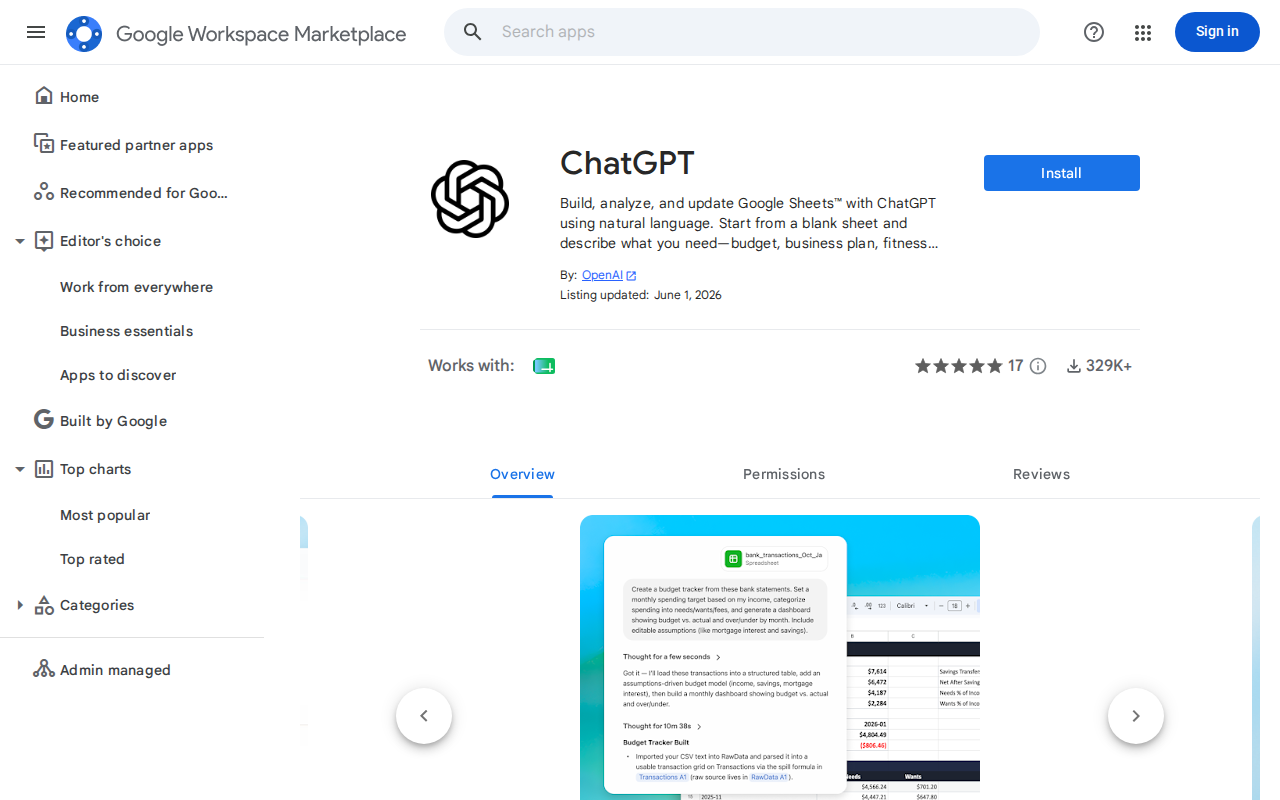
Path 1: ChatGPT for Google Sheets Add-In (Native Sidebar)
This is the primary path for most users. It's a native Google Sheets add-in built and maintained by OpenAI, available on the Google Workspace Marketplace with 329K+ users and a 4.88-star rating as of June 2026.
What It Does
ChatGPT appears as a sidebar inside Google Sheets — you never leave the spreadsheet. It can:
- Build spreadsheets from scratch — describe what you need ("monthly budget with categories, totals, and charts") and it creates the sheet, formulas included
- Edit and update existing sheets — tell it what to change, where, and what to preserve
- Ask questions about your data — "summarize trends across these three tabs and call out anything unusual"
- Bring in Apps context — pull data from Gmail, Stripe, Sharepoint, and other connected ChatGPT apps directly into your sheet analysis
- Reusable Skills — upload custom Skills for repeated workflows like scenario analysis, formatting standards, or financial reconciliation
How to Install
- Open any Google Sheet
- Go to Extensions → Add-ons → Get add-ons
- Search for "ChatGPT" (published by OpenAI)
- Install and authorize access
- Sign in with your OpenAI account (Free, Go, Plus, Pro, Business, Enterprise, Edu, or K-12)
For managed Google Workspace accounts: an admin may need to enable the add-in under Workspace settings → Permissions & roles → ChatGPT for Excel and Google Sheets.
Key Capabilities
- Multi-tab workbooks — works across large spreadsheets with thousands of cells and references
- Web search inside sheets — ChatGPT can search the web for information to pull into your workbook
- @ mentioning sheets — focus the prompt on specific tabs by @ mentioning them
- Skills & Apps — extend functionality with custom Skills or connected ChatGPT Apps
Availability & Pricing
Available to all ChatGPT plans — Free, Go, Plus, Pro, Business, Enterprise, Edu, and K-12. Free and Go include limited usage. Business and Enterprise had a free preview through June 2, 2026; after that, usage follows each plan's credits and terms.
Important limitation: Spreadsheet chats operate separately from your main ChatGPT chat history. Conversations and data do not sync between experiences. ChatGPT memory is not available in the spreadsheet sidebar. This means the context you build in one session doesn't carry over — you'll need to re-establish it each time for recurring analysis.
Path 2: Google Drive Connector (Bring Sheets into ChatGPT)
If you want to query your Sheets data from inside ChatGPT (rather than bringing ChatGPT into Sheets), the Google Drive connector is the right path.
How It Works
- In ChatGPT, start a new chat and click the + button in the message bar
- Select "Add from apps" → Google Drive
- Sign in and grant access (ChatGPT only sees files you explicitly select)
- Pick specific Sheets, Docs, or PDFs from your Drive
- Ask questions about the selected files — summarize, analyze, compare, extract trends
The connector is a synced, read-only layer — when your Sheet changes in Drive, ChatGPT reads the current version the next time you reference it. No more uploading static CSV snapshots.
When to Use Each
| Scenario | Best Path |
|---|---|
| Build a new spreadsheet from scratch | ChatGPT for Sheets add-in (Path 1) |
| Edit or update an existing sheet | ChatGPT for Sheets add-in (Path 1) |
| Ask analytical questions about a Sheet's data | Drive connector (Path 2) — cleaner, no risk of accidental edits |
| Compare data across multiple Sheets | Drive connector — attach multiple files in one prompt |
| Pull Sheets data into a broader ChatGPT research session | Drive connector — Sheets context alongside web search and other files |
The Drive connector is available to Plus, Pro, Team, Enterprise, and Edu users (not Free).
Path 3: Google Workspace MCP Server (AI Agent Access)
For developers building AI agents that need to read and write Google Sheets programmatically, Google maintains an open-source Google Workspace MCP server (github.com/google/mcp) as part of the Gemini CLI extensions.
This MCP server covers Gmail, Drive, Docs, Sheets, Slides, Calendar, and Chat — not just Sheets. It's the path for:
- Building custom AI agents that interact with Sheets via the Model Context Protocol
- Connecting Claude, Cursor, or custom agents to Google Workspace
- Programmatic read/write access with service-account authentication
MCP Server Configuration
{
  "mcpServers": {
    "google-workspace": {
      "command": "npx",
      "args": ["@googleworkspace/mcp-server"],
      "env": {
        "GOOGLE_SERVICE_ACCOUNT_KEY": "path/to/service-account.json"
      }
    }
  }
}
The MCP server uses Google service account authentication. You share specific Sheets with the service account email (like sharing with a colleague), and the AI agent gets access through that account's permissions.
GPT for Sheets™ is a popular third-party alternative (also on the Google Workspace Marketplace) that predates OpenAI's native add-in. It supports multiple LLM providers (OpenAI, Anthropic, Google, Mistral, Perplexity) and is a spreadsheet work agent for bulk automation, cleanup, and reporting. If you need multi-model support or batch processing workflows, it's worth comparing with OpenAI's native add-in.
Real Google Sheets + ChatGPT Use Cases
1. Financial Scenario Modeling
Before: Manually create three versions of a P&L model (base, upside, downside), check formulas across tabs, update every cell by hand.
With the add-in:
"Update the assumptions on the Inputs tab: change revenue growth to 12% (up), 8% (base), and 3% (down). Create three new scenario tabs. Don't change formatting. Summarize what changed."
ChatGPT builds all three scenarios, preserves formulas, and lists exactly what cell values shifted. This is the kind of multi-step spreadsheet work that would take 30+ minutes manually — reduced to a single prompt.
2. Pipeline Health Analysis
With the Drive connector:
"This Sheet is our sales pipeline tracker. Find deals that haven't moved stages in 2+ weeks. Flag any where the close date has slipped twice. Rank by deal size."
The connector reads the Sheet's current state, applies the logic, and returns a structured priority list — without you needing to write a single FILTER or QUERY formula.
3. Cross-Tab Data Reconciliation
With the add-in:
"Compare the Budget and Actuals tabs. Find every line item where the variance exceeds 10%. On a new tab, show: line item, budget, actual, variance %, and a one-sentence explanation of the likely cause."
This catches spreadsheet errors that human reviewers miss — especially in workbooks with 15+ tabs where cross-referencing is tedious.
4. Meeting-Ready Reports
With the Drive connector:
"This Sheet tracks our weekly KPIs. Turn the last 4 weeks of data into a 5-bullet executive summary for our Monday standup. Call out: what's trending up, what's slipping, and one recommended action."
No manual chart creation. No copy-pasting into slides. Pull the Sheet, get the summary, share it in Slack.
Google Sheets-Specific Pitfalls
1. The "Separate Chat History" Trap
The add-in's conversations don't sync with your main ChatGPT history. You build a sophisticated analysis, close the sidebar, and it's gone. Fix: for recurring analysis, create a Skill (Path 1) or save your prompts in a separate doc. For one-off deep dives, use the Drive connector (Path 2) — those conversations stay in your main ChatGPT history.
2. Formula Chain Blind Spots
ChatGPT can trace formula chains, but it can't see custom Google Apps Script functions, QUERY functions that reference external data sources, or IMPORTRANGE formulas pulling from other workbooks. If your sheet depends on these, ChatGPT may hallucinate data or miss dependencies entirely. Fix: before asking for analysis, note any external references in your prompt.
3. The "Too Much Context" Problem
A Sheet with 50,000 rows won't fit in a single prompt context window. ChatGPT may summarize based on only what fits — and won't tell you it missed data. Fix: pre-filter your data (use the Drive connector to select a specific tab or range), or ask ChatGPT to "read the first 500 rows and tell me if you need more before drawing conclusions."
4. App Permission Sprawl
The add-in requests permission to read and write your spreadsheet. If you're working in a Sheet shared with 50 people, ChatGPT's edits are visible to everyone. There's no "draft mode" — changes are live. Fix: duplicate the Sheet before asking ChatGPT to make edits, or work in a personal copy and merge changes after review.
5. Google Sheets vs Excel Feature Gaps
The ChatGPT add-in works in both Excel and Google Sheets, but feature parity isn't perfect. Google Sheets doesn't support VBA macros (Excel-only), and some advanced Excel features (Power Query, certain array formula behaviors) behave differently. If you're coming from Excel, test your workflow on a sample Sheet first.
Which Path Should You Choose?
| Your Goal | Best Path | Setup Time |
|---|---|---|
| Build/edit/analyze sheets with AI in a sidebar | Add-in (Path 1) | 2 minutes |
| Pull Sheet data into ChatGPT for analysis | Drive connector (Path 2) | 30 seconds per file |
| Build an AI agent that reads/writes Sheets | MCP server (Path 3) | 15-30 minutes (dev setup) |
| Multi-model support (Claude, Gemini, Mistral in Sheets) | Third-party: GPT for Sheets™ | 2 minutes |
| Your team wants Sheets AI queries in Slack without add-in overhead | Cody | 5 minutes |
For most teams, the fastest win is installing the ChatGPT for Google Sheets add-in for spreadsheet-native work and connecting Google Drive for cross-file analytical sessions.
For the full Google Sheets + OpenClaw setup guide (service account, API proxy, skill files), see: Connect Google Sheets to OpenClaw
What "Google Sheets with ChatGPT" Usually Means
In practice, teams tend to use ChatGPT with Google Sheets in one of four ways:
- Summarising activity, records, conversations, or changes from Google Sheets
- Classifying items such as tickets, leads, tasks, issues, or opportunities
- Drafting replies, updates, reports, documentation, or next steps
- Reasoning over context to suggest priorities, actions, or likely issues
The key is to avoid treating ChatGPT like magic. It needs the relevant Google Sheets context in the prompt - and it works best when you tell it exactly what good output looks like.
Good Use Cases for Google Sheets + ChatGPT
1. Turn raw Google Sheets context into a useful summary
Paste or pipe in the relevant records, notes, messages, or metrics from Google Sheets, then ask ChatGPT to extract only what matters: key changes, risks, blockers, patterns, or action items.
2. Standardise messy workflows
If your team handles similar decisions repeatedly inside Google Sheets, ChatGPT can apply the same rubric every time: classify, explain briefly, and return a structured next step.
3. Draft faster without starting from zero
Use ChatGPT to produce first drafts grounded in the Google Sheets context - support replies, internal updates, status summaries, sales follow-ups, or operating notes.
4. Create reusable prompt-driven operating procedures
Once you find a prompt that works well for Google Sheets, save it as a repeatable workflow so the whole team gets more consistent output.
A Simple Setup Pattern
A practical way to use ChatGPT with Google Sheets looks like this:
- Pull the right context from Google Sheets
- Give ChatGPT one clear task
- Ask for a structured response
- Have a human review anything customer-facing or high-risk
That last point matters. ChatGPT is useful for acceleration, but for anything sensitive - customer communication, financial interpretation, account changes, or production actions - keep a human in the loop.
Copy-Paste Prompts for Google Sheets
Summary prompt
You are helping me work inside Google Sheets. Summarise the context below into 5 bullets: what changed, what matters, what is blocked, and what needs action next. If anything is unclear, say what is missing.
Classification prompt
Review this Google Sheets item and classify it into the best category. Return JSON with: category, confidence, rationale, and next_action. Keep rationale under 50 words.
Drafting prompt
Use the Google Sheets context below to draft a concise response. Keep it specific, avoid made-up details, and list any assumptions separately.
Executive brief prompt
Turn this Google Sheets activity into a short update for leadership: what happened, why it matters, current risks, and recommended next steps.
Where This Breaks Down
Most Google Sheets + ChatGPT workflows fail for predictable reasons:
- Too little real context is provided
- The prompt asks for too many things at once
- The output format is vague
- The team expects ChatGPT to know live Google Sheets data it has not actually been given
- No review step exists for important actions
The fix is usually simple: give better source context, narrow the task, and require a schema or fixed structure in the response.
If You Want This Embedded in the Workflow
You can absolutely use ChatGPT manually with exported Google Sheets context. That works well for one-off tasks and prototyping.
But if you want the workflow to feel operational - available to the team, connected to live systems, repeatable, and embedded where work already happens - you usually want something more integrated.
Want Google Sheets-Style Workflows Without Manual Prompt Copy-Paste?
Cody gives your team a Google Sheets assistant in Slack, so people can search tabs, summarise trackers, spot stale rows, update spreadsheets, and draft status notes without managing service accounts, spreadsheet IDs, or Sheets API glue.
Related ChatGPT Guides
- How to Use Airtable with ChatGPT
- How to Use Google Workspace with ChatGPT
- How to Use Notion with ChatGPT
Need a more automation-focused angle instead? See: Google Sheets AI Automation.
More Google Sheets + AI Resources
- Cody AI Assistant for Google Sheets — Cody's dedicated Google Sheets integration features
- Connect Google Sheets to OpenClaw — complete DIY integration guide