Google Sheets is where a lot of operational truth quietly lives: trackers, forecasts, content calendars, pipelines, reconciliations, and team checklists. That makes it a strong fit for an AI assistant that helps people search rows, summarise tabs, spot stale or inconsistent data, and turn spreadsheet context into clear answers or updates from Slack. If you are running OpenClaw yourself, this guide still covers the service-account setup, sharing model, and Sheets API work you would otherwise need to manage.
How OpenClaw Integrations Work
OpenClaw is a self-hosted AI assistant that runs on your own server — typically an EC2 instance — and connects to Slack. It uses Claude under the hood to process requests. Out of the box, OpenClaw doesn't ship with pre-built connections to third-party tools. Instead, integrations are built using the skills system: markdown files in ~/.openclaw/skills/ that give Claude instructions for a particular domain, combined with HTTP tool calls to any API you expose to it.
In practice, adding a real integration means: getting API credentials from the third-party service, building or configuring a small proxy/endpoint that OpenClaw can call, and writing a skill file that tells Claude how to use it. For some tools this is an afternoon of work. For others — like Google Sheets — it's considerably more involved.
Connecting OpenClaw with Google Sheets: Step by Step
Step 1: Enable the Google Sheets API and Create Credentials
In Google Cloud Console, enable the Google Sheets API for your project. Create a Service Account and download the JSON key. Share the specific Google Sheets you want OpenClaw to access with the service account's email address (just as you'd share a doc with a colleague). The service account email looks like your-account@your-project.iam.gserviceaccount.com.
Step 2: Use the Sheets API v4
The Google Sheets API base URL is https://sheets.googleapis.com/v4/spreadsheets/{spreadsheetId}/. Key operations: /values/{range} (read a range of cells), /values/{range}:append (append rows), /values/{range}:batchGet (read multiple ranges at once). Use A1 notation for ranges (e.g., Sheet1!A1:D100).
Step 3: Build the Proxy and Skill File
Build your proxy around the read and append operations for your most-used sheets. Write ~/.openclaw/skills/google-sheets.md with your spreadsheet IDs, sheet names, and column definitions for the sheets Claude will query. Include what calculations Claude should perform on the data (totals, averages, filters) rather than just returning raw cell values.
Challenges and Caveats
Spreadsheet ID vs Sheet Name
A Google Sheets workbook has a Spreadsheet ID (in the URL) and can contain multiple named sheets (tabs). The API requires both. Queries for "the content tracker" need to reference the correct Spreadsheet ID and the correct tab name — make sure both are in your skill file.
API Quotas for Read Operations
The Sheets API has a default quota of 300 read requests per minute per project. For a team making frequent Slack queries, this is usually sufficient — but complex queries that call the API multiple times per user request can exhaust it quickly.
Google Sheets + OpenClaw: Three Ways to Wire It in 2026
When you search "how to connect Google Sheets to OpenClaw," you're usually one of two people: you run OpenClaw on your own server and want a real integration, or you're evaluating Cody (OpenClaw managed hosting) and want to know how spreadsheet data gets into Slack without hand-building API glue.
The good news: Google Sheets now has an official remote MCP server (Developer Preview), which changes the calculus for anyone running an MCP-capable agent like OpenClaw. There are now three distinct paths, and the one you pick depends on how hands-on you want to be.
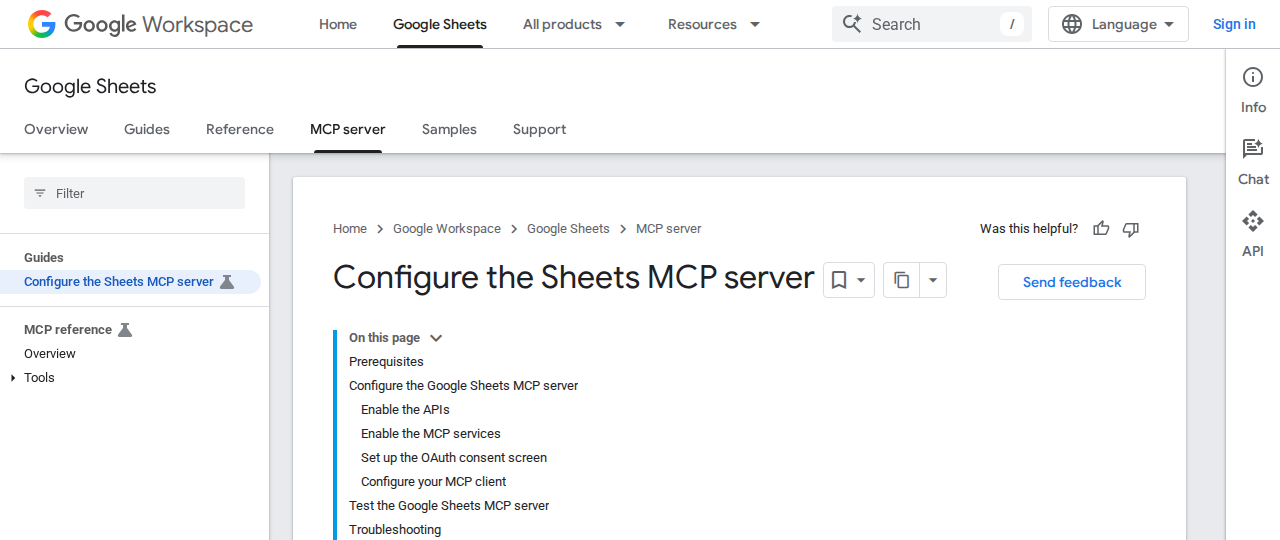
Path A: Google's Official Remote Sheets MCP Server (Best for MCP-Capable Agents)
Google now ships an official, cloud-hosted Sheets MCP server at https://sheetsmcp.googleapis.com/mcp/v1. Because OpenClaw speaks the same Model Context Protocol, it can point at this same endpoint instead of you building a proxy by hand.
What it exposes (6 tools):
| Tool | What it does |
|---|---|
get_values |
Read cell values from a range |
get_spreadsheet |
Read spreadsheet metadata (sheets/tabs, grid properties) |
update_values |
Write values to a range |
update_formulas |
Set/refresh formulas in cells |
update_spreadsheet |
Structural batch updates (add tabs, resize grids) |
insert_dimension |
Insert rows or columns |
Access model — the important part: unlike the classic service-account proxy, this server authenticates with OAuth 2.0 tied to a real Google user. You enable the sheetsmcp.googleapis.com service in a Google Cloud project, configure an OAuth consent screen, and create a Web-app OAuth client. The MCP client then completes a normal OAuth flow on the user's behalf, and the server inherits that user's permissions and data-governance controls — no service-account key file to babysit.
How you'd register it with OpenClaw (self-hosted ~/.openclaw/settings.json):
{
  mcpServers: {
    sheets: {
      serverUrl: "https://sheetsmcp.googleapis.com/mcp/v1",
      oauth: {
        clientId: "YOUR_OAUTH_CLIENT_ID",
        clientSecret: "YOUR_OAUTH_CLIENT_SECRET"
      }
    }
  }
}
Once authenticated, you can prompt OpenClaw naturally: "Pull the 'Revenue' tab from the Q3 tracker and flag any cell below target" or "Append today's 5 new leads to the pipeline sheet." OpenClaw fetches the data over MCP, filters, and answers — no code.
Caveat to plan around: this is a Developer Preview as of mid-2026, and it currently requires a Google Cloud project setup (enable APIs, OAuth screen, client ID). It also targets MCP hosts like Antigravity and Claude's enterprise/Pro plans out of the box. For a production, unattended OpenClaw setup, the classic service-account path (below) is still the most reliable today.
Path B: The Classic Service-Account Proxy + Skill File (Path the Template Above Walks Through)
This is the approach the base template already documents: enable the Sheets API, create a Service Account, share the target sheets with its email, build a small proxy around sheets.googleapis.com/v4/spreadsheets/{id}/, and write ~/.openclaw/skills/google-sheets.md with spreadsheet IDs, tab names, and column definitions.
This is the best choice for a fully unattended agent — no interactive OAuth, works on a headless EC2 server, and the agent can write back with a fixed identity. The tradeoff: you own the proxy, the token scoping, and the A1-notation mapping in the skill file. It's more setup, but it's the most controllable.
Path C: Managed Tool Platforms (Composio et al.) — Zero Infrastructure
Platforms like Composio expose Google Sheets as a managed toolkit with managed authentication — you authenticate once, and it stores and refreshes tokens and handles scopes for you. OpenClaw connects via Tool Router and gets the Sheets tools served on demand. This is the pragmatic middle ground for teams that want no proxy code and no Google Cloud project management, at the cost of routing spreadsheet actions through a third party.
Real Use Cases: What an OpenClaw + Sheets Setup Actually Does
Concrete workflows that justify the build — not generic "query your spreadsheet" platitudes.
1. Daily tracker health check
Schedule OpenClaw each morning to read a shared tracker and flag problems: "Check the content calendar tab. List any rows where the due date is in the past and status isn't 'Done'." The team gets one Slack message instead of opening the sheet and scrolling.
2. Pipeline roll-up on demand
Prompt: "Summarize the sales pipeline tab: total open deals, weighted value, and the 3 biggest deals that haven't been touched in 2 weeks." OpenClaw reads the range, applies the logic, returns a structured Slack summary — no FILTER or QUERY formulas needed by anyone.
3. Append new leads automatically
When an event fires (a form submission, a new signup webhook), OpenClaw appends the row to the master leads sheet via append. The spreadsheet stays the source of truth and the agent keeps it current — a classic "agent as data entry" workflow.
4. Cross-tab reconciliation
Prompt: "Compare the Budget and Actuals tabs. Where does variance exceed 10%? Give me a list with line item, budget, actual, variance %, and a one-line likely cause." Catches errors human reviewers miss in 15+-tab workbooks.
5. Weekly reporting, auto-generated
At end of week, OpenClaw reads the KPI sheet, computes movement, and posts a 5-bullet executive summary to #reports. It saves whoever owns reporting an hour of copy-paste from exported CSVs.
Google Sheets-Specific Pitfalls (Know These Before You Build)
These are the traps specific to Google Sheets + an AI agent that generic "connect an API" guides won't warn you about.
-
Spreadsheet ID vs sheet/tab name is a silent failure. A Google Sheets workbook has one Spreadsheet ID (in the URL) and can contain many named tabs. The API requires both — and the MCP tools reference sheets by tab. If your skill file or prompt says "the content tracker" but the tab is actually "Tracker 2026," the agent queries the wrong grid or errors confusingly. Fix: map IDs and exact tab names in the skill file, and reference tabs explicitly in prompts.
-
The service-account "share the sheet" step is easy to skip. If you use Path B, you must share each specific spreadsheet with the service account's email (
...@your-project.iam.gserviceaccount.com), just like sharing with a colleague. Miss this and the API returns a 403/permission error that looks like an auth bug but is really a missing share. Double-check the service-account email is listed in the sheet's sharing settings. -
OAuth MCP (Path A) may not suit a headless/unattended server. The official remote MCP server uses interactive OAuth 2.0 tied to a user account. On a headless EC2 instance where OpenClaw runs without a human to approve tokens, that flow can stall. Fix: prefer the service-account proxy for fully unattended agents, or complete the OAuth once and persist the refresh token.
-
Developer Preview = no stability guarantee. Path A is officially labeled Developer Preview as of mid-2026. Endpoints, the six-tool surface, and the OAuth setup can change without notice. Don't hardwire your whole rollout to it before it's GA — keep the service-account path as your fallback.
-
API quota is per-project, not per-user. The Sheets API defaults to roughly 300 read requests per minute per Cloud project. A team making frequent Slack queries is usually fine, but a complex query that fans out into many API calls per user request can burn it fast. Batch reads (
batchGet) and cache repeated ranges in the skill file. -
Sheets-as-a-database has hard limits. Very large sheets (50k+ rows) won't fit in one agent context window, and the agent won't tell you it only read part of the data. Fix: have OpenClaw read bounded ranges ("first 500 rows") or pre-filter tabs before analysis, and be explicit about range limits in prompts.
Also read
- How to Use Google Sheets with ChatGPT — the ChatGPT-side Google Sheets integration (native add-in, Drive connector, MCP)
- How to Connect Google Workspace to OpenClaw — the broader Workspace ecosystem Sheets sits inside
- How to Connect Airtable to OpenClaw — the closest spreadsheet-database competitor
Skip All of This — Use Cody Instead
Cody gives your team a Google Sheets assistant in Slack, so people can search tabs, summarise trackers, spot stale rows, update spreadsheets, and draft status notes without managing service accounts, spreadsheet IDs, or Sheets API glue.
Related Guides
- Connecting OpenClaw with Airtable: A Practical Guide
- Connecting OpenClaw with Google Workspace: A Practical Guide
- Connecting OpenClaw with Notion: A Practical Guide
Need the model-flexible version? See: How to Connect Google Sheets to OpenClaw: Setup, Models, and Workflow Guide.