If you're trying to use QuickBooks with ChatGPT, the real question usually isn't "can these two technically work together?" It's how to make ChatGPT useful inside a QuickBooks workflow without getting vague, generic output back.
That's the useful framing.
ChatGPT is strongest when you give it the right context, a clear job, and a structured output format. QuickBooks brings the operational context. When the two are used well together, you get faster triage, better summaries, cleaner drafts, and more consistent decisions.
QuickBooks + ChatGPT: Three Real Paths in 2026
Connecting QuickBooks to ChatGPT has moved from "can we hack this together?" to "which official path do we use?" As of mid-2026, Intuit — the company behind QuickBooks — has shipped two first-party integration paths, and a third party with a deep MCP bundle rounds things out:
| Path | Who Built It | What It Does | Best For |
|---|---|---|---|
| QuickBooks App in ChatGPT | Intuit + OpenAI (official) | Conversational financial analysis: P&L, cash flow, benchmarking against your actual data | Business owners, non-technical finance teams |
| QuickBooks MCP Server | Intuit (open source, GitHub) | Full API access: 144 tools, 29 entity types, 11 reports. Write back to QuickBooks. | Developers, ops teams, AI agent builders |
| Third-Party MCP Bundles | MCPBundles, Composio, Windsor.ai | Managed MCP servers with pre-built workflows, batch ops, PDF generation | Teams that want plug-and-play without config |
The Intuit-OpenAI partnership is real — a multi-year strategic deal announced in March 2025. Intuit owns the customer relationship and the data; OpenAI provides the conversational layer. Your QuickBooks data stays inside the Intuit app and is never used to train foundation models.
Path 1: QuickBooks ChatGPT App — Your AI Finance Analyst
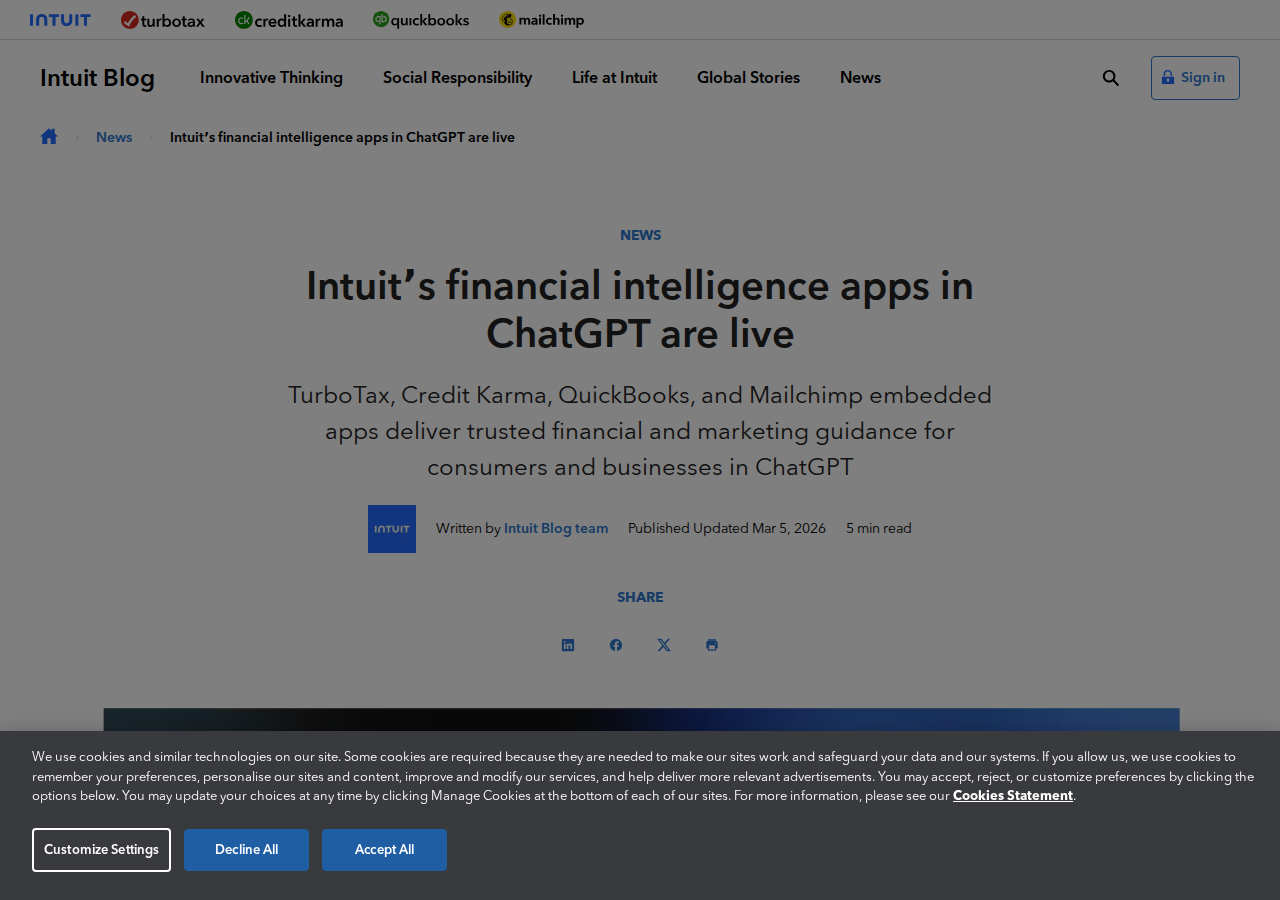
In March 2026, Intuit launched QuickBooks, TurboTax, Credit Karma, and Mailchimp as native apps inside ChatGPT. The QuickBooks app is the flagship for business users — and it's available to Free, Plus, and Pro ChatGPT users in the US.
What the QuickBooks App Can Do
Once you connect your QuickBooks Online account, you can ask ChatGPT questions like:
- "What's our current cash position?"
- "Show me our P&L for Q1 2026 vs Q1 2025"
- "Which customers are 60+ days overdue on payments?"
- "How does our gross margin compare to others in our industry?"
The app draws from your actual QuickBooks data — not generic financial advice or public benchmarks. It analyzes your company's specific transactions, customers, invoices, bills, and reports. The benchmarking feature is what sets it apart: Intuit anonymizes aggregate data from millions of QuickBooks customers to power industry comparisons, so when you ask "are our expenses normal for a construction company our size?", you get real data, not guesses.
What It Doesn't Do
The app is read-and-analyze only. You can't create invoices, update customer records, log payments, or modify anything in QuickBooks from inside ChatGPT. This is intentional — Intuit treats the app as a financial intelligence layer, not a transaction layer. If you want write-back capability, you need Path 2 (the MCP server).
Reality check: The ChatGPT app works with QuickBooks Online only. QuickBooks Desktop users are out of luck until Intuit extends support.
Path 2: QuickBooks Online MCP Server — Full API Access
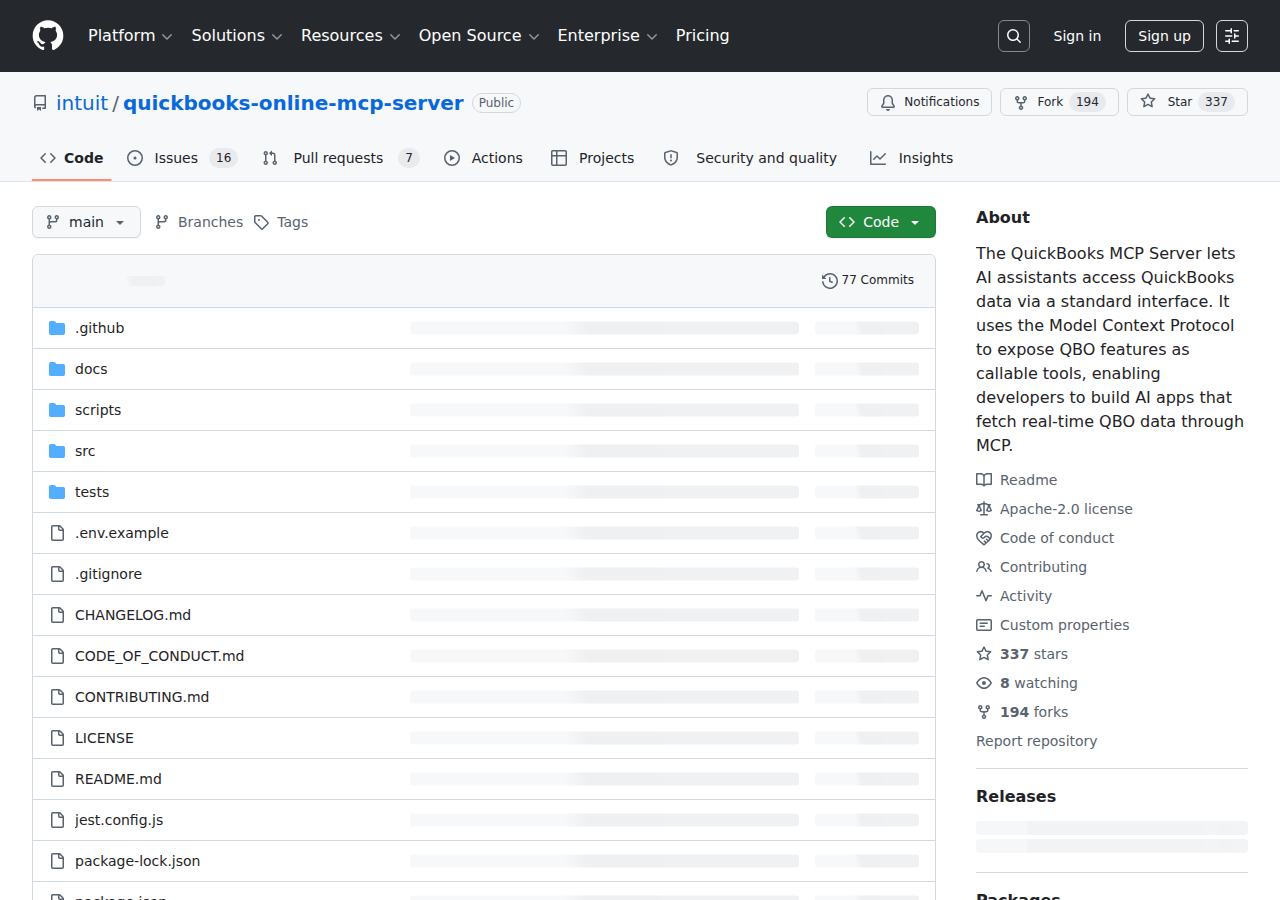
In June 2026, Intuit open-sourced the QuickBooks Online MCP Server on GitHub at github.com/intuit/quickbooks-online-mcp-server. This is the real power user path — it exposes 144 tools covering every major QuickBooks entity and report type.
What the MCP Server Exposes
| Category | Tools | Notable Features |
|---|---|---|
| 29 Entity Types | Full CRUD (Create, Read, Update, Delete, Search) | Customers, Invoices, Estimates, Bills, Vendors, Employees, Accounts, Items, Journal Entries, Payments, Sales Receipts, Credit Memos, Refund Receipts, Purchase Orders, Vendor Credits, Deposits, Transfers, Time Activity, and more |
| 11 Financial Reports | Read-only | Balance Sheet, Profit & Loss, Cash Flow, Trial Balance, General Ledger, Aged Receivables, Aged Payables, Customer Sales, Customer Balance, Vendor Expenses |
| Write Protection Flags | Configurable | DISABLE_WRITE, DISABLE_UPDATE, DISABLE_DELETE — set any to true to limit the server to read-only operations |
| Invoice PDF Export | get_invoice_pdf |
Download invoices as base64 PDFs directly from the MCP tool |
Setting Up the Official MCP Server in ChatGPT
The Intuit MCP server is a local stdio server — it runs on your machine or your dev environment, not as a hosted SaaS:
- Register an Intuit Developer app at developer.intuit.com — you'll get a Client ID and Client Secret
- Complete the OAuth 2.0 handshake — this is a one-time browser-based flow. Sandbox supports
http://localhostredirect URIs; production requires a public HTTPS callback - Clone and build the repo:
git clone https://github.com/intuit/quickbooks-online-mcp-server cd quickbooks-online-mcp-server npm install && npm run build - Configure
.envwith your credentials:QUICKBOOKS_CLIENT_ID=your_client_id QUICKBOOKS_CLIENT_SECRET=your_client_secret QUICKBOOKS_REFRESH_TOKEN=your_refresh_token QUICKBOOKS_REALM_ID=your_realm_id QUICKBOOKS_ENVIRONMENT=sandbox - Register in ChatGPT under Settings → Developer Mode → MCP Connectors:
{
  "quickbooks": {
    "command": "node",
    "args": ["path/to/mcp-quickbooks-online/dist/index.js"],
    "env": { ... }
  }
}
Important: The refresh token expires after 100 days. You'll need to re-authenticate at least quarterly, or the MCP server stops working silently.
Path 3: Managed MCP Bundles — Plug-and-Play
If you'd rather skip the OAuth dance and local server management, several third-party platforms offer hosted QuickBooks MCP servers:
| Provider | What You Get | Setup |
|---|---|---|
| MCPBundles | 34-tool accounting bundle with batch operations, report aggregation, and PDF invoice generation. OAuth-managed — connect once, no token rotation. | Register → authorize → ask your AI agent |
| Composio | Managed MCP toolkit with auth, security, and tool routing built in. Also connects QuickBooks to Claude Agent SDK. | Sign up → add QuickBooks → tools available |
| Windsor.ai | No-code MCP connector focused on financial analytics and cross-platform reporting | Connect → select metrics → query |
| CData Connect AI | Remote MCP server exposing QuickBooks Online as a queryable SQL source inside ChatGPT | Deploy cloud agent → connect → natural-language queries |
These all work, but they add a vendor dependency. If the third-party MCP host goes down or changes pricing, your QuickBooks + ChatGPT flow breaks. Intuit's official MCP server (Path 2) is community-maintained and runs on your infrastructure.
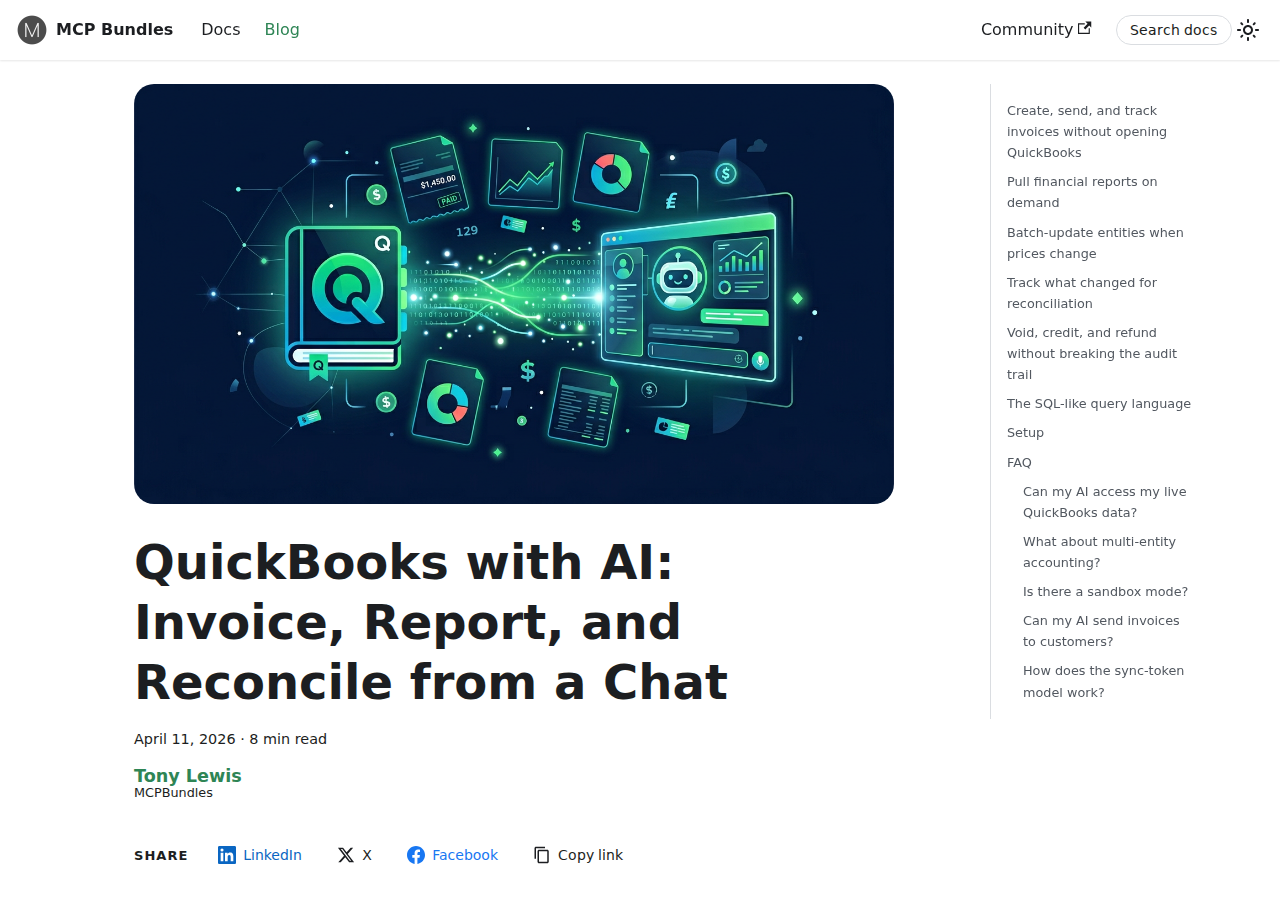
Real QuickBooks + ChatGPT Use Cases
1. "Show Me Who Hasn't Paid — and How Bad It Is"
Without ChatGPT: Log into QuickBooks → Reports → Aged Receivables → pick date → export to CSV → sort by amount → manually draft a prioritised list.
With the QuickBooks ChatGPT app:
You: "Show me all overdue invoices, grouped by customer, with how many days past due. Highlight anyone over 90 days."
ChatGPT pulls your receivables, groups by customer with aging buckets (0–30, 31–60, 61–90, 90+), and returns a ranked list. You can immediately see which accounts need a phone call vs a gentle email.
With MCP (write-back): Follow up with "Send payment reminders to all customers with 60+ day overdue balances" and the MCP server generates the email content for each one (though sending still needs a separate email step — QuickBooks doesn't send directly).
2. "What's Eating Our Margins This Quarter?"
You: "Pull our P&L for Q1 2026 and Q4 2025. Compare expense categories line by line. Flag anything that grew more than 20%."
The app fetches both P&L reports, compares them, and flags the anomaly. Instead of staring at a spreadsheet, you get "Legal fees tripled from $1,200 to $3,800 — did we sign a new contract?" and "Shipping costs spiked 35% — likely driven by your Q1 sales volume increase."
3. "Generate This Quarter's Investor Update"
You: "Using our actual QuickBooks data, generate a quarterly business review: revenue, expenses, net profit, top customers, and cash position. Include QoQ comparisons."
ChatGPT pulls the Balance Sheet, P&L, and Customer Sales reports, then synthesizes them into a plain-English summary with charts. This replaces hours of manual data extraction and formatting.
4. "Batch-Reconcile This Week's Changes"
You: "What invoices, payments, customers, and bills changed in the last 7 days?"
The MCP server runs four queries in parallel — one per entity type — filtering by MetaData.LastUpdatedTime > (today - 7 days). Returns: "12 invoices modified (3 new, 9 paid/updated), 5 customers added, 18 payments recorded, 2 bills updated." Useful for weekly book close and catching accidental changes before they snowball.
5. "Predict Cash Flow for the Next 60 Days"
You: "Based on our outstanding invoices (who typically pays on time vs late), upcoming bills, and current cash balance — what's our likely cash position 30 and 60 days from now?"
ChatGPT uses historical payment timing patterns from your actual customer data and outstanding payables to project forward. It's not a crystal ball, but it's far better than the "gut feel" most small businesses rely on.
QuickBooks-Specific Pitfalls (What Other Guides Won't Tell You)
1. The ChatGPT App Is Read-Only — No Write-Back
This is the #1 surprise people hit. The app in ChatGPT can analyze your P&L, compare quarters, benchmark against your industry, and flag overdue customers — but it cannot create, update, or delete anything. No invoicing, no recording payments, no voiding transactions. For write operations, you need the MCP server (Path 2) running locally. Many people assume "ChatGPT integration" means full control and get frustrated when they can't act on the insights.
2. OAuth Token Expiration — Silent Failure After 100 Days
QuickBooks access tokens expire after 1 hour. Refresh tokens expire after 100 days. The official MCP server (Path 2) handles token refresh automatically during its lifetime, but if you haven't re-authenticated in 100 days, it stops working with no obvious error — your queries just start returning nothing. Build a calendar reminder or set up a quarterly re-auth cadence. Production setups should monitor for this.
3. ChatGPT Hallucinates QuickBooks API Endpoints
Multiple users (documented on the QuickBooks developer forums and Satva Solutions' API guide) have reported that ChatGPT confidently invents API endpoints that don't exist — like a /banktransactions endpoint that QuickBooks has never had. When generating code or queries against the QuickBooks API via ChatGPT, always verify endpoint existence against the official QuickBooks API docs. The MCP server itself won't hallucinate because its tools are defined programmatically, but ChatGPT in raw code-gen mode will.
4. Sandbox vs Production — Easy to Mix Up
The MCP server uses an environment setting (sandbox/production). QuickBooks sandbox data is separate from production, and it's trivially easy to connect the wrong environment. You'll spend 20 minutes wondering why your real invoices aren't showing up before realizing you're pointed at sandbox. QuickBooks Desktop is NOT supported at all — the MCP server and ChatGPT app are QuickBooks Online only.
5. The SQL-Like Query Language Has Sharp Edges
QuickBooks uses a proprietary SELECT * FROM Entity WHERE... query syntax that looks like SQL but isn't. Common gotchas:
- No joins across entities. To cross-reference invoices with customers, you query each independently.
- Case-sensitive field names:
CustomerRefworks,customerrefdoesn't. - Pagination is mandatory for queries returning more than 1,000 results, and ChatGPT won't automatically paginate — it needs to be told.
- Some fields (like
Balance) can't be used in WHERE clauses — you have to fetch all records and filter client-side.
6. Security: Financial Data Is a Totally Different Risk Class
Connecting QuickBooks to any AI agent is a material security decision. QuickBooks contains your entire company's financial picture — bank accounts, customer payment histories, vendor contracts, employee data. At minimum:
- Set the MCP server's
DISABLE_WRITE,DISABLE_UPDATE, andDISABLE_DELETEflags totrueunless you genuinely need write-back - Use Intuit's Restricted API Keys — scope to read-only accounting data
- Never share MCP server credentials or tokens in prompts, chat logs, or version control (
.envis gitignored for a reason) - If using the ChatGPT app, understand that your financial questions become visible to whoever is logged into your ChatGPT session
Which Path Should You Choose?
| Your Situation | Use This |
|---|---|
| You're a business owner who wants financial insights without extra setup | QuickBooks ChatGPT App (Path 1) |
| You're a developer building an AI agent that creates invoices, logs payments, or manages books | Official MCP Server (Path 2) |
| You want QuickBooks + ChatGPT but don't want to touch config files or OAuth | MCPBundles or Composio (Path 3) |
| You need cross-platform financial reporting (QuickBooks + Stripe + bank) | Windsor.ai or Supermetrics (Path 3) |
| You use QuickBooks Desktop | None of the above — these are all QuickBooks Online only |
For a broader look at MCP server configuration across different tools, check our MCP integrations hub.
For help connecting QuickBooks to OpenClaw instead, see How to Connect QuickBooks to OpenClaw.
What "QuickBooks with ChatGPT" Usually Means
In practice, teams tend to use ChatGPT with QuickBooks in one of four ways:
- Summarising activity, records, conversations, or changes from QuickBooks
- Classifying items such as tickets, leads, tasks, issues, or opportunities
- Drafting replies, updates, reports, documentation, or next steps
- Reasoning over context to suggest priorities, actions, or likely issues
The key is to avoid treating ChatGPT like magic. It needs the relevant QuickBooks context in the prompt - and it works best when you tell it exactly what good output looks like.
Good Use Cases for QuickBooks + ChatGPT
1. Turn raw QuickBooks context into a useful summary
Paste or pipe in the relevant records, notes, messages, or metrics from QuickBooks, then ask ChatGPT to extract only what matters: key changes, risks, blockers, patterns, or action items.
2. Standardise messy workflows
If your team handles similar decisions repeatedly inside QuickBooks, ChatGPT can apply the same rubric every time: classify, explain briefly, and return a structured next step.
3. Draft faster without starting from zero
Use ChatGPT to produce first drafts grounded in the QuickBooks context - support replies, internal updates, status summaries, sales follow-ups, or operating notes.
4. Create reusable prompt-driven operating procedures
Once you find a prompt that works well for QuickBooks, save it as a repeatable workflow so the whole team gets more consistent output.
A Simple Setup Pattern
A practical way to use ChatGPT with QuickBooks looks like this:
- Pull the right context from QuickBooks
- Give ChatGPT one clear task
- Ask for a structured response
- Have a human review anything customer-facing or high-risk
That last point matters. ChatGPT is useful for acceleration, but for anything sensitive - customer communication, financial interpretation, account changes, or production actions - keep a human in the loop.
Copy-Paste Prompts for QuickBooks
Summary prompt
You are helping me work inside QuickBooks. Summarise the context below into 5 bullets: what changed, what matters, what is blocked, and what needs action next. If anything is unclear, say what is missing.
Classification prompt
Review this QuickBooks item and classify it into the best category. Return JSON with: category, confidence, rationale, and next_action. Keep rationale under 50 words.
Drafting prompt
Use the QuickBooks context below to draft a concise response. Keep it specific, avoid made-up details, and list any assumptions separately.
Executive brief prompt
Turn this QuickBooks activity into a short update for leadership: what happened, why it matters, current risks, and recommended next steps.
Where This Breaks Down
Most QuickBooks + ChatGPT workflows fail for predictable reasons:
- Too little real context is provided
- The prompt asks for too many things at once
- The output format is vague
- The team expects ChatGPT to know live QuickBooks data it has not actually been given
- No review step exists for important actions
The fix is usually simple: give better source context, narrow the task, and require a schema or fixed structure in the response.
If You Want This Embedded in the Workflow
You can absolutely use ChatGPT manually with exported QuickBooks context. That works well for one-off tasks and prototyping.
But if you want the workflow to feel operational - available to the team, connected to live systems, repeatable, and embedded where work already happens - you usually want something more integrated.
Want QuickBooks-Style Workflows Without Manual Prompt Copy-Paste?
Cody gives your team a QuickBooks AI assistant in Slack for invoice lookups, receivables review, P&L questions, and finance updates, with built-in OAuth and access controls.
Related ChatGPT Guides
- How to Use Stripe with ChatGPT
- How to Use HubSpot with ChatGPT
- How to Use Google Workspace with ChatGPT
Need a more automation-focused angle instead? See: QuickBooks AI Automation.
More QuickBooks + AI Resources
- Cody AI Assistant for QuickBooks — Cody's dedicated QuickBooks integration features
- Connect QuickBooks to OpenClaw — complete DIY integration guide