If you're trying to use HubSpot with ChatGPT, the real question usually isn't "can these two technically work together?" It's how to make ChatGPT useful inside a HubSpot workflow without getting vague, generic output back.
That's the useful framing.
ChatGPT is strongest when you give it the right context, a clear job, and a structured output format. HubSpot brings the operational context. When the two are used well together, you get faster triage, better summaries, cleaner drafts, and more consistent decisions.
The HubSpot Deep Research Connector: Native ChatGPT Integration
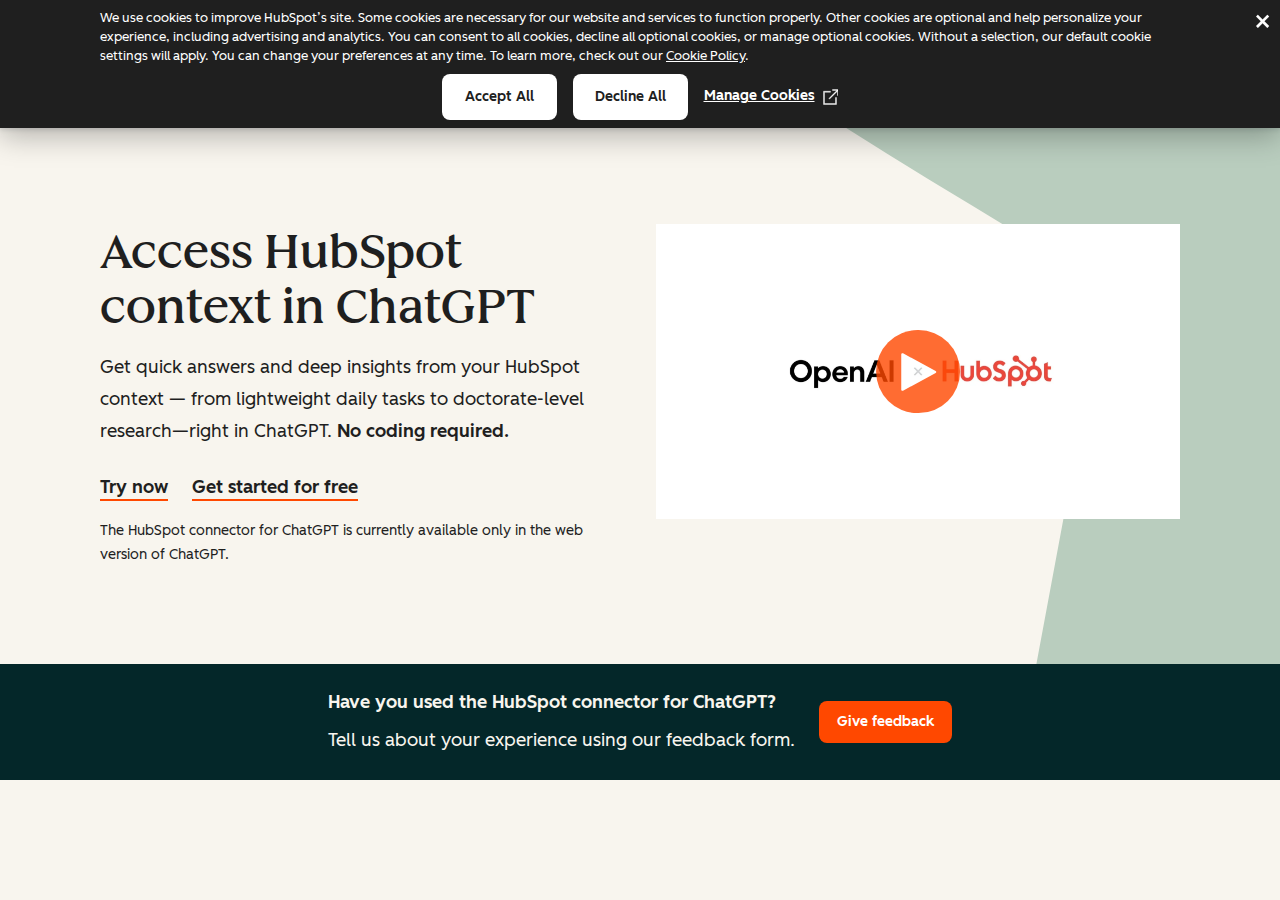
HubSpot launched its official ChatGPT connector (officially called the "HubSpot deep research connector") — a native, first-party bridge between your HubSpot CRM data and ChatGPT. No third-party middleware, no Zapier glue, no CSV exports. It brings your contacts, deals, tickets, and marketing data directly into ChatGPT conversations.
What the HubSpot Connector Does Inside ChatGPT
The connector supports both chat (quick, one-off questions) and deep research (complex, multi-source analysis). Think of chat as your daily driver for fast lookups, and deep research as your strategy tool for things like quarterly pipeline analysis.
With the HubSpot connector in ChatGPT, you can:
- Query CRM objects in plain English — Ask "List deals closing this month sorted by value" and get results pulled directly from your HubSpot account. No filters, no reports, no dashboards.
- Create and update records — As of the February 2026 update, the connector supports read AND write operations on Contacts, Companies, Deals, Tickets, and Engagements (calls, meetings, notes, tasks, emails). Attribution is logged in HubSpot's Audit Log.
- Analyze marketing performance — Pull campaign data, blog post metrics, and landing page analytics to spot trends and evaluate content performance.
- Run deep research with CRM context — Combine your HubSpot data with external files (spreadsheets, market reports) for doctorate-level analysis that considers both internal CRM data and external market signals.
- Log activities from conversation — After a client call, type "Log a call with Acme Corp today, discussed Q3 expansion" and the engagement is recorded in HubSpot.
How It Works Under the Hood
The connector accesses your HubSpot data through the standard HubSpot API, respecting existing user permissions — users only see records they're already authorized to access. Here's what it can touch:
| Object | Read | Create | Update | Delete |
|---|---|---|---|---|
| Contacts | ✓ | ✓ | ✓ | — |
| Companies | ✓ | ✓ | ✓ | — |
| Deals | ✓ | ✓ | ✓ | — |
| Tickets | ✓ | ✓ | ✓ | — |
| Line Items | ✓ | ✓ | ✓ | — |
| Products | ✓ | ✓ | ✓ | — |
| Engagements (Calls, Meetings, Notes, Tasks, Emails) | ✓ | ✓ | ✓ | — |
| Users & Teams | ✓ | — | — | — |
| Campaigns | ✓ | — | — | — |
| Landing Pages, Blog Posts, Website Pages | ✓ | — | — | — |
Important note: If your HubSpot account has Sensitive Data turned on, the connector cannot access engagement data for added security.
Licensing & Requirements
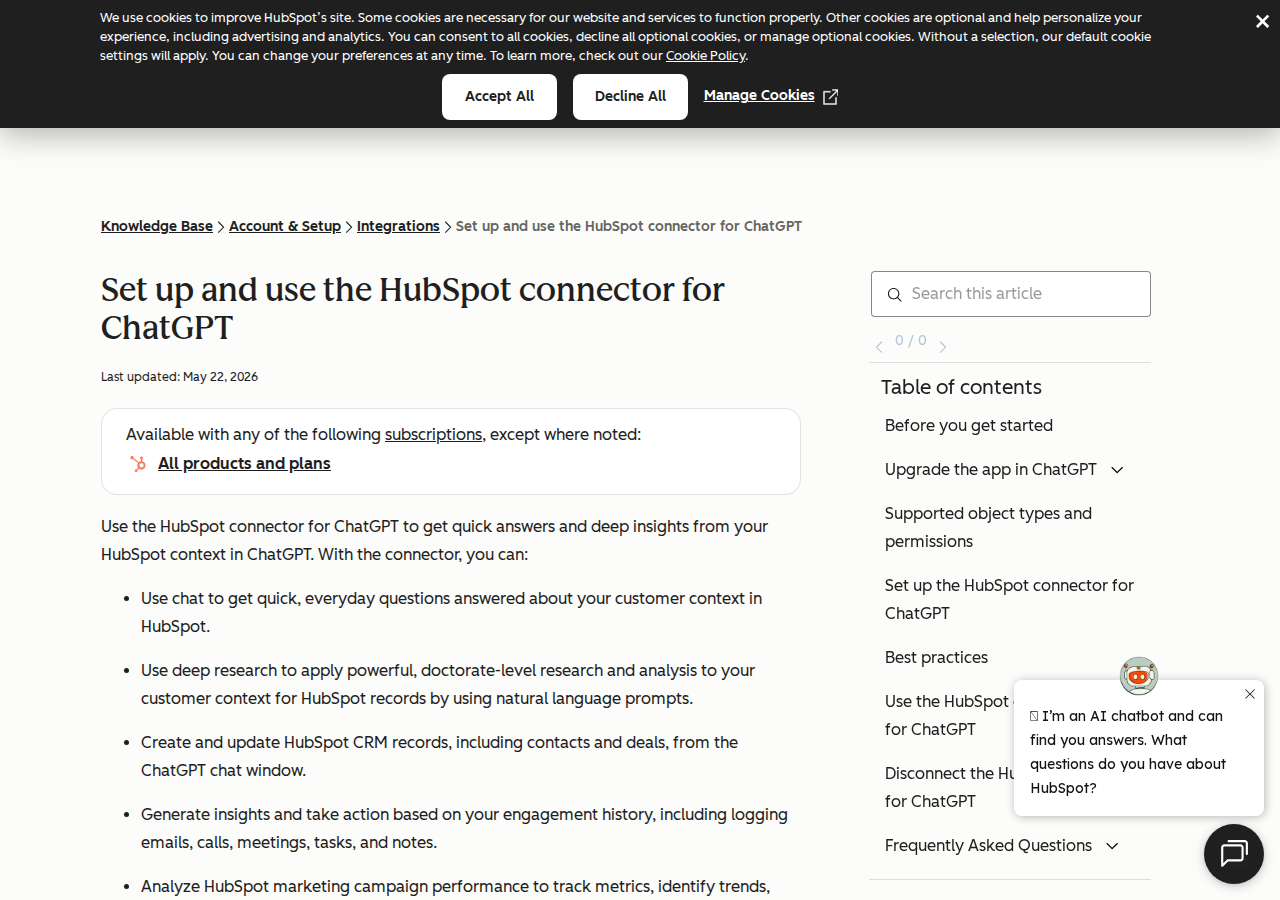
- Available to all HubSpot customers across all tiers with a paid OpenAI account
- A Super Admin or user with App Marketplace permissions must connect first
- After initial setup, the admin can grant access to other users in the organization
- If you set it up before February 23, 2026, you need to upgrade to get read/write access and engagements
Alternative Path: HubSpot MCP Server
If you're looking for more programmatic control, or if the ChatGPT connector's object coverage doesn't include your custom objects, the HubSpot MCP (Model Context Protocol) server gives your AI assistant direct API access to HubSpot CRM with full query flexibility.
HubSpot offers an official MCP server at developers.hubspot.com/mcp, supporting OAuth 2.0 authentication and the same permission model as their standard API. Additionally, there are community-maintained MCP servers with broader tool support:
Community MCP Server (eribichesu/hubspot-mcp-server)
This npm package provides 20+ tools covering contacts, companies, deals, and email operations:
{
  "mcpServers": {
    "hubspot": {
      "command": "node",
      "args": ["dist/index.js"],
      "cwd": "/path/to/hubspot-mcp-server",
      "env": {
        "HUBSPOT_API_KEY": "your_api_key_here"
      }
    }
  }
}
Docker MCP Server (baryhuang/mcp-hubspot)
This Docker-based MCP server adds vector storage (FAISS) and caching to overcome HubSpot API rate limits:
{
  "mcpServers": {
    "hubspot": {
      "command": "docker",
      "args": [
        "run", "-i", "--rm",
        "-e", "HUBSPOT_ACCESS_TOKEN=your_token",
        "buryhuang/mcp-hubspot:latest"
      ]
    }
  }
}
For a full MCP setup guide, see: HubSpot AI Assistant Setup Guide
Real HubSpot + ChatGPT Use Cases
1. Pipeline Health Check Without Opening HubSpot
Before: Log into HubSpot, open the Sales dashboard, filter by pipeline stage, scan for stalled deals, check last activity dates manually.
With the ChatGPT connector:
You: "Which deals in my pipeline have been sitting in the same stage for more than 30 days, and what was the last activity on each?"
ChatGPT queries your CRM, cross-references deal stages with activity timelines, and delivers a ranked list of at-risk opportunities — no dashboard clicking required.
2. Marketing Campaign Performance Analysis
Before: Open 5+ reports in HubSpot's Marketing Hub, export CSVs, combine in a spreadsheet, manually calculate conversion rates.
With the ChatGPT connector:
You: "Compare the conversion rates of our blog posts from the last quarter. Which three drove the most demo requests, and what topics did they cover?"
The connector pulls page performance data and campaign metrics, then ChatGPT synthesizes the findings into a concise analysis — identifying which content topics actually convert.
3. Pre-Call Briefing in 30 Seconds
Before: Open HubSpot, navigate to the contact record, check associated deals, scan recent emails and notes, piece together context.
With the ChatGPT connector:
You: "I have a call with Sarah Chen at Acme Corp in 15 minutes. Give me a briefing."
ChatGPT surfaces: last 3 touchpoints, open opportunities, deal values, any open support tickets, recent emails, and the last note logged on the account.
4. Lead Source Effectiveness Analysis
You: "Of the contacts added in the last 6 months, which lead sources brought in the contacts that actually converted to customers? Draft a nurture sequence idea for the top underperforming channel."
The connector identifies which acquisition channels produce quality leads (not just quantity), then ChatGPT drafts re-engagement copy tailored to that channel.
Common Pitfalls When Connecting HubSpot to ChatGPT
1. Custom Objects Are Not Supported
This is the #1 complaint on OpenAI's developer community forums (March 2026). The HubSpot connector accesses standard CRM objects (Contacts, Companies, Deals, Tickets) but does not support custom objects. If your HubSpot org relies heavily on custom objects — think "Vehicles" for an auto dealership or "Properties" for a real estate firm — the connector won't touch them. You'll need the MCP server path instead.
2. Custom Validation Rules Are Skipped
When creating or updating records through the connector, HubSpot's custom validation rules (pipeline stage validations, association label requirements, mandatory custom fields) are not enforced. This means ChatGPT could create a deal in "Closed Won" without a close date, or skip required association labels that your team depends on.
3. Bulk Operations Are Capped at 10 Records
The connector limits create/update actions to 10 records at a time. If you ask ChatGPT to "update all 50 deals to the next pipeline stage," it can only do 10 per action. This is a safety guardrail — it prevents one bad prompt from nuking your pipeline — but it also means bulk operations need to be batched.
4. HubSpot API Rate Limits Apply
All interactions through the connector count against your HubSpot API rate limits, which vary by subscription tier. Free/Starter plans get fewer API calls. A single deep research query that touches 100+ contacts, their associated companies, deals, and activities could burn through your daily allocation quickly.
5. Draft Data Is Mostly Invisible
For blog posts, landing pages, and website pages, the connector can only access published content. Draft pages expose metadata only (title, author, status) — not the actual content. If you're prepping a campaign around upcoming content, you can't get the full draft text through the connector.
6. "My Team" vs "Our Team" Scope Matters
When querying users, teams, or reporting structures, the connector interprets first-person language literally:
- "My direct reports" → scoped to your personal team
- "Our sales team" → scoped to the entire sales organization
This is intentional but confusing. ChatGPT won't infer scope — the exact wording in your prompt determines which data set comes back.
Which Path Should You Choose?
| Scenario | Recommendation |
|---|---|
| You need fast CRM lookups and write-back in ChatGPT | HubSpot ChatGPT connector — native, secure, no setup beyond OAuth |
| Your org uses custom objects extensively | MCP server — full API flexibility, no object type restrictions |
| You want the team using CRM AI in Slack, not ChatGPT tabs | Cody — HubSpot AI assistant in Slack, no connector wiring needed |
| You just need quick summaries from exported data | Manual copy-paste — works with any plan, zero setup |
For most teams already on HubSpot, the official ChatGPT connector is the fastest path — it takes under 5 minutes to set up, requires no code, and gives read/write access to all standard CRM objects. But if custom objects are central to your workflow, or if you need the AI to operate where your team already works (Slack, Teams), explore the MCP or Cody paths instead.
What "HubSpot with ChatGPT" Usually Means
In practice, teams tend to use ChatGPT with HubSpot in one of four ways:
- Summarising activity, records, conversations, or changes from HubSpot
- Classifying items such as tickets, leads, tasks, issues, or opportunities
- Drafting replies, updates, reports, documentation, or next steps
- Reasoning over context to suggest priorities, actions, or likely issues
The key is to avoid treating ChatGPT like magic. It needs the relevant HubSpot context in the prompt - and it works best when you tell it exactly what good output looks like.
Good Use Cases for HubSpot + ChatGPT
1. Turn raw HubSpot context into a useful summary
Paste or pipe in the relevant records, notes, messages, or metrics from HubSpot, then ask ChatGPT to extract only what matters: key changes, risks, blockers, patterns, or action items.
2. Standardise messy workflows
If your team handles similar decisions repeatedly inside HubSpot, ChatGPT can apply the same rubric every time: classify, explain briefly, and return a structured next step.
3. Draft faster without starting from zero
Use ChatGPT to produce first drafts grounded in the HubSpot context - support replies, internal updates, status summaries, sales follow-ups, or operating notes.
4. Create reusable prompt-driven operating procedures
Once you find a prompt that works well for HubSpot, save it as a repeatable workflow so the whole team gets more consistent output.
A Simple Setup Pattern
A practical way to use ChatGPT with HubSpot looks like this:
- Pull the right context from HubSpot
- Give ChatGPT one clear task
- Ask for a structured response
- Have a human review anything customer-facing or high-risk
That last point matters. ChatGPT is useful for acceleration, but for anything sensitive - customer communication, financial interpretation, account changes, or production actions - keep a human in the loop.
Copy-Paste Prompts for HubSpot
Summary prompt
You are helping me work inside HubSpot. Summarise the context below into 5 bullets: what changed, what matters, what is blocked, and what needs action next. If anything is unclear, say what is missing.
Classification prompt
Review this HubSpot item and classify it into the best category. Return JSON with: category, confidence, rationale, and next_action. Keep rationale under 50 words.
Drafting prompt
Use the HubSpot context below to draft a concise response. Keep it specific, avoid made-up details, and list any assumptions separately.
Executive brief prompt
Turn this HubSpot activity into a short update for leadership: what happened, why it matters, current risks, and recommended next steps.
Where This Breaks Down
Most HubSpot + ChatGPT workflows fail for predictable reasons:
- Too little real context is provided
- The prompt asks for too many things at once
- The output format is vague
- The team expects ChatGPT to know live HubSpot data it has not actually been given
- No review step exists for important actions
The fix is usually simple: give better source context, narrow the task, and require a schema or fixed structure in the response.
If You Want This Embedded in the Workflow
You can absolutely use ChatGPT manually with exported HubSpot context. That works well for one-off tasks and prototyping.
But if you want the workflow to feel operational - available to the team, connected to live systems, repeatable, and embedded where work already happens - you usually want something more integrated.
Want HubSpot-Style Workflows Without Manual Prompt Copy-Paste?
Cody gives your team a HubSpot AI assistant in Slack, so reps and leaders can review deals, companies, contacts, emails, and pipeline risk, then draft follow-ups and updates without digging through records or building the integration themselves.
Related ChatGPT Guides
- How to Use Salesforce with ChatGPT
- How to Use Pipedrive with ChatGPT
- How to Use Google Analytics with ChatGPT
Need a more automation-focused angle instead? See: HubSpot AI Automation.
More HubSpot + AI Resources
- Cody AI Assistant for HubSpot — Cody's dedicated HubSpot integration features
- Connect HubSpot to OpenClaw — complete DIY integration guide