If you're trying to use Make with ChatGPT, the real question usually isn't "can these two technically work together?" It's how to make ChatGPT useful inside a Make workflow without getting vague, generic output back.
That's the useful framing.
ChatGPT is strongest when you give it the right context, a clear job, and a structured output format. Make brings the operational context. When the two are used well together, you get faster triage, better summaries, cleaner drafts, and more consistent decisions.
Make's Official MCP Server: Connect ChatGPT Directly to Your Scenarios
Make.com ships an official, cloud-hosted MCP server that turns your Make scenarios into callable tools for ChatGPT. This is the most direct, first-party way to connect Make to ChatGPT in 2026 — no middleware, no custom API glue, no marketplace apps.
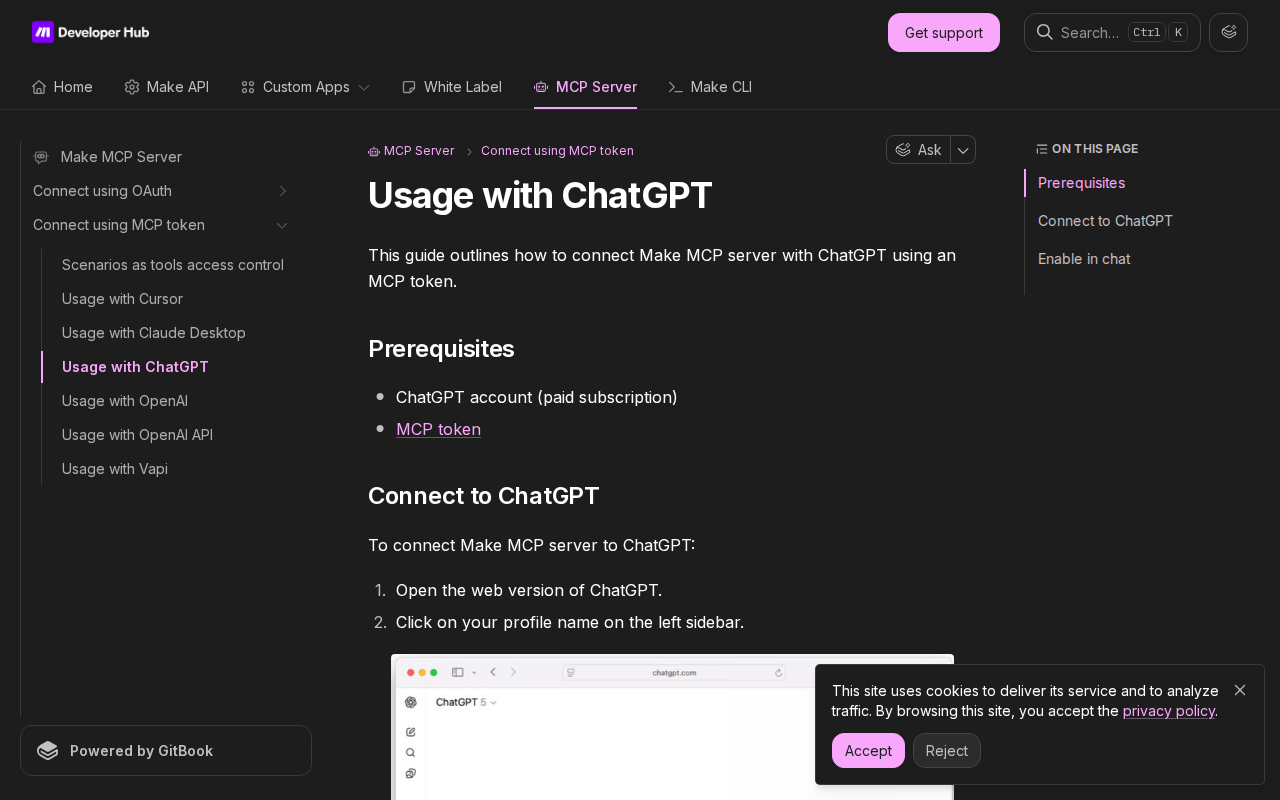
What the Make MCP Server Lets ChatGPT Do
When you connect Make's MCP server to ChatGPT, every active or on-demand scenario in your Make account becomes a tool ChatGPT can call directly. Here's what that enables:
- Run scenarios by voice or chat — Say "trigger the lead-routing scenario for this new HubSpot deal" in ChatGPT and it calls the scenario with the right parameters
- View and modify scenarios — ChatGPT can list your scenarios, check their status, inspect connections, and modify configuration (paid plans only)
- Manage teams and organizations — Create teams, manage members, and configure org-level settings from chat
- Access webhooks and data stores — Inspect and modify Make's persistent storage and webhook endpoints
The key insight: Make's MCP server makes bidirectional communication possible. It's not just ChatGPT calling Make — it's ChatGPT being able to manage your Make account as a whole.
Plan limitations: Scenario run tools (calling your workflows) are available to all plans. Management tools (viewing/modifying scenarios, teams, orgs) require a paid Make subscription.
How to Connect — Step by Step
The connection process takes about 5 minutes:
- Generate an MCP token in your Make profile (Profile → API → MCP tokens)
- Open ChatGPT Settings → Apps → Advanced settings → Enable Developer mode
- Click "Create app" and name your MCP server (e.g., "Make Scenarios")
- Paste the connection URL:
https://<YOUR_ZONE>/mcp/u/<MCP_TOKEN>/stateless- Replace
<YOUR_ZONE>with your region:eu1.make.com,eu2.make.com,us1.make.com, orus2.make.com - Replace
<MCP_TOKEN>with the token you generated
- Replace
- Select "No authentication" (the token is embedded in the URL)
- Enable it in chat — Click the + in the message bar, select "More," then pick your Make MCP server
The Three Transport Methods (and When to Use Each)
Make's MCP server supports three transport protocols:
| Transport | URL suffix | Best for |
|---|---|---|
| Stateless Streamable HTTP | /stateless |
Default — most reliable, recommended for ChatGPT |
| Streamable HTTP | /stream |
Clients that need persistent connections |
| Server-Sent Events (SSE) | /sse |
Legacy clients, real-time streaming needs |
The stateless mode (default) is what Make recommends for ChatGPT because it avoids connection timeouts and retry complexity. If you hit connection issues, try /stream instead — some ChatGPT clients handle it better.
Scenario Inputs and Outputs: The Secret to Reliable AI Calls
This is where most Make + ChatGPT integrations get either great or terrible. When ChatGPT calls a scenario through MCP, it needs to know:
- What inputs to provide — Define these in your scenario's Input/Output settings. For example, a "Create Support Ticket" scenario should declare inputs like
customer_email,issue_type,priority, anddescription. - What outputs to expect — Define what the scenario returns so ChatGPT knows how to parse the response. If your scenario returns
ticket_idandstatus, declare those.
Without explicit Input/Output declarations, ChatGPT has to guess — and it often guesses wrong. Take 5 minutes per scenario to define these clearly. It's the difference between "ChatGPT keeps calling the wrong scenario" and "ChatGPT just ran the right workflow without me touching anything."
Pro tip: Write a detailed scenario description (1-3 sentences about what it does, when to use it, and what it expects). Make's docs explicitly recommend this — the AI uses the description to decide which scenario to call.
Make Skills: The Official AI Training Files
Make publishes Make Skills — official Markdown files at skills.make.com that teach AI assistants how to use Make effectively. These cover:
- Building scenarios from natural language descriptions
- Configuring module parameters correctly
- Connecting to Make MCP server
- Integrating with third-party services
If you're using ChatGPT + Make frequently, installing these skills dramatically improves reliability. They're designed to be ingested by any AI assistant that supports Markdown skill files, not just Make's own tooling.
Method 2: Use ChatGPT Inside Make Scenarios (the Other Direction)
The MCP server lets ChatGPT control Make. But Make also has first-class OpenAI modules that work the other way: Make scenarios that call ChatGPT.
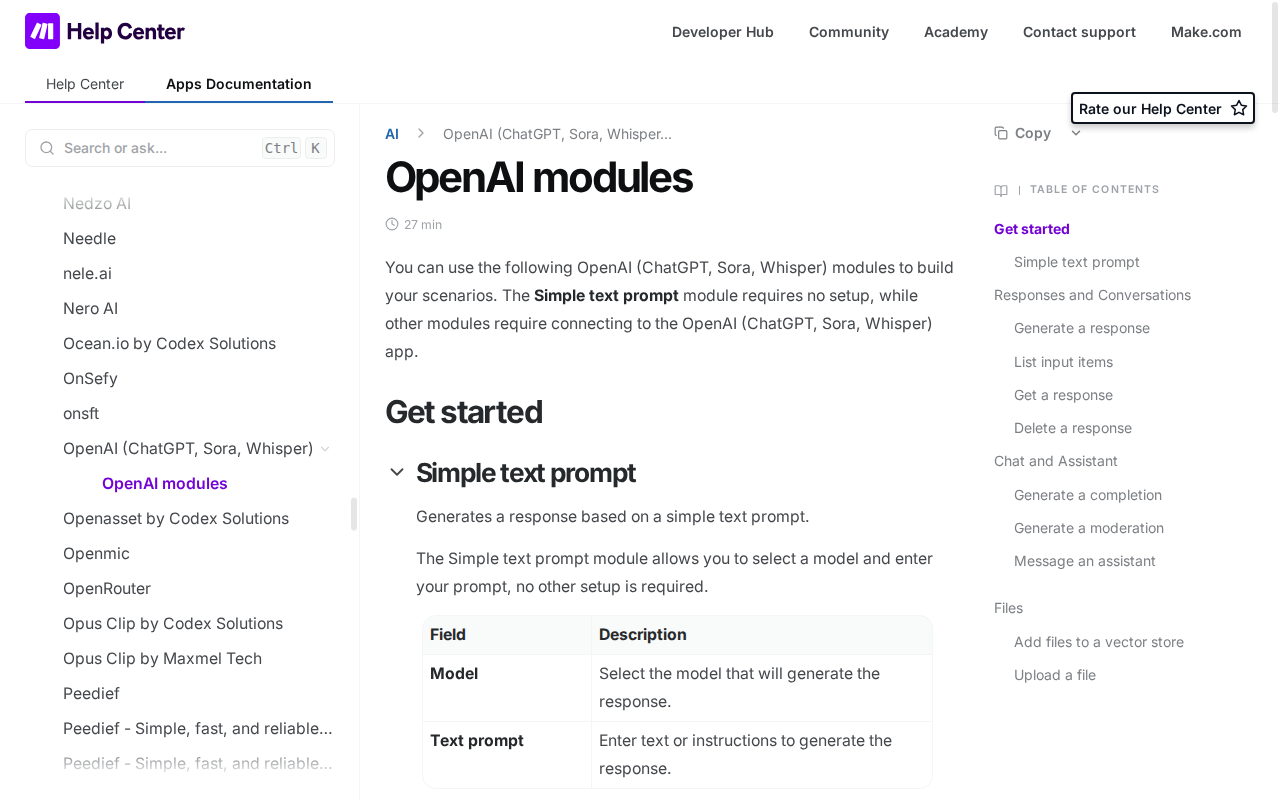
Available OpenAI Modules in Make
Make's OpenAI integration includes:
- Simple text prompt — No setup, no API key. Pick a model (GPT-5.5, GPT-5.4 nano, GPT-5.4 mini), enter a prompt, get a response. Uses Make credits based on token consumption.
- Create a Chat Completion — Full control over system prompts, message history, temperature, and max tokens. Requires an OpenAI connection (API key).
- Create an Image — Generate DALL-E images from scenario data
- Create a Transcription (Whisper) — Convert audio/video files to text
- Create a Moderation — Check content against OpenAI's moderation API
Credit Costs (No OpenAI API Key Needed for Simple Mode)
The Simple text prompt module runs on Make credits, not your OpenAI API bill:
| Model | Input tokens per credit | Output tokens per credit |
|---|---|---|
| GPT-5.5 | 181 | 30 |
| GPT-5.4 nano | 4,520 | 723 |
| GPT-5.4 mini | 1,205 | 193 |
For most workflow automation use cases (classification, summarization, drafting), GPT-5.4 mini is the sweet spot — cheap, fast, and more than capable for structured tasks. Use GPT-5.5 when the output needs to be nuanced or creative.
Four Ways to Connect Make to ChatGPT (Ranked by Usefulness)
1. Make MCP Server → ChatGPT (Best for AI-Control)
ChatGPT calls your Make scenarios as tools. Best for: "AI, run the weekly report scenario" or "summarize my active scenarios and tell me what's failing."
2. OpenAI Modules in Make Scenarios (Best for Automation)
Make scenarios call ChatGPT for classification, summarization, drafting, or image generation. Best for: "Every new ticket gets classified by ChatGPT before routing" or "Auto-draft weekly summaries from CRM data."
3. Make + Zapier/Zapier MCP (Best for Cross-Platform)
Use Make as your automation engine and Zapier's MCP server to bridge ChatGPT to tools Make doesn't support natively. Best for teams that use both platforms.
4. Custom API with OpenAI's API + Make Webhooks (Most Flexible)
Build your own middleware. Call Make's REST API from ChatGPT, or have ChatGPT call a webhook that triggers a Make scenario. Best for: scenarios with complex auth requirements or custom routing logic.
Real Make + ChatGPT Use Cases
1. Auto-Classify Incoming Leads and Route to the Right Scenario
Before: A new lead comes in via webhook. Someone manually looks at it, decides whether it's Enterprise or SMB, then routes it to different scenarios.
With Make MCP + ChatGPT: ChatGPT reads the lead data, classifies it (Enterprise, SMB, Partner, Junk), then calls the appropriate Make scenario with the right inputs. No human routing step.
The Make side: Three scenarios — route-enterprise-lead, route-smb-lead, route-partner-lead — each with clear Input/Output declarations. ChatGPT picks the right one based on classification.
2. "What's Broken?" — AI-Powered Scenario Health Checks
The problem: You have 40+ active Make scenarios. When something breaks, you find out when a customer complains, not when the error happened.
With ChatGPT + Make MCP: You ask ChatGPT: "Check all my active scenarios and tell me which ones failed in the last 24 hours." ChatGPT queries the MCP server, lists scenarios, checks execution history, and gives you a summary of failures with suggested fixes.
Prompt: "List my active Make scenarios. For each one, check the last 24 hours of execution history. Flag any that failed or paused. For each failure, summarize what went wrong in one sentence and suggest whether it looks like an auth issue, a data issue, or a config issue."
3. Weekly Report Auto-Draft from CRM + Support Data
With Make OpenAI modules: A scheduled scenario runs every Friday. It pulls this week's HubSpot deals, Zendesk ticket counts, and Stripe revenue, feeds it all into a "Create a Chat Completion" module with a structured prompt, and drops the draft into a Google Doc — ready for a human to review in 2 minutes instead of writing from scratch in 45.
The Make scenario chain:
- HubSpot module: Get deals closed this week
- Zendesk module: Get ticket volume and resolution times
- Stripe module: Get weekly revenue
- OpenAI module (Create a Chat Completion): "Write a 3-paragraph weekly ops summary from this data..."
- Google Docs module: Create the doc
4. Multi-Step Approval Flows with AI Decision Points
Example: A content approval pipeline. A writer submits a draft. ChatGPT (via Make's OpenAI module) does a first-pass review: checks for brand voice compliance, flags missing sections, and scores the draft 1-10. If the score is above 7, auto-route to the editor. If below 7, return to the writer with specific feedback — all without a human touching the triage step.
Common Pitfalls When Connecting Make to ChatGPT
1. The "Wrong Zone" Problem
Make has four API zones: eu1, eu2, us1, us2. If your MCP connection URL uses the wrong zone (e.g., eu2.make.com when your org is on us1.make.com), the connection fails silently. The error message usually says "invalid token" or "scenario not found" — not "wrong zone." Always double-check your zone in Make → Profile → API before configuring the URL.
2. Scenarios Without Input/Output Definitions Are Black Boxes
If your scenario doesn't declare inputs and outputs, ChatGPT has no idea what data to send or what to expect back. It will guess — and guess poorly. A "Send Invoice" scenario without declared inputs might get called with { customer: "Acme" } when it actually needs { customer_id: "CUST-1234", invoice_amount: 1500, due_date: "2026-08-01" }.
Fix: For every scenario you want ChatGPT to call, go to Scenario Settings → Input/Output and define explicit fields. This is genuinely the #1 thing that determines whether your Make + ChatGPT integration works reliably.
3. The Token Is in the URL (Security Implications)
When using MCP token authentication, your token lives in the connection URL: https://eu2.make.com/mcp/u/abc123.../stateless. Anyone who can see your ChatGPT app configuration can extract this token and access your Make account with whatever scopes you granted.
Mitigations:
- Use OAuth instead of MCP tokens when possible (available for enterprise plans)
- Scope your MCP token tightly: only grant access to the scenarios ChatGPT actually needs
- Use the
scenarios-as-tools-access-controlfeature to limit which scenarios are exposed through a given token - Rotate tokens periodically (every 30-90 days)
4. Credit Costs Scale With Usage (and It's Not Always Predictable)
Make's Simple text prompt module charges per token, and the credit conversion varies wildly by model. GPT-5.5 uses 1 credit per ~30 output tokens, while GPT-5.4 nano uses 1 credit per ~723 output tokens — a 24x difference. A scenario that processes 1,000 items/month with GPT-5.5 could cost 20x more than the same scenario with GPT-5.4 mini.
Rule of thumb: For classification, extraction, and formatting tasks, use GPT-5.4 mini or nano. Reserve GPT-5.5 for creative writing, complex reasoning, or customer-facing content where quality matters more than cost. Track your credit consumption per scenario — Make shows token usage in each module's output after every run.
5. Make's MCP Server Doesn't Support Real-Time Streaming from Scenarios
Make scenarios are asynchronous by nature. When ChatGPT calls a scenario through MCP, it gets back an execution ID — not the final result. The scenario might take 30 seconds or 3 minutes to complete, depending on what it does (API calls, data processing, waiting on webhooks). ChatGPT doesn't automatically poll for the result.
How to handle this: Build scenarios that return a meaningful completion status. Use Make's webhook response pattern: the scenario triggers, does its work, then POSTs the result back to a webhook endpoint you control (or to ChatGPT via a follow-up API call). For simple scenarios that complete in under 10 seconds, the default request-response loop is fine.
6. "ChatGPT, Find Me That Scenario" — AI Search Is Only as Good as Your Naming
If your scenarios are named things like "Scenario 37" or "backup-old-version-2-FINAL," ChatGPT won't know what they do. It relies on scenario names and descriptions to understand which tool to call.
Naming convention that works with AI:
- ❌
scn_0047_backup - ✅
Sync HubSpot Deals to Salesforce— descriptive, verb-noun, self-documenting
The scenario description field is searchable by the MCP server and read by the AI before it calls the tool. Write it like you're explaining the scenario to a new team member.
Which Path Should You Choose?
| Your Goal | Best Path | Why |
|---|---|---|
| "I want to talk to ChatGPT and have it run my automations" | Make MCP Server | Official, cloud-hosted, scenarios become AI tools |
| "I want Make to use ChatGPT for classification/drafting in my workflows" | OpenAI modules in Make | No-code, credit-based, no API key needed for simple mode |
| "I use both Make and Zapier and want full coverage" | Make MCP + Zapier MCP | Bridge ChatGPT to both platforms simultaneously |
| "I need custom behavior no module covers" | Custom API + Make Webhooks | Maximum flexibility, more maintenance |
| "I want the team using Make workflows from Slack with AI assistance" | Cody | Make assistant in Slack — scenario inspection, failure triage, approved triggers |
For most teams in 2026, start with the Make MCP server. It's free (for scenario execution), doesn't require writing any code, and turns your existing Make investment into an AI-callable platform. Add OpenAI modules when you need Make scenarios to use ChatGPT for processing, not just be controlled by it.
Related Make Pages on Cody
- Make AI Automation — AI-powered Make workflows for scenario monitoring, execution triage, and approved triggers from Slack
- Cody AI Assistant for Make — Cody's dedicated Make integration features
- Connect Make to OpenClaw — Complete DIY integration guide with API key, webhook setup, and multi-zone configuration
What "Make with ChatGPT" Usually Means
In practice, teams tend to use ChatGPT with Make in one of four ways:
- Summarising activity, records, conversations, or changes from Make
- Classifying items such as tickets, leads, tasks, issues, or opportunities
- Drafting replies, updates, reports, documentation, or next steps
- Reasoning over context to suggest priorities, actions, or likely issues
The key is to avoid treating ChatGPT like magic. It needs the relevant Make context in the prompt - and it works best when you tell it exactly what good output looks like.
Good Use Cases for Make + ChatGPT
1. Turn raw Make context into a useful summary
Paste or pipe in the relevant records, notes, messages, or metrics from Make, then ask ChatGPT to extract only what matters: key changes, risks, blockers, patterns, or action items.
2. Standardise messy workflows
If your team handles similar decisions repeatedly inside Make, ChatGPT can apply the same rubric every time: classify, explain briefly, and return a structured next step.
3. Draft faster without starting from zero
Use ChatGPT to produce first drafts grounded in the Make context - support replies, internal updates, status summaries, sales follow-ups, or operating notes.
4. Create reusable prompt-driven operating procedures
Once you find a prompt that works well for Make, save it as a repeatable workflow so the whole team gets more consistent output.
A Simple Setup Pattern
A practical way to use ChatGPT with Make looks like this:
- Pull the right context from Make
- Give ChatGPT one clear task
- Ask for a structured response
- Have a human review anything customer-facing or high-risk
That last point matters. ChatGPT is useful for acceleration, but for anything sensitive - customer communication, financial interpretation, account changes, or production actions - keep a human in the loop.
Copy-Paste Prompts for Make
Summary prompt
You are helping me work inside Make. Summarise the context below into 5 bullets: what changed, what matters, what is blocked, and what needs action next. If anything is unclear, say what is missing.
Classification prompt
Review this Make item and classify it into the best category. Return JSON with: category, confidence, rationale, and next_action. Keep rationale under 50 words.
Drafting prompt
Use the Make context below to draft a concise response. Keep it specific, avoid made-up details, and list any assumptions separately.
Executive brief prompt
Turn this Make activity into a short update for leadership: what happened, why it matters, current risks, and recommended next steps.
Where This Breaks Down
Most Make + ChatGPT workflows fail for predictable reasons:
- Too little real context is provided
- The prompt asks for too many things at once
- The output format is vague
- The team expects ChatGPT to know live Make data it has not actually been given
- No review step exists for important actions
The fix is usually simple: give better source context, narrow the task, and require a schema or fixed structure in the response.
If You Want This Embedded in the Workflow
You can absolutely use ChatGPT manually with exported Make context. That works well for one-off tasks and prototyping.
But if you want the workflow to feel operational - available to the team, connected to live systems, repeatable, and embedded where work already happens - you usually want something more integrated.
Want Make-Style Workflows Without Manual Prompt Copy-Paste?
Cody gives your team a Make AI assistant in Slack, so people can inspect scenarios, explain failures, watch automation risk, and trigger approved workflows without living inside scenario maps, execution history, and webhook setup screens all day.
Related ChatGPT Guides
Need a more automation-focused angle instead? See: Make AI Automation.
More Make + AI Resources
- Cody AI Assistant for Make — Cody's dedicated Make integration features
- Connect Make to OpenClaw — complete DIY integration guide