Dropbox is where many teams keep client deliverables, internal docs, creative assets, and signed files. Cody turns that file layer into a Dropbox AI assistant in Slack, so people can find the right file, check what changed, and generate the right share link without digging through folders.
How OpenClaw Integrations Work
OpenClaw is a self-hosted AI assistant that runs on your own server — typically an EC2 instance — and connects to Slack. It uses Claude under the hood to process requests. Out of the box, OpenClaw doesn't ship with pre-built connections to third-party tools. Instead, integrations are built using the skills system: markdown files in ~/.openclaw/skills/ that give Claude instructions for a particular domain, combined with HTTP tool calls to any API you expose to it.
In practice, adding a real integration means: getting API credentials from the third-party service, building or configuring a small proxy/endpoint that OpenClaw can call, and writing a skill file that tells Claude how to use it. For some tools this is an afternoon of work. For others — like Dropbox — it's considerably more involved.
Connecting OpenClaw with Dropbox: Step by Step
Step 1: Create a Dropbox App and Get an Access Token
Go to dropbox.com/developers/apps and create a new app. Choose the appropriate access type — 'Full Dropbox' if you need access to all files, or 'App folder' for a sandboxed approach. Generate an access token from the app's settings page. The Dropbox API v2 base URL is https://api.dropboxapi.com/2/.
Step 2: Use Search and List Endpoints
Key endpoints: /files/search_v2 (full-text search across filenames and content), /files/list_folder (list contents of a directory), /files/get_metadata (file info including last modified date and size), /sharing/create_shared_link_with_settings (generate a share link for a file).
Step 3: Build the Proxy and Skill File
Build your proxy around file search and metadata endpoints. Write ~/.openclaw/skills/dropbox.md with the folder structure your team uses most, and instructions for Claude on how to present results (file name, last modified, direct link vs share link).
Challenges and Caveats
Full-Text Search Requires Content Indexing
Dropbox's search API searches file names by default. Full-text content search (finding a file that contains specific text) only works for indexed content types and may not cover all file formats. Test your search queries with real data before relying on them.
Token Expiry for Long-Lived Integrations
Long-lived access tokens from Dropbox app settings don't expire, but OAuth tokens from the standard auth flow do. If you're using the OAuth flow (rather than a personal access token), implement token refresh handling in your proxy.
Dropbox + OpenClaw: What's Actually Available in 2026
If you want OpenClaw to find a file, extract its text, and post a share link into Slack, you have more options in 2026 than the usual "build an API proxy and a skill file" tutorial suggests. Dropbox has shipped two official MCP servers — a file-centric remote server and a Dash-based search server — plus the battle-tested v2 REST API. The real work is choosing the right path for your use case, because (as you'll see) the auth model trips up most people.
Here's the honest map before you start:
| Path | What it gives you | Auth | Best for |
|---|---|---|---|
Dropbox Remote MCP (mcp.dropbox.com/mcp) |
~23 file tools: list, search, read content, share links, file requests, revision history | Dropbox OAuth | Interactive agent, user present, file retrieval |
Dropbox Dash MCP (mcp.dropbox.com/dash + local mcp-server-dash) |
Read-only search across everything Dash indexes (incl. connected Google Workspace, Slack, GitHub) | Dropbox OAuth | Cross-source "find it anywhere" search |
| v2 REST API + skill file | Full API: large files, batches, webhooks, team admin, Paper | OAuth offline refresh token | Headless/background agents, bulk transfer |
Path A: Dropbox's Official Remote MCP Server — File-Centric
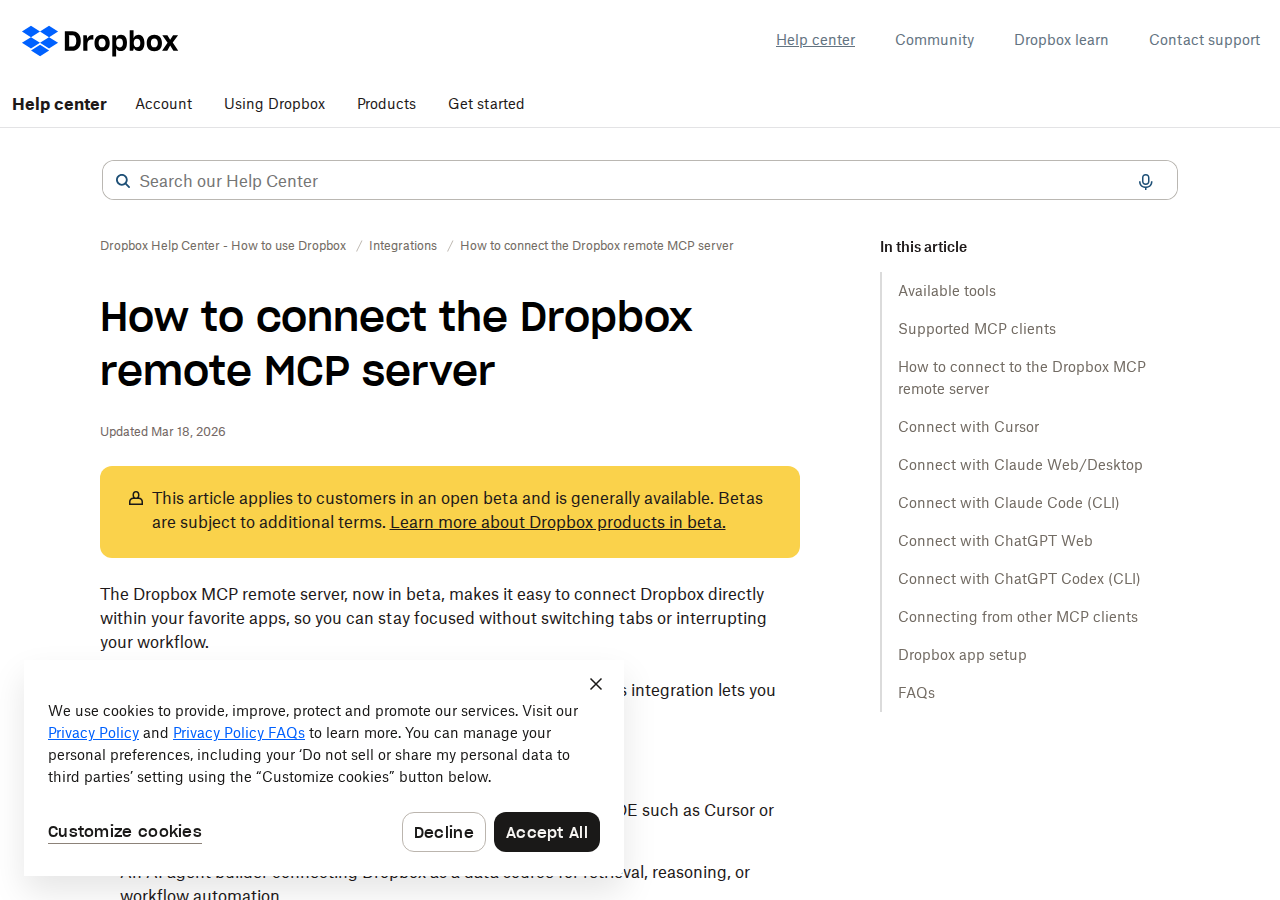
Dropbox's hosted remote MCP server (open beta since March 2026) lives at:
https://mcp.dropbox.com/mcp
It's a Streamable HTTP endpoint Dropbox hosts and maintains, exposing a genuinely rich file-management tool set:
- Browse & metadata —
ListFolder(100 items/call, cursor pagination),GetFileMetadata,GetUsageAndQuota - Search —
Searchby name or content, filter by folder/file type/last-updated - Read content —
GetFileContent(extract text from PDFs/Word, up to 5 MB),GetTranscript(transcribe audio/video to timestamped text),GetMarkdown(PDF/Word → Markdown with OCR, optional inline images) - Create & organize —
CreateFolder,CreateFile(inline UTF-8, up to 5 MB),Copy,Move,Delete,CheckJobStatus(background ops) - Sharing —
CreateSharedLink(invite up to 25 viewers by email),DownloadLink(temporary single-use),ListSharedLinks,GetSharedLinkMetadata - File requests —
CreateFileRequest,GetFileRequest,ListFileRequests - Versioning —
ListFileRevisions(up to 100),RestoreFileRevision,ListRestoreEvents,RestoreFolder - Identity —
WhoAmI(user, team, root/home namespace)
The critical nuance for OpenClaw: Dropbox's server supports Dynamic Client Registration (DCR) only for a trusted set of clients — Claude Code, Claude Web, ChatGPT Codex, ChatGPT Web, and Cursor. OpenClaw is not on that list. So you can't just point OpenClaw at mcp.dropbox.com/mcp and get the one-click OAuth flow — you have to register a Dropbox app manually (the "Connecting from other MCP clients" path) and supply your own API credentials:
{
  mcp: {
    servers: {
      dropbox: {
        url: "https://mcp.dropbox.com/mcp",
        transport: "streamable-http",
        auth: "oauth"
      }
    }
  }
}
Then create a Dropbox app at dropbox.com/developers/apps (Scoped access, Full Dropbox), enable the relevant permissions (files.metadata.read, files.content.read, files.content.write, sharing.write, sharing.read, account_info.read, file_requests.read, file_requests.write), add your OAuth redirect URI, and complete the consent flow. If you change an app's scopes later, you must reconnect.
Path B: Dropbox Dash MCP — Cross-Source Search
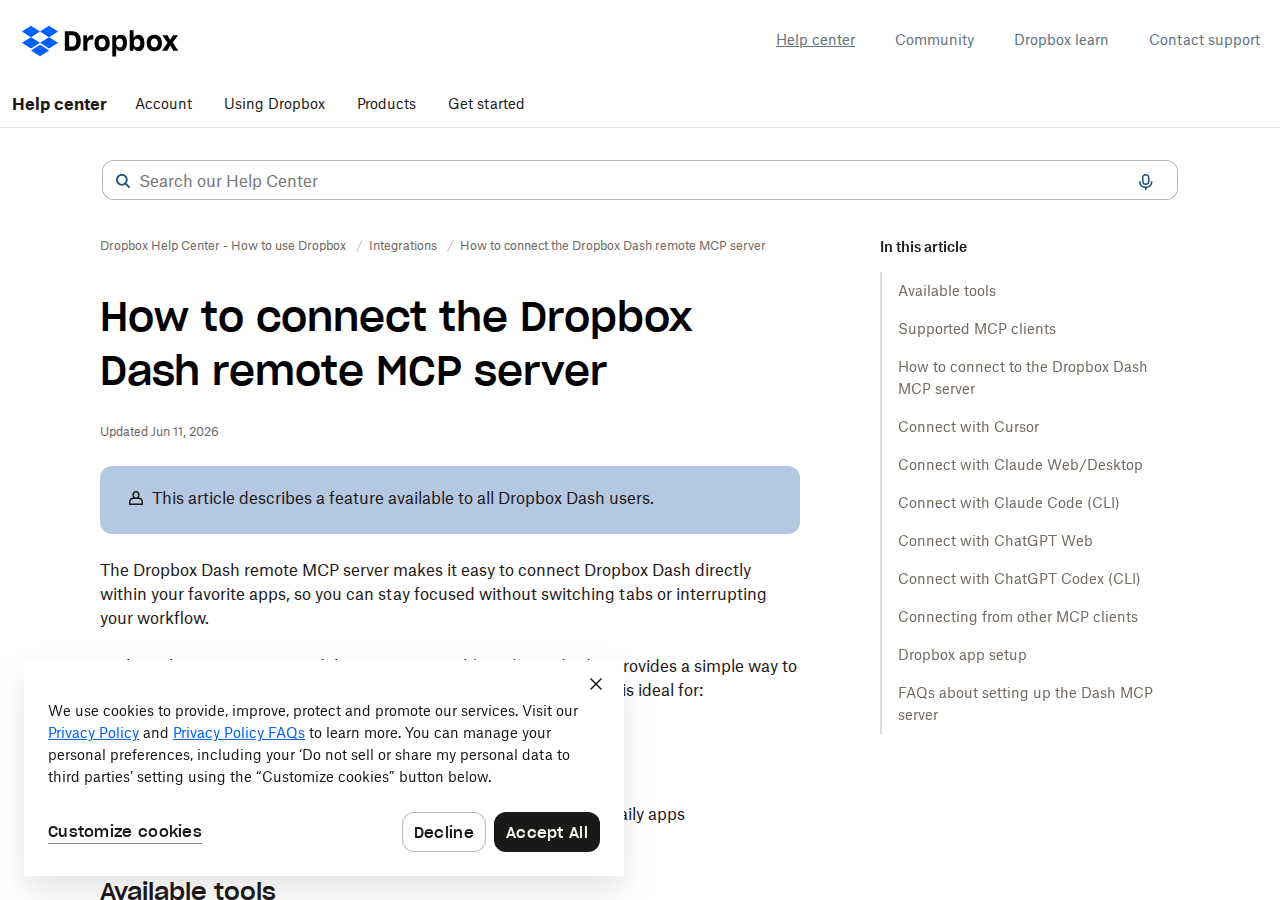
Dropbox's second official server is the Dash remote MCP server at https://mcp.dropbox.com/dash (also available as a local/stdio server from github.com/dropbox/mcp-server-dash). Dash is Dropbox's AI search layer, and its MCP tools are read-only queries across everything Dash indexes — not just your Dropbox files but any connected sources like Google Workspace, Slack, and GitHub:
- Search —
dash_searchwith filters for file type, source, and source labels - Read —
dash_read_document,dash_read_markdown_content(chunked, for large files),dash_read_visual_page(PDF pages/slides as images),dash_read_binary_content(raw bytes as base64) - Discovery —
dash_get_sources,dash_get_examples,dash_whoami,dash_resolve_urls(URL → entity UUID) - Connector actions —
dash_list_search_actions,dash_invoke_search_action(read-only native searches)
Similarly gated: DCR works for the same trusted client list, so OpenClaw again needs the manual-app path (scopes account_info.read, dash/content.read, dash/content.write). Pick Path B when your question is "where does this live across all our tools?" rather than "what's in this one folder?"
Path C: v2 API Proxy + Skill File (Headless, Large Files, Webhooks)
The MCP servers are interactive-consent OAuth only. There is no API key and no Client Credentials / M2M flow on any Dropbox path — every access token traces back to a real user's authorization, and the MCP server cannot hold or replay a refresh token for background use. That's the hard blocker for scheduled/headless agents.
For anything that runs without a user present — nightly file sweeps, bulk moves, webhook-driven reactions to file changes, or files over 5 MB — build a thin proxy around the v2 REST API (https://api.dropboxapi.com/2/) and pair it with a skill file:
- Use offline OAuth (short-lived access token + long-lived refresh token), store the refresh token, and mint fresh access tokens before each run.
- Expose focused endpoints to OpenClaw:
GET /dropbox/search?q=terms,GET /dropbox/file?path=...(content extraction),POST /dropbox/share(generate share link),POST /dropbox/list-revisions. - Write
~/.openclaw/skills/dropbox.mdwith your team's folder structure and how Claude should present results (file name, last modified, direct link vs share link).
This path also unlocks what MCP deliberately omits: upload sessions up to 350 GB, batch operations up to 1,000 entries, webhooks for change-driven pipelines, team administration and the audit log (Business API), and Paper content.
Real Use Cases: What an OpenClaw + Dropbox Agent Actually Does
Concrete workflows (with prompts) — not generic "automate your files" filler.
1. "Find the latest deliverable" in Slack
Prompt: "Search Dropbox for any file matching 'Q3 brand deck' modified in the last 30 days. Return the newest one as a name + last-modified + share link with edit access, posted to #marketing." OpenClaw runs Search, picks the newest by date, calls CreateSharedLink, and drops a ready-to-forward link in the channel.
2. Document Q&A without opening the file
A colleague asks in Slack: "What does section 3 of the MSA say about indemnification?" OpenClaw calls GetFileContent (or GetMarkdown with OCR for a scanned contract), extracts the text, and answers the question inline with a cite to the file — nobody leaves chat to open the PDF.
3. Weekly file-hygiene sweep (headless, Path C)
Prompt (scheduled): "Every Friday, list all files in /tmp/staging older than 90 days, move them to /archive/staging, and post a summary of what moved to #ops." Because this runs on a schedule with no user present, it goes through the v2 API proxy with a stored refresh token — the MCP interactive flow can't do this.
4. "Give me everything we received" file-request roundup
Prompt: "List all open file requests and for each, report how many files have been submitted and any that are past their deadline. Post a consolidated rundown to #client-delivery." Uses ListFileRequests + ListFolder on each request folder.
5. Cross-tool incident reconstruction
Prompt: "Find the config file we changed around the last incident, the Slack thread that reported it, and the doc that documents the rollout. Summarize the timeline." Path B (Dash MCP) searches across Dropbox + connected Slack/Google Workspace sources and returns one unified answer — the exact problem Dash is built to solve.
Dropbox-Specific Pitfalls (Know These Before You Build)
The traps specific to Dropbox + an AI agent — the things a generic "connect a file API" guide won't warn you about.
-
OpenClaw is not on Dropbox's DCR trusted-client list. Claude Code/Web, ChatGPT Codex/Web, and Cursor get one-click OAuth; everyone else (OpenClaw included) must manually register a Dropbox app and supply API credentials. Most "Dropbox MCP" guides assume the DCR flow — they won't work as written for you.
-
No API key, no M2M, no service account — headless is the hard part. Every Dropbox path authenticates as a specific user via OAuth. The MCP server is interactive-consent only and can't replay a refresh token, so scheduled/background agents have no way in. For those, you must use the v2 API's offline refresh-token pattern and store/mint tokens yourself. This is the single biggest architectural surprise.
-
CreateFile caps at 5 MB; the MCP surface has no large files or batches. Need to write a file bigger than 5 MB, move 100+ files, or stream an upload? The MCP tools won't do it — that's upload sessions (up to 350 GB) and batch endpoints (up to 1,000 entries) in the v2 API only. MCP is person-assistant territory, not pipeline territory.
-
Changing scopes forces a reconnect. If you later add a scope to your Dropbox app (say,
sharing.writefor share-link creation), you must reconnect the MCP server and re-authorize — an easy thing to forget when your agent suddenly can't create share links it used to. -
Deletes in MCP go to Deleted files, not gone forever. The Delete tool moves items to the trash; permanent deletion and recovery depend on your plan's recovery window. An agent "deleting" a file may leave recoverable copies your compliance team didn't expect.
-
MCP tool schemas are unversioned and change without notice. Dropbox updates its hosted server and the tool shapes shift; the versioned v2 API is the stable contract for deterministic production pipelines. If an unexpected schema change is an incident for you, pin to the API, not the MCP server.
Also read
- Connecting OpenClaw with Google Workspace — the closest sibling; same dilemma of official servers vs proxy for Docs/Drive content
- Connecting OpenClaw with Notion — how a knowledge-base tool compares to a file layer for agent retrieval
- Cody AI Assistant for Dropbox — Cody's out-of-the-box Dropbox assistant in Slack, no MCP wiring required
Skip All of This — Use Cody Instead
Cody gives your team a Dropbox AI assistant in Slack, so people can search folders, find the latest deliverables, generate share links, and summarise file changes without wrangling Dropbox apps, tokens, or custom proxy glue.
Related Guides
- Connecting OpenClaw with Google Workspace: A Practical Guide
- Connecting OpenClaw with Notion: A Practical Guide
- Connecting OpenClaw with Airtable: A Practical Guide
Need the model-flexible version? See: How to Connect Dropbox to OpenClaw: Setup, Models, and Workflow Guide.