If you're searching for "how to connect Notion to OpenClaw", the real question is usually not just whether the connection is possible. It's how to make Notion usable inside an OpenClaw workflow with the right model, the right context, and the right level of control.
That's the practical framing.
OpenClaw gives you the orchestration layer: connectors, skills, tools, prompts, approvals, and the ability to run workflows where your team already works. Notion provides the domain context. The integration becomes valuable when those two pieces are connected cleanly.
Notion + OpenClaw: What You're Actually Building
When people search for "how to connect Notion to OpenClaw," the goal is rarely "make an API call work." The real goal is: turn your Notion workspace into a queryable knowledge base that your AI agent can read, write, and reason over — from Slack, Telegram, or any chat surface.
Notion holds your meeting notes, project trackers, specs, wikis, and decisions. The problem is getting that knowledge out when you need it. You either search through nested pages manually or hope you remember which database holds the answer. OpenClaw fixes this by letting your team query Notion through natural language, right where the conversation is already happening.
There are three distinct integration paths, and the one you pick changes everything about the setup:
| Path | Complexity | Best For |
|---|---|---|
| Notion's Official MCP Server (remote, hosted) | Low | Most teams — zero infrastructure, OAuth login |
| Open-Source MCP Server (self-hosted) | Medium | Teams that need local control or rate-limit tuning |
| Direct REST API + OpenClaw Skill File | High | Maximum control, custom query logic |
Path A: Notion's Official Hosted MCP Server (Recommended)
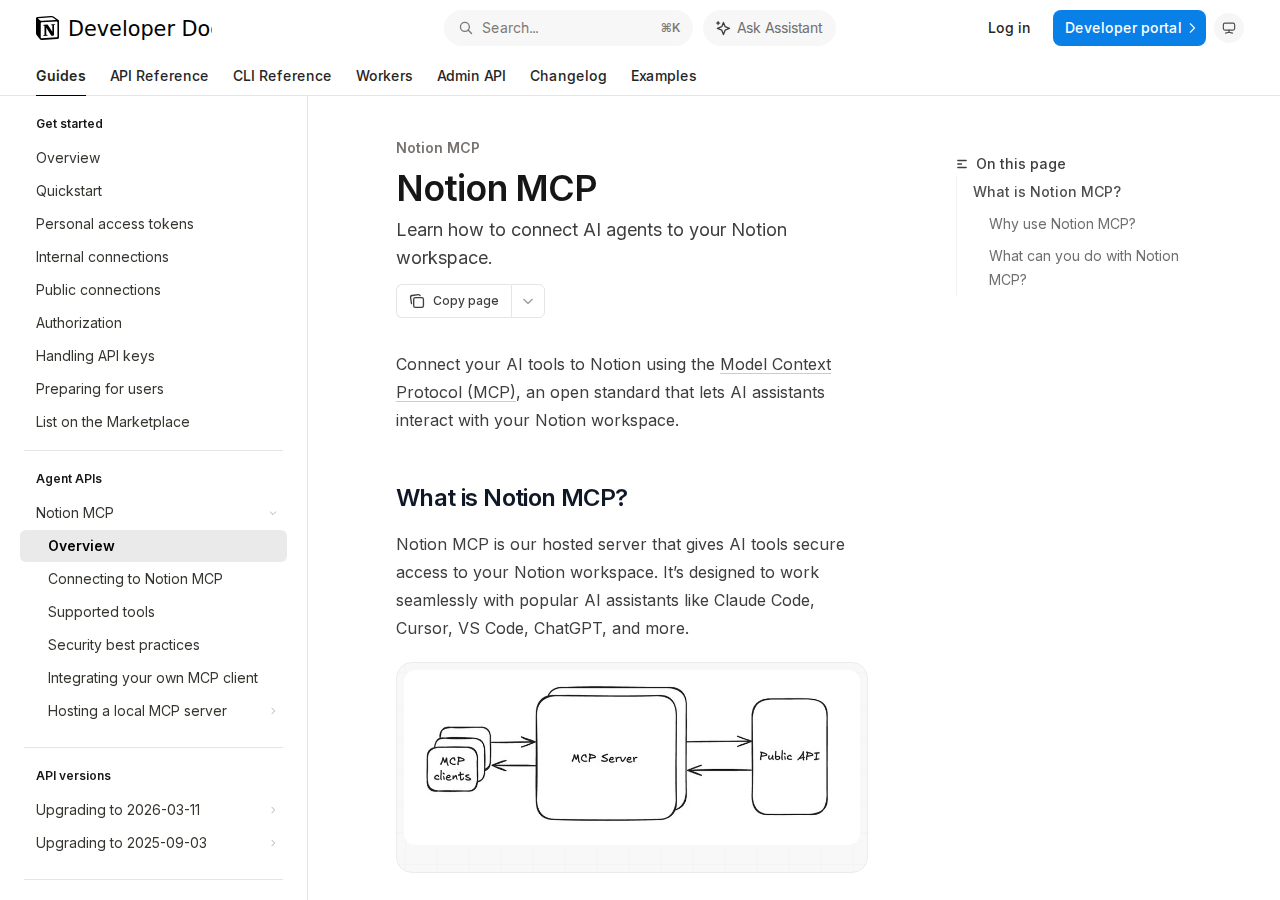
Notion launched their hosted MCP server in mid-2025, and it's the cleanest bridge between your Notion workspace and an OpenClaw agent. It's a remote MCP server that handles authentication via OAuth — no API tokens to copy, no Docker images to run, no infrastructure to maintain.
The server exposes Notion's capabilities as AI-invokable tools: page creation, database queries, block-level content retrieval, search, and property updates. Under the hood, Notion runs a code-generation pipeline that converts their OpenAPI schemas into MCP tool definitions, with extra formatting logic to keep responses compact and token-efficient.
To use it with OpenClaw:
{
  mcp: {
    servers: {
      notion: {
        url: "https://mcp.notion.com/mcp",
        transport: "streamable-http",
        auth: "oauth"
      }
    }
  }
}
Run openclaw mcp login notion to complete OAuth, then verify the connection with openclaw mcp doctor notion --probe. Once connected, your agent can access content allowed by the authenticated Notion user's permissions.
⚠️ Important: Notion's hosted MCP server is a remote service — your workspace content passes through Notion's MCP infrastructure. If you're in a regulated industry or have data residency requirements, Path B (self-hosted MCP) or Path C (direct API) may be more appropriate.
Path B: Open-Source MCP Server (Self-Hosted)
Notion's open-source notion-mcp-server (GitHub: makenotion/notion-mcp-server) can run locally alongside your OpenClaw Gateway. It uses Notion's internal integration tokens rather than OAuth, so you control the auth lifecycle completely.
Setup in OpenClaw config:
{
  mcp: {
    servers: {
    notion: {
      command: "npx",
      args: ["-y", "@makenotion/notion-mcp-server"],
      env: {
        NOTION_API_KEY: "${NOTION_API_KEY}"
      }
    }
    }
  }
}
There's also a highly capable community alternative — @suekou/mcp-notion-server — which targets the Notion API 2026-03-11 version and exposes richer tools: notion_find (search and target discovery), notion_read_page (compact reading with stable block IDs), notion_inspect_data_source (schema inspection for databases), and notion_query_data_source_by_values (type-safe database queries). If you need database filtering, this is the better option over the official open-source server.
⚠️ Both self-hosted MCP servers still require internal integration tokens. This means:
- You create a Notion integration at notion.so/my-integrations
- Grant it capabilities: Read content, Insert content, Update content
- Copy the
ntn_...secret into your env - Manually share every page/database with the integration from Notion's UI
That last step is the one most people miss and spend an hour debugging.
Path C: Direct REST API + OpenClaw Skill File
If you need maximum control — custom query logic, selective field projection, or the ability to enforce workspace-specific access rules — you can skip MCP entirely and write an OpenClaw skill that calls Notion's REST API directly.
The Notion API (version 2026-03-11) exposes:
| Endpoint | What It Does |
|---|---|
POST /v1/search |
Search pages and databases by title |
GET /v1/pages/{page_id} |
Retrieve page content and properties |
GET /v1/blocks/{block_id}/children |
Get a page's child blocks |
POST /v1/pages |
Create a new page in a database or parent |
PATCH /v1/pages/{page_id} |
Update page properties |
POST /v1/databases/{database_id}/query |
Query a database with filters and sorts |
PATCH /v1/blocks/{block_id} |
Update block content |
The skill file lives at ~/.openclaw/skills/notion.md and defines how the agent maps natural-language requests to API calls. A minimal version:
# Notion Skill

## Authentication
- Header: Authorization: Bearer ${NOTION_API_TOKEN}
- Version header: Notion-Version: 2026-03-11

## Key Databases
- Sprint Tracker: {database_id_here}
- Meeting Notes: {database_id_here}
- Engineering Wiki: {database_id_here}

## Common Queries
- "What's in sprint?" → POST /databases/{sprint_db}/query with status != Done
- "Search for [topic]" → POST /search with query and filter by object: page
- "Create meeting note" → POST /pages with parent: {meeting_notes_db}
The OpenClaw agent reads the skill file for context, then constructs the appropriate HTTP request. You can add approval gates for write operations so the agent never modifies Notion without human signoff.
Real Use Cases (Not Generic)
Here's what teams actually build once Notion is connected to OpenClaw — not "ask questions about your docs," but concrete workflows:
1. Standup Preparation from Slack
Your team's daily standup notes live in a Notion database with properties for date, author, blockers, and accomplishments. Each morning, someone types in Slack: /standup-prep. The agent queries yesterday's Notion entries, identifies open blockers, cross-references them with Jira tickets (via the Jira integration), and posts a structured summary in the standup channel. No digging through Notion tables at 9 AM.
2. Meeting Notes → Action Items → Tickets
After a meeting, your notes go into Notion's Meeting Notes database. The agent reads the page body, extracts action items (people, deadline, description), creates Jira or Linear tickets for each one, and updates the Notion page with ticket links in a "Next Steps" callout block. The round-trip is automated: notes → tickets → links back in Notion.
3. Knowledge Base Q&A During Incidents
During an outage, someone in #incidents asks: "What's the resolution for the last time auth-service went down?" The agent searches Notion for the postmortem page, extracts the root cause and fix steps, cross-references with the current incident's monitoring data, and posts the relevant section directly in the thread. It's faster than reading a 12-page doc under pressure.
4. Onboarding Document Generation
When a new hire joins, HR drops a message: "Onboard Taylor — eng, start date July 28." The agent reads the Engineering Onboarding template from Notion, fills in Taylor's details, creates a personalized onboarding page, assigns the "Buddy" property to Taylor's manager, and posts the page link in #eng-onboarding. The onboarding checklist is 47 items long — nobody should be typing this manually.
5. Weekly Status Rollup
Friday at 4 PM, the agent queries every team member's status page in the Weekly Updates database, merges them into a single summary (grouped by project), and posts it to #general. It also updates the "Last Synced" property on each page so you can see who hasn't submitted yet.
Notion-Specific Pitfalls (Learned from Real Deployments)
1. "Not Found" Means "Not Shared"
Notion's API returns HTTP 404 when your integration token doesn't have access to a page — even if the page exists and you can see it in the UI. There's no "403 Forbidden" or "permission denied." Every setup guide mentions this, and every engineer still burns 45 minutes debugging it. Fix: after creating the integration, immediately share your most-used database with it and verify with GET /v1/databases/{id} before writing any skill logic.
2. Rich Blocks Don't Translate Well to Plain Text
Notion's API returns blocks as structured JSON: tables, toggles, synced blocks, embeds, file blocks, callouts. Your agent receives a deeply nested JSON tree, not clean text. If you're using the direct REST API (Path C), your skill file needs block-type handling — or you can lean on the MCP servers (Paths A or B), which already handle block flattening.
3. Rate Limits Are Per-Integration, Not Per-User
Notion enforces a 3 requests/second cap per integration token. If you have multiple OpenClaw Gateway replicas sharing one integration token, they share that rate limit. During peak usage (e.g., Monday morning standups across 3 time zones), you'll hit it. Fix: use separate integration tokens per Gateway instance, or batch queries by implementing a small cache layer in your skill file.
4. Database Queries Return Paginated Results
POST /databases/{id}/query returns a maximum of 100 items per page. If your Sprint Tracker has 300 tasks, your agent needs to paginate through 3 pages. The default behavior on many setups is to only read the first page — leading to "missing" items in search results. Make sure your skill file includes pagination logic with start_cursor.
5. Synced Blocks and Database References Break Context
Notion supports synced blocks (mirrored content across pages), linked databases, and relation properties between databases. When your agent reads a page that contains synced blocks, the API may return a synced_block reference rather than the actual content. Similarly, relation properties return UUIDs, not display names. Your agent needs to resolve these references explicitly, or it'll produce partial or broken responses.
6. The "Workspace-Wide Access" Myth
Unlike Google Drive, Notion has no "grant this integration access to everything" toggle. Every database, every page, every sub-page must be explicitly shared with the integration. When new databases are created (new projects, new sprints), someone has to remember to share them. This isn't a setup issue — it's an ongoing maintenance task. Mitigation: document the share step in your team's onboarding, or use the hosted MCP server (Path A) which handles this via OAuth scopes.
Decision Matrix: Which Path Should You Take?
| Scenario | Best Path | Why |
|---|---|---|
| Small team, want Notion AI in Slack today | Path A — Hosted MCP | OAuth, no tokens, works in minutes |
| Solo developer running OpenClaw on EC2 | Path B — Self-Hosted MCP | Local control, @suekou/mcp-notion-server for rich tools |
| Regulated industry, data can't leave infra | Path B or C | Self-hosted MCP or direct API — data stays on your machines |
| Multiple OpenClaw replicas, high throughput | Path C — Direct API | Separate tokens per Gateway, cache layer, manual pagination |
| Non-technical team, zero tolerance for setup | Cody | Connect Notion to Cody in a few clicks — no tokens, no MCP config |
Don't want to build the Notion pipeline yourself? Cody connects Notion to Slack for you → — the same OpenClaw agent, zero infrastructure.
Related Pages
- Cody AI Assistant for Notion — Cody's dedicated Notion integration features
- How to Connect Notion to ChatGPT — using Notion inside ChatGPT workflows
- Notion AI Automation — AI automation workflows for Notion teams
- How to Connect Confluence to OpenClaw — the enterprise wiki alternative
What “Connect Notion to OpenClaw” Actually Means
In practice, connecting Notion to OpenClaw usually involves four layers:
- Authentication so OpenClaw can securely access Notion
- Tooling or proxy endpoints that expose the right Notion actions and data
- Skills/instructions that tell OpenClaw how to reason over Notion context
- Model selection so the assistant uses the right LLM for the job
That last piece matters more than most people expect.
Which Models Can You Use?
OpenClaw is model-flexible, so a Notion integration does not need to be tied to a single provider. Depending on your setup, teams commonly want to use:
- OpenAI models for broad reasoning, structured extraction, and tool use
- Anthropic models for writing, analysis, and long-context work
- Google models for multimodal and large-context workflows
- Other model backends if your OpenClaw environment exposes them
Model names and availability change frequently, so check your OpenClaw model catalogue rather than copying a version from a guide. The practical point is that you can connect Notion once, then choose a supported model for each workflow.
For example:
- Use Claude for nuanced summarisation or drafting
- Use OpenAI for structured extraction, tool-heavy workflows, or general-purpose copiloting
- Use Gemini when multimodal or very large context windows matter
A Good Integration Pattern for Notion
A strong Notion + OpenClaw setup usually looks like this:
- OpenClaw receives a request in chat or from an automation
- It calls the right Notion endpoint or proxy
- The selected model reasons over the returned context
- OpenClaw returns an answer, draft, classification, or action
- High-risk actions stay behind approvals or structured guardrails
That is what makes the setup operational rather than just experimental.
Step-by-Step: Connect Notion to OpenClaw
Step 1: Create a Notion Internal Integration
Go to notion.so/my-integrations and create a new integration. Give it a name, associate it with your workspace, and choose the capabilities it needs (read content at minimum). You'll get an Internal Integration Token — this is your API key.
Step 2: Share Pages With the Integration
Unlike some APIs, Notion requires you to explicitly share each page or database with your integration. Go to any page, click the ... menu → Connections → and add your integration. The integration can only access pages and databases it's been explicitly connected to.
Step 3: Build the Proxy and Skill File
The Notion API has endpoints for searching (/search), reading pages (/pages/{id}), and querying databases (/databases/{id}/query). Build a proxy around the queries your team will use most, and write ~/.openclaw/skills/notion.md listing the key databases and pages by name and ID.
Model-Specific Workflow Ideas
Notion + OpenAI
Use this when you want a strong general-purpose setup for extraction, classification, action planning, and tool-driven workflows around Notion.
Notion + Claude
Use this when you want better writing quality, clearer summaries, stronger nuance, and reliable long-context reasoning over Notion data.
Notion + Gemini
Use this when the workflow benefits from large context windows, multimodal inputs, or Google-native ecosystem alignment.
Common Mistakes
Most teams do not fail because the model is bad. They fail because:
- the Notion connection is too thin
- the model lacks the right live context
- prompts are vague
- no structured outputs are enforced
- permissions and approvals are skipped
- one model is forced to do every job, even when another would be a better fit
The best setup is usually one integration layer, multiple model options, and clear guardrails.
Challenges and Caveats
Full-Text Search Is Limited
Notion's API search endpoint (/search) searches page titles and top-level block content, but doesn't do full-text search within page bodies in all cases. If you're expecting your bot to find content buried deep in a long doc, it may not surface it reliably.
You Have to Share Every Page Manually
There's no way to grant the integration access to your entire workspace at once. Every database or page needs to be explicitly shared. For teams with large, complex Notion setups, this becomes a maintenance task as new content is created.
Rich Block Types Don't Translate Well
Notion's API returns blocks as structured JSON — tables, toggles, callouts, etc. Your proxy or skill needs to handle the translation of complex block types into readable text for Claude. Simple paragraphs are fine; embedded databases, synced blocks, and complex layouts need extra handling.
Want Notion Connected to OpenClaw Without Building the Whole Stack Yourself?
Cody gives your team a Notion AI assistant in Slack, so people can search docs, summarise meeting notes, review database context, and turn workspace knowledge into clear answers and updates without hunting through Notion.
Related OpenClaw Guides
- How to Connect Confluence to OpenClaw
- How to Connect Jira to OpenClaw
- How to Connect Google Workspace to OpenClaw
Looking for a more workflow-first angle? See: Notion AI Automation and Notion AI Assistant.
More Notion Resources
- Cody AI Assistant for Notion — Cody's dedicated Notion integration features and benefits