If you're searching for "Jira MCP", you're asking one of two things: does Jira have an MCP server? or how do I connect Jira to an AI assistant via the Model Context Protocol?
✅ Jira has an official MCP server. Details in the setup section below.
What Is MCP?
Model Context Protocol (MCP) is an open standard developed by Anthropic that lets AI assistants — like Claude — connect to external tools, APIs, and data sources in a standardised way.
Before MCP, every AI integration required bespoke tooling: custom prompts, custom API wrappers, and custom glue code to pass context back and forth. MCP replaces that with a common interface: the AI asks the MCP server for data or actions, the server returns structured results, and the AI uses them to answer your question or complete a task.
In plain terms: MCP is how you give an AI assistant live access to Jira — not just knowledge about it, but real, up-to-date data from your account.
What a Jira MCP Integration Does
Once Jira is connected via MCP, your AI assistant can:
- Read live data — pull records, metrics, activity, and status directly from Jira
- Take actions — create, update, or log records based on your instructions
- Cross-reference context — combine Jira data with other connected tools mid-conversation
The key difference from a standard chatbot: the assistant is not working from training data or memory. It is reading your actual Jira instance, in real time.
Practical Jira MCP Use Cases
Query issues and PRs without leaving chat
Ask the assistant to list open issues by label, summarise a PR, or find tickets assigned to a specific person — it queries Jira directly and returns the result.
Write tickets from conversation
Turn a Slack message or call note into a properly structured ticket in Jira: title, description, acceptance criteria, and priority — without touching the UI.
On-call context lookup
During an incident, have the assistant pull recent deployments, open issues, and related PRs from Jira to help narrow down root cause faster.
Release note generation
At the end of a sprint, ask the assistant to fetch merged PRs from Jira and produce user-facing release notes grouped by theme.
Jira MCP: Real Configuration & Setup
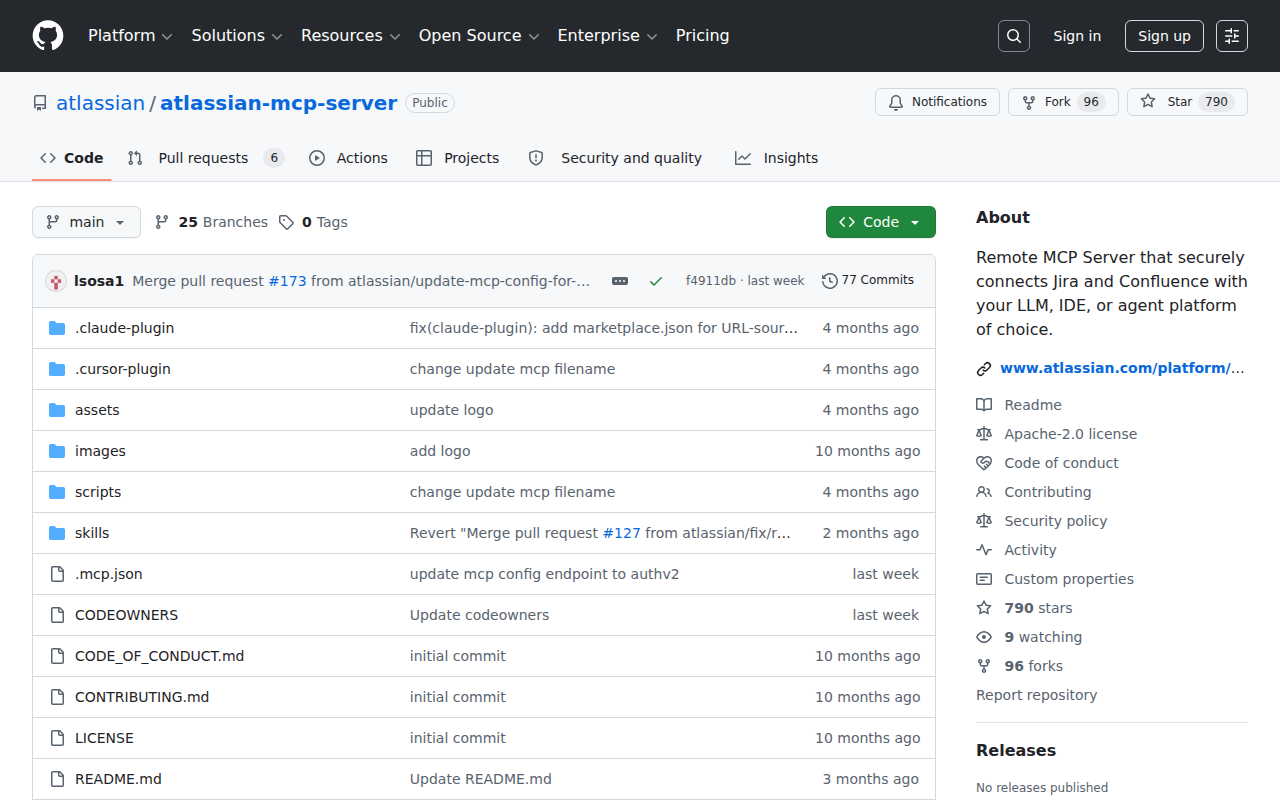
Unlike a generic tool connection, Jira has a mature, officially supported MCP server from Atlassian. Here's exactly what you need to get it running.
1. Create a Jira API Token
First, generate an API token for authentication:
- Go to id.atlassian.com/manage-profile/security/api-tokens
- Click Create API token
- Give it a label (e.g. "Claude MCP")
- Copy the token immediately — Atlassian won't show it again
Important: Your Atlassian organization admin must enable API token authentication for the Rovo MCP server in admin settings. If disabled, you'll need to use OAuth 2.1 instead.
2. Configure Claude Desktop
Edit your Claude config file:
- macOS:
~/Library/Application Support/Claude/claude_desktop_config.json - Windows:
%APPDATA%\Claude\claude_desktop_config.json - Linux / Claude Code:
~/.config/claude/mcp.json
Option A: Official Atlassian Rovo MCP (recommended)
First, base64-encode your credentials:
echo -n "your-email@company.com:your-api-token-here" | base64
Then add to your config:
{
  "mcpServers": {
    "atlassian-rovo-mcp": {
      "url": "https://mcp.atlassian.com/v1/mcp",
      "headers": {
        "Authorization": "Basic YOUR_BASE64_ENCODED_CREDENTIALS"
      }
    }
  }
}
⚠️ Deprecation warning: The old
/v1/sseendpoint will stop working after June 30, 2026. If you have an existing setup using/sse, migrate to/v1/mcpbefore then.
The official server covers Jira, Confluence, and Compass in one connection. That means your AI assistant can cross-reference a Jira ticket with its Confluence spec page — without switching tools.
Option B: Community mcp-atlassian (supports Server/Data Center)
If you're on Jira Server or Data Center (self-hosted), the official Rovo MCP only supports Cloud. The community mcp-atlassian package covers both:
{
  "mcpServers": {
    "mcp-atlassian": {
      "command": "uvx",
      "args": ["mcp-atlassian"],
      "env": {
        "JIRA_URL": "https://your-company.atlassian.net",
        "JIRA_USERNAME": "your.email@company.com",
        "JIRA_API_TOKEN": "your_api_token"
      }
    }
  }
}
For Server/Data Center, use JIRA_PERSONAL_TOKEN instead of username + API token. This community server exposes 72 tools across Jira and Confluence, including issue search, creation, updates, transitions, comments, and Confluence page management.
3. Real Workflow: From Slack Message to Jira Ticket
Here's a concrete example that makes the MCP connection feel useful, not abstract.
Scenario: Someone reports a bug in your team's Slack channel.
Without MCP: You read the message, switch to Jira, find the right project, create an issue, copy the details from Slack, assign it, set the priority, then switch back.
With MCP (via Cody or Claude):
You: "Create a bug in the ENG project: 'Login page returns 500 error after SSO redirect'. Priority: High. Assign to me. Add the Slack thread link in the description."

AI: "Created [ENG-4521](https://yourcompany.atlassian.net/browse/ENG-4521) — High priority, assigned to you. I've included the Slack thread for context."
This takes seconds instead of minutes, and the ticket is properly structured with priority, assignee, and context — no copy-paste drift.
4. JQL: The Double-Edged Sword
Jira's Query Language (JQL) is powerful but finicky. AI assistants can generate it, but they sometimes get syntax wrong — especially with complex AND/OR chains and function calls like currentSprint().
Tip: If you're configuring Claude Desktop, create a skill file at ~/.openclaw/skills/jira.md that includes your project keys and common queries. This gives the AI a reference to validate JQL against before executing.
5. Jira Cloud vs Server/Data Center
The connection path differs:
| Deployment | Official MCP | Community mcp-atlassian | Auth |
|---|---|---|---|
| Jira Cloud | ✅ Full support | ✅ Supported | API token or OAuth 2.1 |
| Jira Server / Data Center (8.14+) | ❌ Not supported | ✅ Supported | Personal Access Token |
If you're on self-hosted Jira, the community mcp-atlassian package is your best (and currently only) option.
How to Connect Jira via MCP
There are two main paths:
Option A: Use Jira's official MCP server
Jira maintains an official Jira MCP server. This is the recommended starting point — it's built and maintained by the Jira team, so it stays up to date with API changes.
Note: Shared server with Confluence — covers both Jira and Confluence Cloud via Atlassian's official Remote MCP Server.
What the server exposes:
- issues
- projects
- sprints
- boards
- search
- comments
What you'll need:
- An MCP-compatible client (Claude Desktop, OpenClaw, or another host)
- Jira credentials configured per the server's setup guide
This path gives you the most control but requires you to handle client configuration and credential management yourself.
Option B: Use Cody (OpenClaw-based, managed)
Cody is built on OpenClaw and supports MCP-compatible integrations out of the box. You connect Jira once from the Cody dashboard — no server to run, no code to write — and Cody handles authentication, context passing, and write-back actions with appropriate guardrails.
Cody works where your team already operates: Slack, Telegram, or the web chat. The Jira connection is available to your entire team without each person setting up their own MCP client.
Want Jira Connected to AI Without Running Your Own MCP Server?
Cody gives your team a Jira assistant in Slack, so people can check tickets, sprint blockers, board changes, and issue context without opening Jira.
MCP vs Other AI Integration Patterns
| Approach | What it is | Tradeoff |
|---|---|---|
| MCP | Standardised protocol for live tool access | Requires an MCP server; most powerful when set up correctly |
| RAG (retrieval) | Pre-index Jira content and retrieve it | Good for static docs; not suitable for live/transactional data |
| Manual copy-paste | Paste Jira output into ChatGPT/Claude | Fast to start; breaks for anything recurring or at scale |
| Custom API wrappers | Bespoke integration code per tool | Full control; high maintenance overhead |
MCP wins when you need live data from Jira and want to avoid rebuilding integrations as APIs change.
Common Mistakes
- Using training data when live data is needed — if the AI doesn't have an MCP connection, it will answer from memory, which is often outdated or wrong for account-specific questions
- No write-back guardrails — MCP can write to Jira, so it's worth adding an approval step for any action that modifies records
- Too many tools exposed at once — give the AI access to the Jira actions it actually needs; a scoped connection is easier to reason about and audit
- Skipping structured outputs — ask the AI to return structured JSON or clear fields when writing back to Jira; free-form output is harder to validate
Related MCP Guides
Want the full workflow picture? See: Jira AI Automation and How to Connect Jira to OpenClaw.